For marketers
Campaign performance
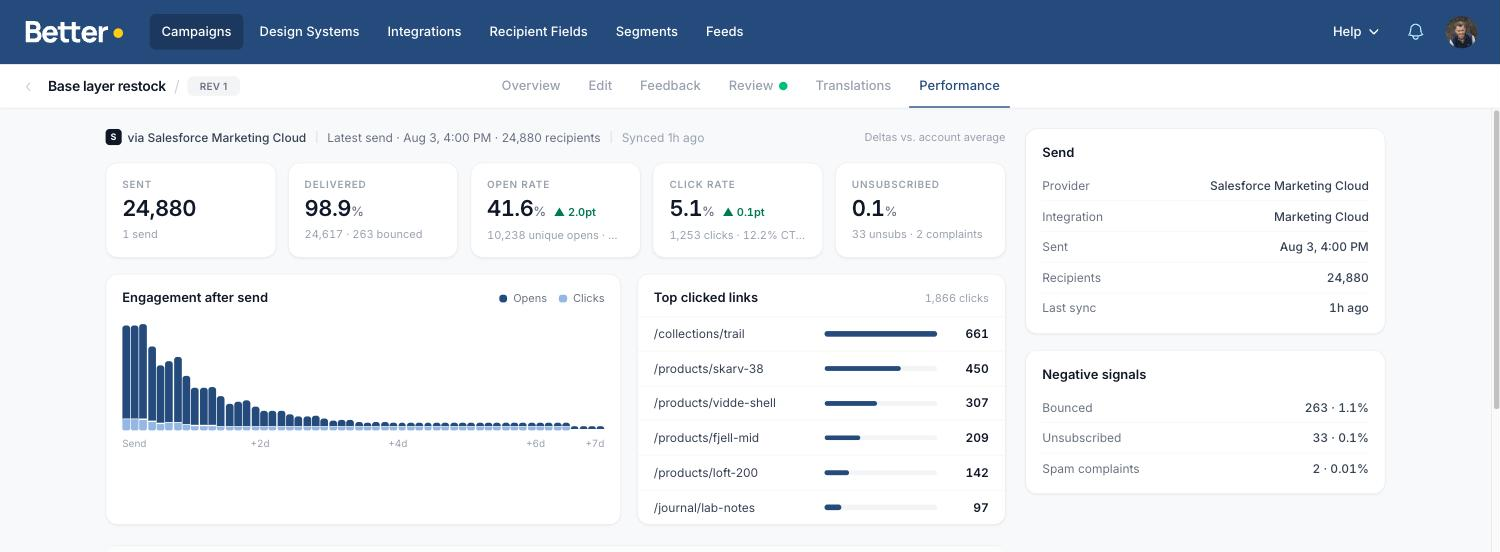
Once a campaign has been sent from your ESP, Better Email brings the results back to the campaign itself. The Performance tab shows how that send actually did — sends, deliveries, opens, clicks, unsubscribes, which links people clicked, and how engagement developed in the days after the send.
The point is that you never have to leave the campaign to find out whether it worked. The numbers sit next to the email you built, on the exact revision that was sent.
Performance data is available for Salesforce Marketing Cloud, Klaviyo, Mailchimp, Bloomreach Engagement, Agillic, Braze, HubSpot, Iterable and Microsoft Dynamics 365 Customer Insights - Journeys. It is switched on for your workspace by Better Email, and then turned on per integration by an admin. For permissions and setup, see the performance guide for your ESP: Salesforce Marketing Cloud, Klaviyo, Mailchimp, Bloomreach Engagement, Agillic, Braze, HubSpot, Iterable or Customer Insights - Journeys.
Aggregate numbers only
Better Email never stores recipient-level data. No email addresses, no subscriber keys, no per-recipient events, only campaign-level totals per send. Everything you see in the report is a count, a rate, or a link URL.
For most ESPs, Better Email only ever receives those totals. Agillic is the exception: its Activity Export contains recipient-level rows, which Better Email turns into totals before deleting the file. See Performance data from Agillic.
This is a deliberate limit, not a temporary one. It also means the feature is cheap to run: Better Email reads the same handful of totals per day whether you send a thousand emails or ten million.
Where performance shows up
The Performance tab is the full report, on every campaign that has a matching send.
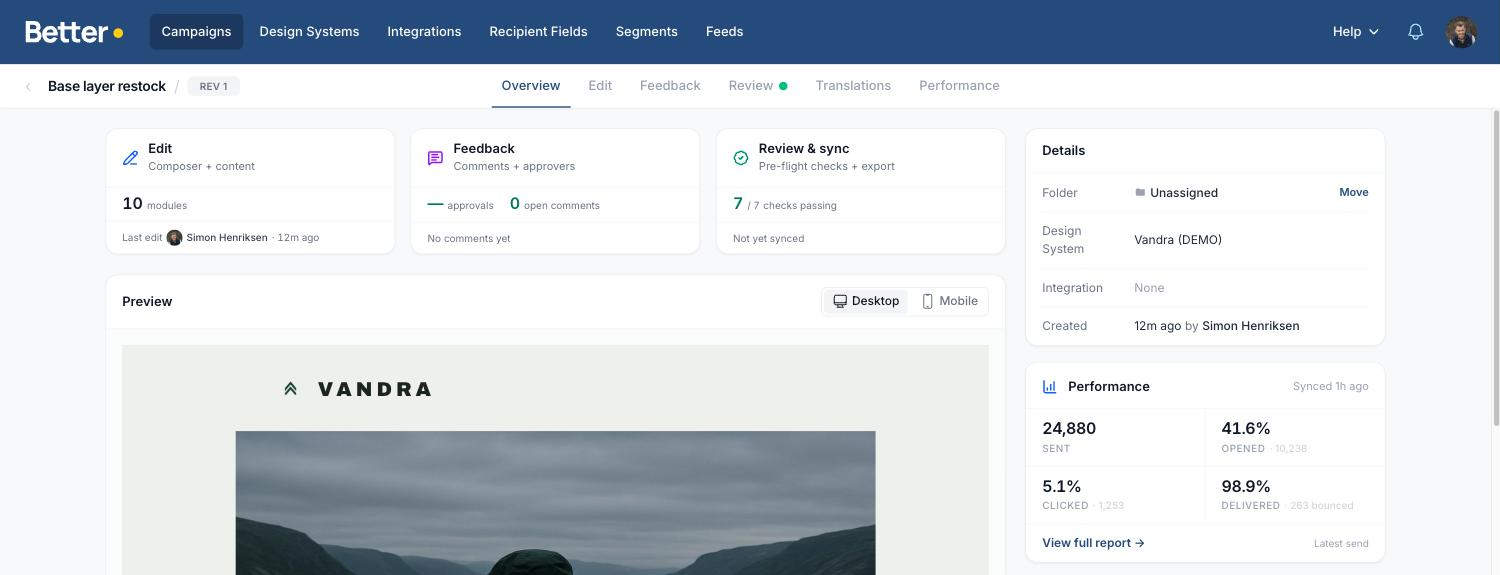
The Overview tab carries a compact card with the headline numbers and a link into the full report, so you get the result without changing tabs.
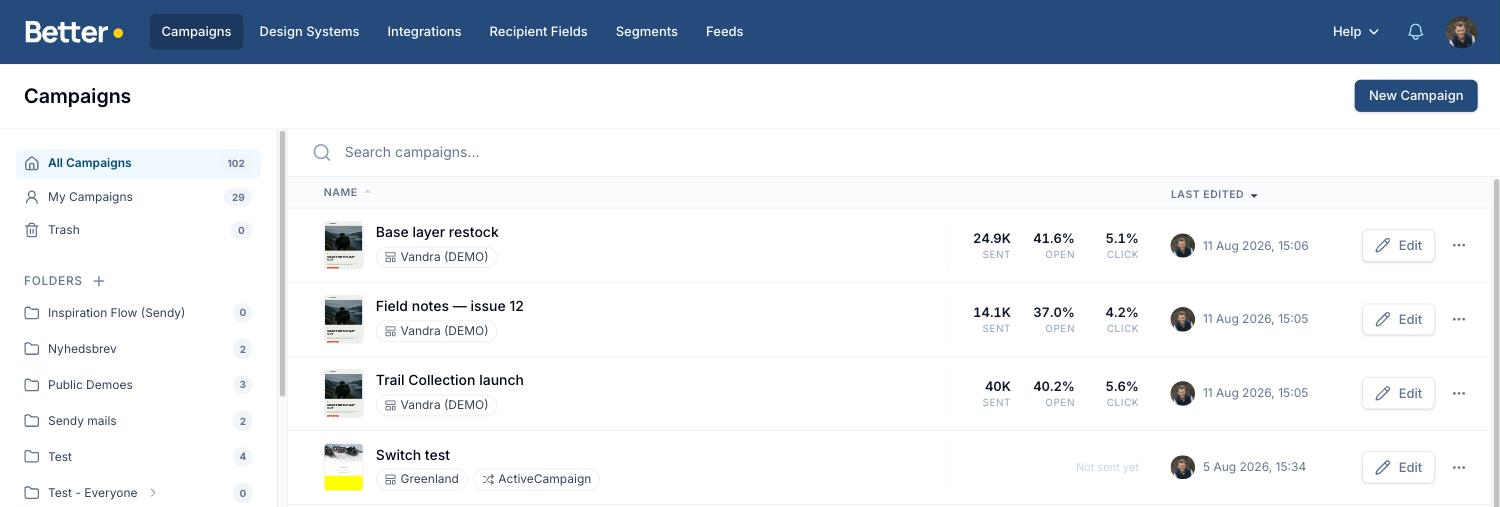
The campaign library gains sent, open, and click columns once at least one campaign has performance data. It is the fastest way to compare a season's worth of campaigns. Campaigns that have not been sent yet read Not sent yet. For ESPs that Better Email sends through, Braze and Agillic, a campaign shows Scheduled with its send time before it goes out, and Sent until the first numbers arrive. Customer Insights - Journeys campaigns do the same, using the start time of the journey that sends the email, and so do Iterable campaigns that Better Email created.
Reading the report
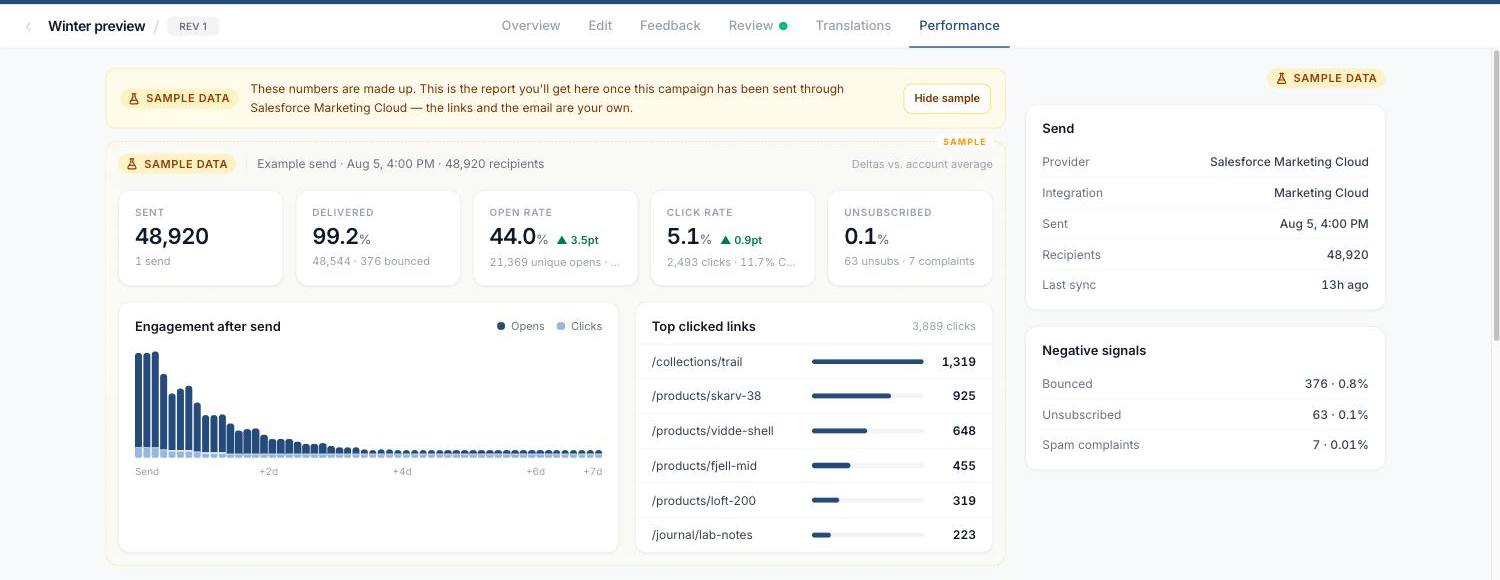
The metric strip
| Metric | What it counts |
|---|---|
| Sent | Recipients the send went out to, and how many sends were matched |
| Delivered | Delivered as a percentage of sent, with the bounce count |
| Open rate | Unique opens over delivered, with total opens |
| Click rate | Unique clicks over delivered, with the click-to-open rate (CTOR) |
| Unsubscribed | Unsubscribes over delivered, with spam complaints |
Open and click rate also carry a small green or amber delta — how this send compares with your account average, the mean open and click rate across your recent sends in Better Email. The delta appears once there are at least two sends to compare against, and only when the difference is big enough to mean anything.
Engagement after send
The chart plots opens and clicks in three-hour buckets over the first seven days after the send, so you can see the shape of the response: the initial spike, the second-day tail, and whether anything happened later in the week. Hover a bar for the exact counts.
Not every ESP reports this. Braze only reports daily totals and Iterable only reports totals, so their campaigns have no engagement chart. HubSpot groups its statistics by send date rather than open date, so HubSpot campaigns have none either.
Top clicked links
Every link in the email, ranked by clicks, with a bar showing each link's share of the total. Links are shown by their path so the list stays readable, and long lists collapse to the top six with a Show all links option.
Braze, Iterable and HubSpot don't report clicks per link for a single email through their APIs, so their campaigns have no top-links list and no click map.
The click map
Below the report, the campaign is rendered with a badge on every link showing its share of all clicks. The biggest driver is highlighted. This is usually the fastest way to understand a result — it puts the numbers on the layout that produced them.
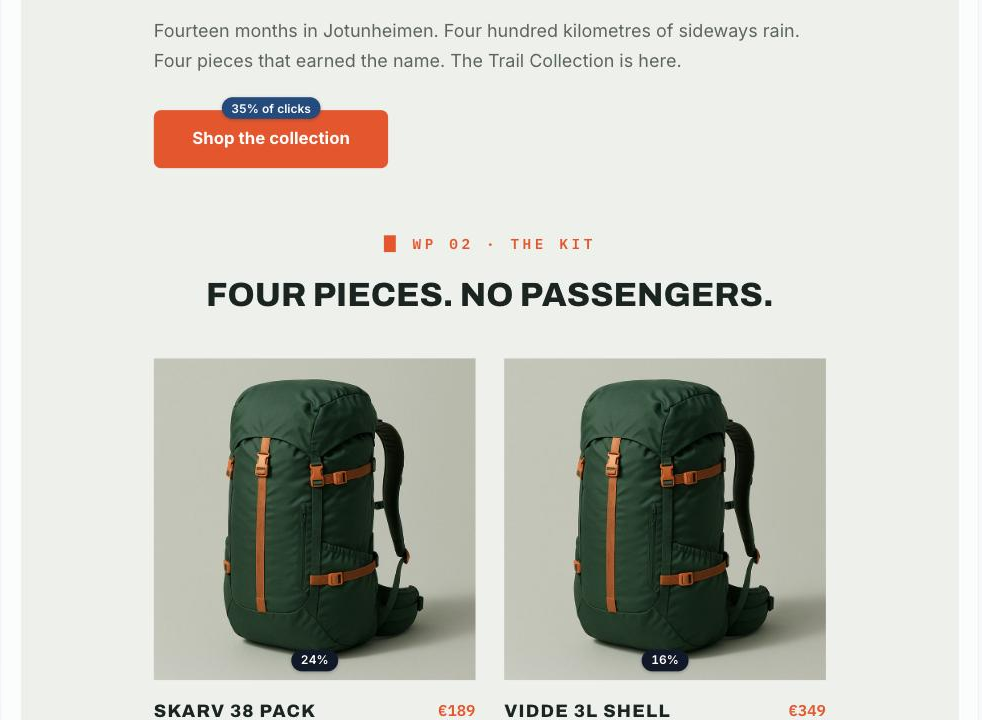
The preview shows the revision that was actually sent, not the latest one. If someone kept editing after the send, the click map still lines up with the email recipients received.
Send details and negative signals
The right-hand column records what was measured: provider, integration, send date, recipient count, subject line, and when Better Email last synced. Underneath, bounces, unsubscribes, and spam complaints are collected in one place with their rates.
How campaigns are matched to sends
For most ESPs, Better Email matches a campaign to a send using the name the campaign was exported under. When you export to your ESP, Better Email records the name of the asset it created; when a send job comes back with that name, it is attached to the campaign.
Two consequences are worth knowing:
- Renaming is safe. Matching uses the campaign's export history, not just its current name, so sends made under an older name still show up.
- Identical names can collide. Two different campaigns exported to the same integration under exactly the same name cannot be told apart. Keep export names distinct if you rely on performance data.
There is no manual way to link a campaign to a send — the match is automatic.
Braze doesn't match by name. A send made from Better Email is tracked by the ID Braze returns for it, and a campaign built in Braze from a synced template is recognised by a tag inside the template. Names don't matter there. See Performance data from Braze.
With HubSpot, the email's name in HubSpot doesn't matter. Better Email reads the statistics of the marketing email it created, so renaming it in HubSpot is safe. See Performance data from HubSpot.
Customer Insights - Journeys works the same way. Better Email reads the insights of the email it created in Journeys, whichever journeys use it. See Performance data from Customer Insights - Journeys.
With Iterable, a campaign Better Email created is tracked by its ID, so renaming it in Iterable is safe. One someone builds in Iterable from a synced template is matched by name. See Performance data from Iterable.
How often the numbers update
Better Email syncs performance data about once an hour. The report shows how long ago it last synced, and an amber banner appears if the data is more than a day old or the last sync failed.
Metrics keep refreshing for 30 days after a send, because opens and clicks keep arriving long after the send itself. After that the numbers are frozen and kept as history.
Braze is the exception for sends made from Better Email: Braze keeps their statistics for 14 days, so their numbers freeze after 14 days instead of 30.
Small differences from your ESP's own reports are normal: the two systems refresh at different moments, and opens are still accruing while you look.
Basic and extended metrics
With Salesforce Marketing Cloud there are two levels of performance data, and which one you have depends on how the integration was set up.
Basic needs nothing beyond API permissions and gives you sends, deliveries, unique opens, unique clicks, and unsubscribes.
Extended additionally gives you spam complaints, total as well as unique opens and clicks, clicks per link, and the engagement timeline. That means the engagement chart, the top-links list, and the click map only appear with extended data. It requires a small aggregation automation inside your Marketing Cloud account.
If your workspace only has basic data, the Performance tab shows a card explaining what the automation would add. The Salesforce Marketing Cloud performance guide has the full setup.
Klaviyo has no such split: it reports the full set itself, so everything above arrives as soon as the integration is switched on with an appropriately scoped API key. See Performance data from Klaviyo.
Before the first send
Until there is something to show, the Performance tab carries a small padlock — you can still open it, and it tells you what it is waiting for:
- No performance data yet — the campaign has not been exported and sent yet.
- Waiting for the first send — the campaign is synced to your ESP, and metrics will arrive within a few hours of the send.
- Performance sync is not enabled — the campaign is synced, but an admin has not turned on
Sync performance datafor that integration.
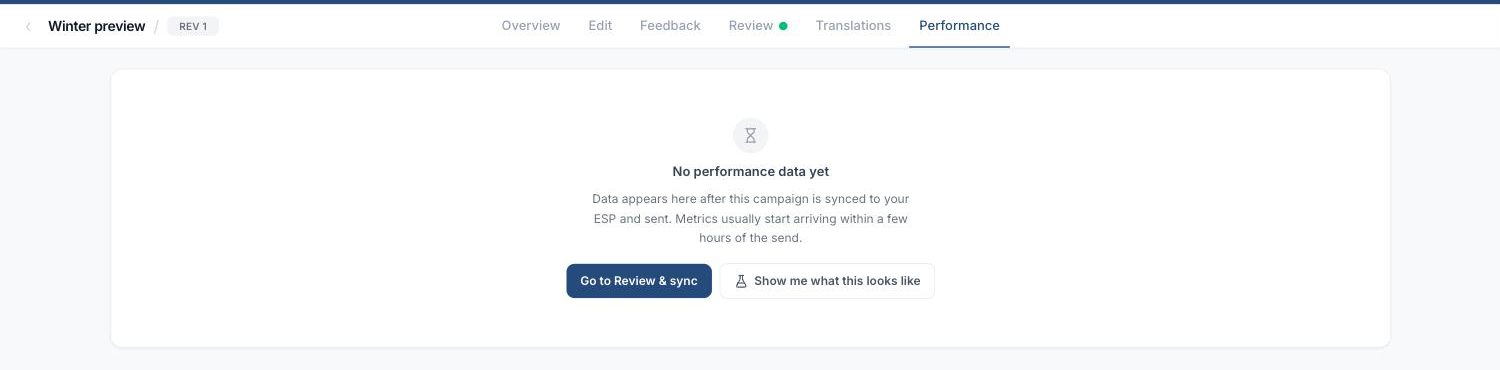
Every one of those states offers Show me what this looks like. It renders the full report as a sample, using your own campaign and its own links, so you can see what you will get before you have anything real. Sample numbers are clearly marked and are never mixed with real data.
Who can see performance data
Anyone who can open the campaign can see its Performance tab. Two things can hide it:
- Performance sync is off for that integration. Only Admins can change it, in the integration's settings.
- The integration is access-restricted and the user is not on the list. In that case the campaign shows no performance data at all — the same as if there were none. See Groups and access control.