For marketers
External Reviewers
Some sign-offs come from outside your Organization: an agency's client, a legal team, a brand owner at the parent company. Invite them as External Reviewers. They get a private link to one Campaign, where they can comment, approve, or request changes. No account, no password, no invitation to accept.
An External Reviewer is an email address and a name. They aren't users of your Organization: they don't take a seat, don't appear under Settings → Users, and can't open anything except the Campaign they were invited to review.
Invite an External Reviewer
- Open the Campaign's Feedback tab and switch to Approvals.
- Click Add approvers, then pick the Someone outside tab. It carries your Organization's name, for example Someone outside Vandra.
- Enter their Email and, optionally, their Name.
- Choose Required or Optional.
- Add a Message if you want. It appears in the email and when they first open the review.
- Click Request approval.
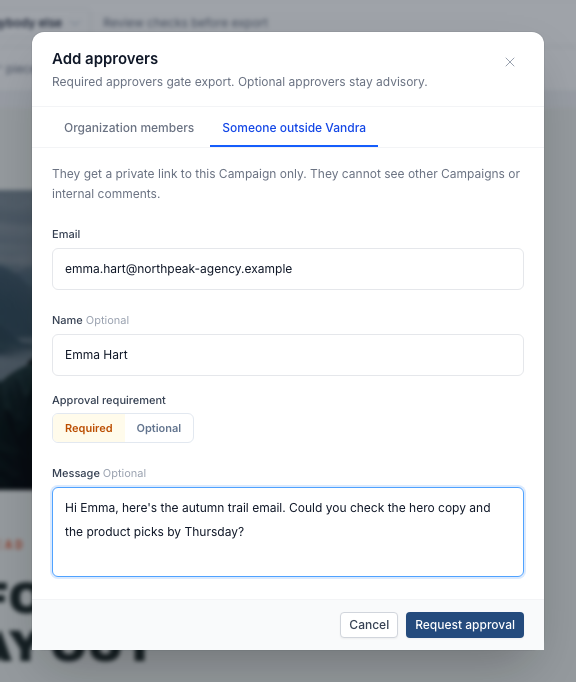
Better Email emails them a link to the Campaign. The dialog also shows a copy of the link, once, in case you want to send it yourself. The reviewer then appears in the approver list with an External badge.
You need edit access to the Campaign to invite External Reviewers. A Campaign can have up to 25 of them.
What the reviewer sees
The invitation
The email says who asked and which Campaign it is, quotes your message, and has a Review Campaign button. It carries your Organization's logo when you've set one.
The first time they open the link, a welcome dialog asks for their name, pre-filled with the one you entered, and quotes your message again. They click Start reviewing.
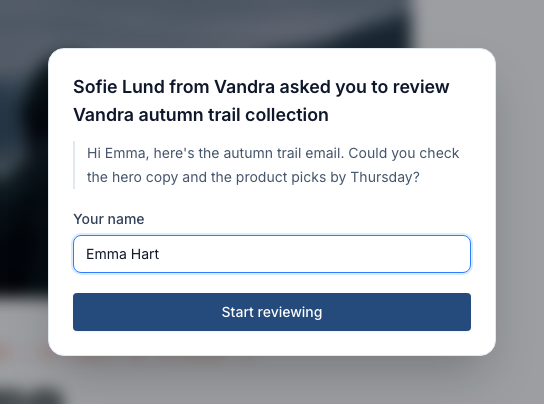
If you invite them again later with a new message, they see it as a slim note at the top of the page, which they can dismiss.
The review page
The review page shows the latest Revision of the Campaign. The top bar has your logo (or the Better Email logo if you haven't set one), the Campaign name, the Revision number, who requested approval, and the reviewer's Approve and Request changes buttons.
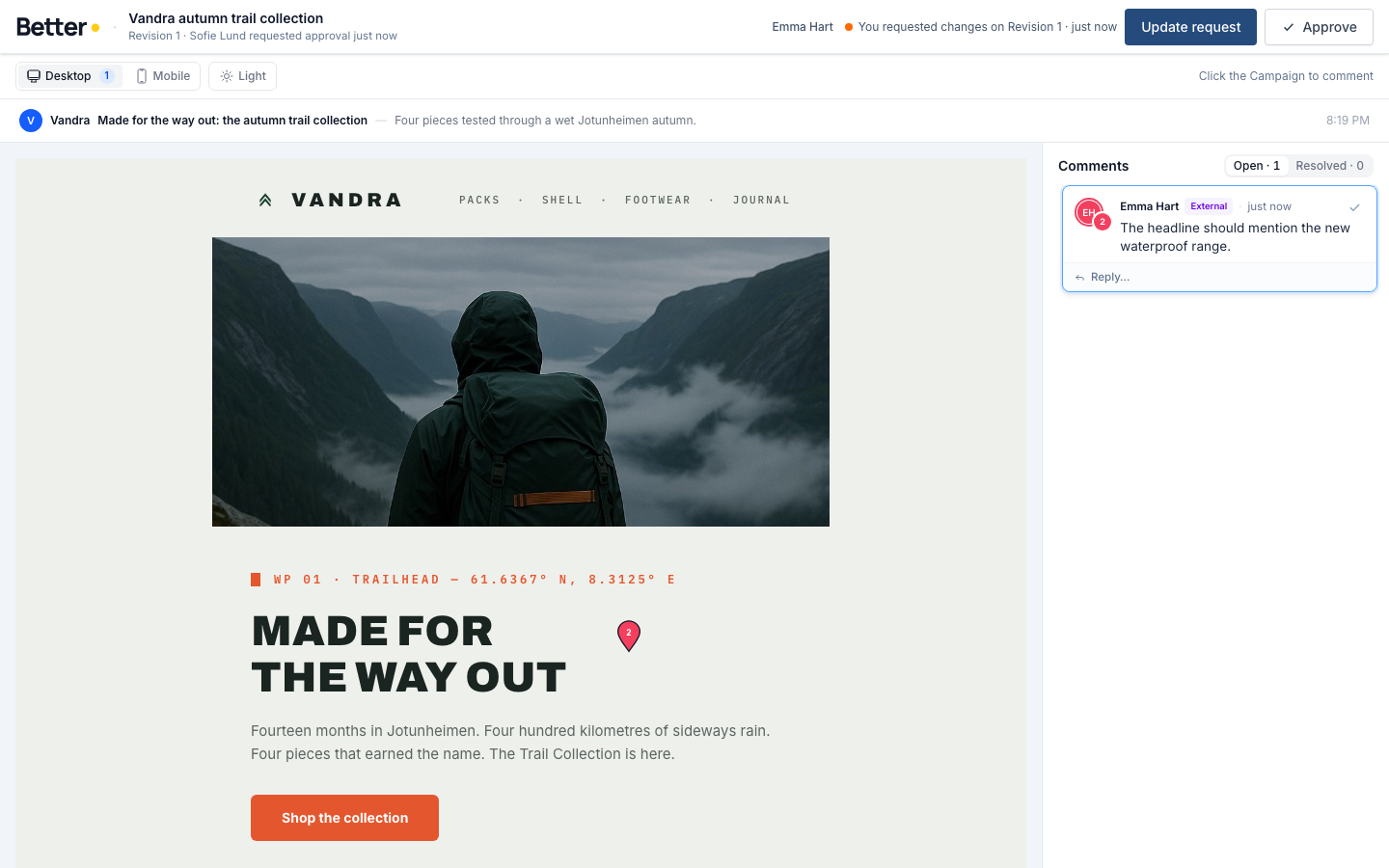
From the toolbar they can:
- switch between Desktop and Mobile,
- switch between light and dark mode,
- pick a Preview Profile from Preview as, when the Campaign has Preview Profiles besides "Everybody else",
- pick a variant for a Module that has them.
The subject line and preview text show above the email.
Comments
Reviewers click anywhere on the Campaign to drop a pin and write a comment, the same way Members do. They can reply to, edit, and resolve their own threads. When a Member replies, the reviewer gets an email.
Comment numbers are shared with your team. If Emma's comment is #2 on her page, it's #2 in the Campaign Workspace too. See comment numbers.
Their activity
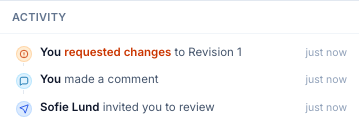
Under their comments, an Activity list shows their own history on the Campaign: when they were invited, the comments they made and resolved, and the decisions they took.
Approve or request changes
External Reviewers follow the same rules as Members:
- To approve, they resolve their own open comments first. After approving, they see a confirmation that your team has been told.
- To request changes, they need at least one open comment on the latest Revision. They can add a summary.
- If a newer Revision appears while they're on the page, a banner offers View latest. An approval counts for one Revision, so a new Revision needs a new approval.
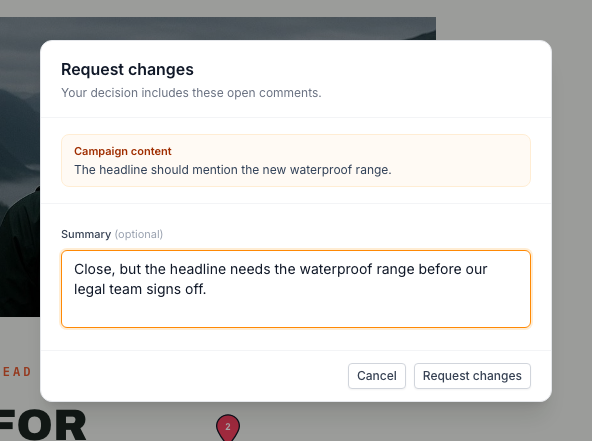
See Request changes for what a change request does.
Required or optional
A required External Reviewer counts toward the approval summary and the export gate exactly like a required Member. When your approvals policy is set to Block, the Campaign can't sync until they've approved the latest Revision. An optional External Reviewer's approval is advisory.
To switch, hover their row in the Approvals tab, open the menu, and choose Make optional or Make required.
Manage the link
Each External Reviewer row shows their decision and the state of their link: Not opened yet, Opened with how long ago, Link expired, or Link off. The row menu has:
- Copy review link: creates a new link and copies it. The link you copied before stops working. Links in emails you've already sent keep working.
- Resend email: emails them a new link.
- Turn off link: ends access to this Campaign through every link. Approvals they already gave stay in the review history.
- Remove approver: removes them from the Campaign. Their approvals stop counting.
Every link expires 30 days after it was created, and each email carries its own link. When a link has expired, the reviewer sees "This review link isn't available" and is asked to contact whoever sent it. Copy a new link or resend the email to let them back in.
Turning off a link doesn't remove the reviewer as an approver. If they were required and hadn't approved, export still waits for them, so make them optional or remove them if you no longer need their sign-off. To let them back in after turning off their link, add them again with the same email address. That starts over with new links.
If a reviewer clicks Stop emails about this Campaign in one of our emails, they get no more emails about it. Their row menu says so, and you can copy the link and send it yourself.
Notifications
To the External Reviewer, by email:
- the invitation, with your message,
- a new request when a Member asks for approval of a new Revision,
- reminders when a Member reminds approvers, for required External Reviewers only and at most once an hour,
- replies to their comments.
To your team, in the app:
- when an External Reviewer comments, approves, or requests changes, the Member who invited them is notified. If that Member has left the Organization, the Campaign's creator is notified instead.
Privacy
- External Reviewers only see their own comment threads and the replies in them. Comments between Members stay internal.
- Members see every thread, including External Reviewers' threads, marked with an External badge. When you reply in one of those threads, the composer reminds you that the reviewer will see your reply.
- The review page shows one Campaign rendered for review. Reviewers can't see other Campaigns, your Design Systems, your member list, or the editor.
- Anyone who has the link can act as that reviewer, so share it only with them. Turn off the link if it ends up somewhere it shouldn't.
Turn External Reviewers on or off
External Reviewers are enabled for your Organization by Better Email. Once they are, admins control them under Settings → Organization → Approvals with Allow External Reviewers.
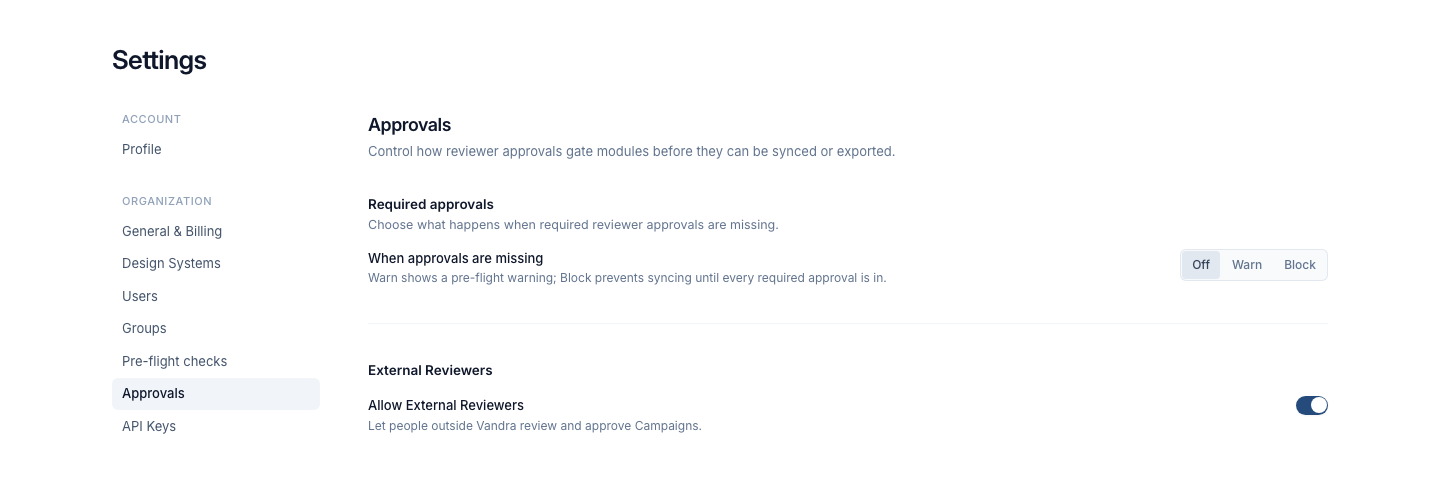
When the setting is off:
- nobody can invite External Reviewers, copy their links, or resend emails,
- existing review links stop working,
- Members can still turn off links, remove External Reviewers, and make them optional, so a required reviewer never leaves a Campaign stuck.
Turning the setting back on makes links that haven't expired or been turned off work again.
Inviting External Reviewers, new links, turned-off links, requirement changes, and removals are recorded in the audit trail.