For marketers
Content Blocks
A content block is a section you build once and reuse across campaigns: an offer banner, a members' message, a legal line, a footer. You build it in the same editor as a campaign, from the same design system, and it goes through the same feedback, approvals and pre-flight checks.
When you add a content block to a campaign, the campaign gets a copy of its modules. The copy is ordinary modules that you can edit there, and later changes to the block don't reach it. Copies work with every integration, and with no integration at all.
On Braze and Salesforce Marketing Cloud, a block can also sync into the ESP's own content blocks, a Braze Content Block or a Marketing Cloud Content Builder block. Campaigns on that integration then link the block instead of copying it. Every email that uses it shows the version you synced last, including emails in Canvases and journeys that are already running. Unlike editing the HTML in the ESP, you get a preview of what changes and a revision history.
When to use one
Use a copy for sections you add to campaign after campaign and then adjust:
- A newsletter's masthead, sign-off or product row.
- A members' banner with its variants, so you don't set the variants up again.
- A layout someone on your team got right once and others should start from.
Sync a block when its content changes on its own schedule while the emails around it stay put:
- An offer or price that runs across a welcome Canvas, a reminder journey and a newsletter.
- Legal text or a footer that has to be identical everywhere.
- The whole body of a Braze in-app message, so you can update it without touching the message in Braze. See Content blocks for Braze messages.
If a section is only ever used in one campaign, keep it as an ordinary module.
Before you start
- Content blocks are turned on per organization. If you don't see Content blocks in the Campaigns sidebar, contact support to have the feature turned on.
- Copies work on any integration. Syncing needs a Braze or Salesforce Marketing Cloud integration whose API key has the permissions listed under ESP permissions.
Create a content block
You can build a block from scratch or save a module you already have in a campaign.
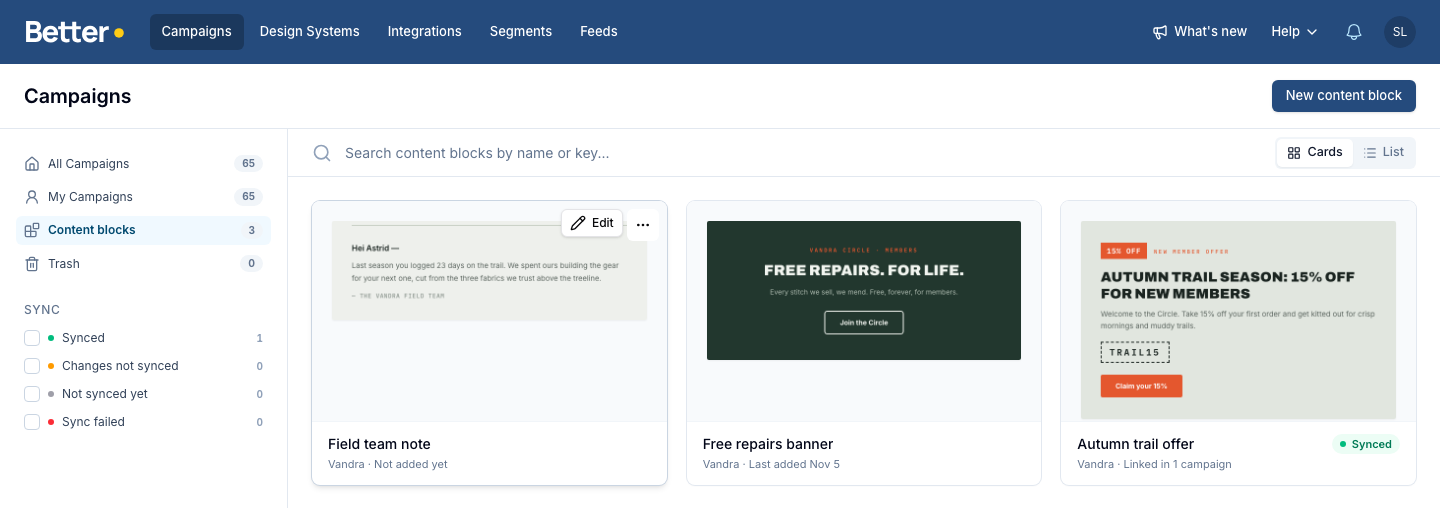
Content blocks have their own list under Campaigns → Content blocks. Each block has a preview of its modules, its design system, and when a campaign last got it. A block that syncs also shows its sync status and how many campaigns link it.
Blocks show as cards. Click List next to the search for a compact list that also has each block's Destination and key; hover over a thumbnail there to see the block larger. Your browser remembers the view you picked.
Click Edit to open a block in the editor, or ⋯ for its settings and Delete.
Start from scratch
- Go to Campaigns and select Content blocks in the sidebar.
- Click New content block.
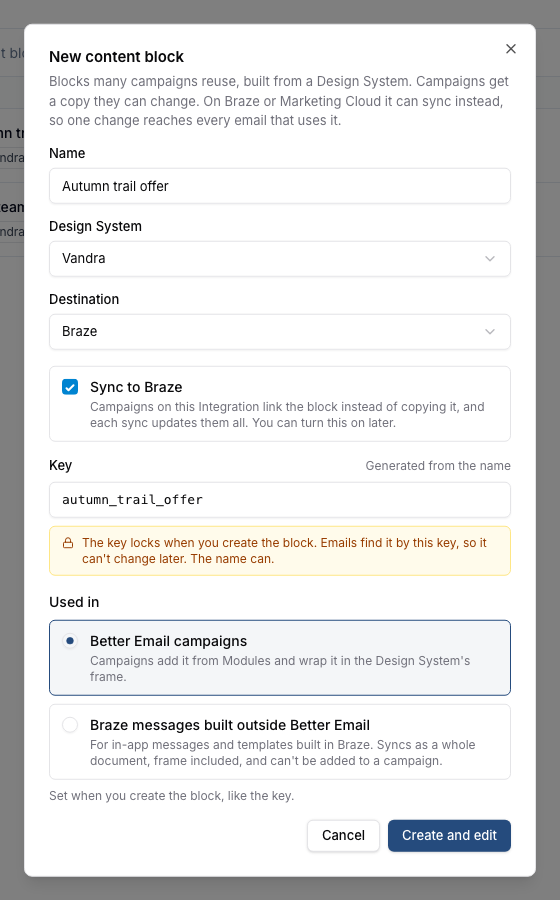
- Enter a Name, for example
Autumn trail offer. - Choose the Design System to build the block from. Only campaigns on this design system can use the block.
- Choose the Destination. If your organization has no integration yet, there's nothing to choose.
- On a Braze or Marketing Cloud Destination, tick Sync to followed by the integration's name if the block should sync. You can also turn sync on later. With sync ticked:
- Check the Key. It is generated from the name, and you can change it before you create the block. Keys use letters, digits,
_and-, up to 100 characters for Braze and 36 for Marketing Cloud. - On Braze, choose what uses the block. Better Email campaigns is the default. For in-app messages and templates built in Braze, see Content blocks for Braze messages.
- Check the Key. It is generated from the name, and you can change it before you create the block. Keys use letters, digits,
- Click Create and edit.
The block opens in the Campaign Workspace. Build it in the Edit tab like any campaign: add modules, fill in content, and use segmentation to show different content to different recipients. A banner across the top of the editor says how your changes reach emails. For a block that syncs, emails don't change until you sync. For any other block, campaigns keep the copy they already have.
The design system's template base, such as the header and footer, is faded and hatched around the block. It's there so you see the block as it will look in an email. It isn't part of the block, and copies and syncs leave it out. A block for Braze messages syncs the whole email, so its template base isn't faded.
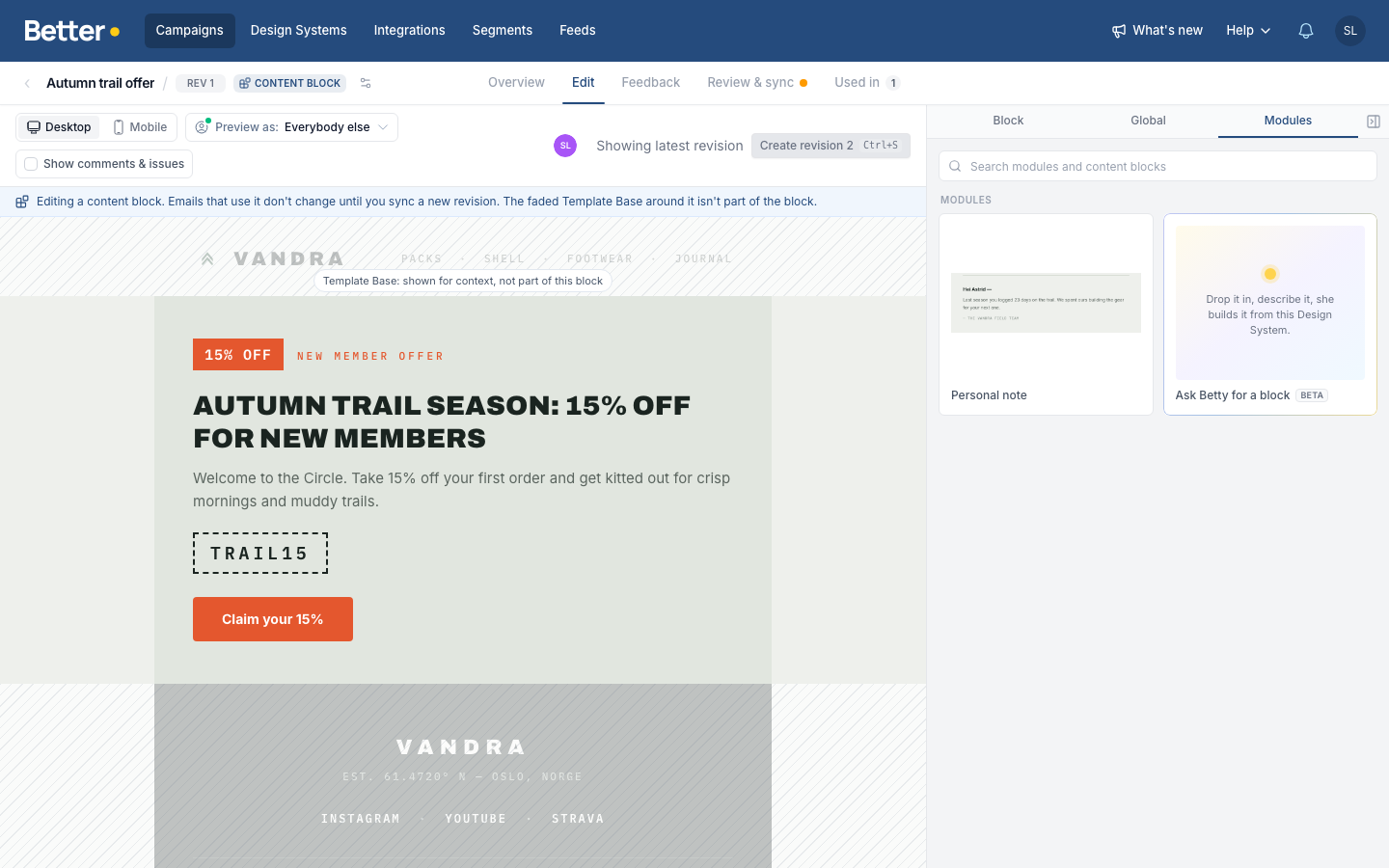
A content block has no subject line, preheader or audience of its own, and no performance tab, because it's never sent on its own.
Save a module from a campaign
- Open the campaign in the Edit tab and hover over the module.
- In the toolbar next to it, click Save as Content Block, the content block icon.
- Name the block and click Save.
The new block holds a copy of the module and its variants, on the campaign's design system and Destination. The campaign keeps its own module. To edit the block, click Open in the confirmation, or find it under Content blocks.
A saved block doesn't sync. To sync it to Braze or Marketing Cloud, turn on sync from its Review tab.
The video saves a members' banner from one campaign, then finds it in another campaign's Modules tab and adds the copy.
Add a content block to a campaign
- Open the campaign in the Edit tab.
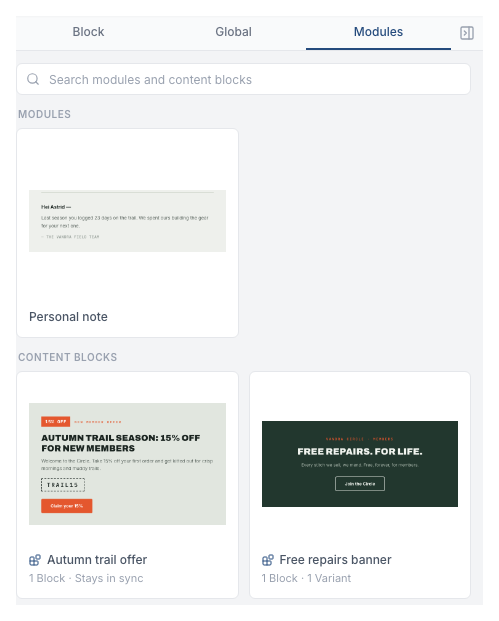
- Open Modules. Content blocks built from the campaign's design system are listed under Content blocks, below the modules. The ones you used most recently come first.
- Drag a block into place, or hover over it and click + to add it at the end.
The first six blocks show until you click Show all. To find one by name, type in the search box at the top of the tab. A search lists every match, modules and content blocks alike.
Each card has a preview of the block and says how it goes in. A copy shows how many modules and variants it brings, for example 1 Block · 1 Variant. A block that will be linked shows Stays in sync.
Copies
A block that doesn't sync always goes in as a copy. A synced block goes in as a copy too when the campaign is on another integration, or on Marketing Cloud in another business unit.
A copy is ordinary modules. Edit, move or delete them like any other module. Changes you make to the block later don't reach copies already made. A copy of a block that syncs is taken from its last synced revision, so edits you haven't synced stay out.
Some things can't come along:
- Variants on another integration. Variant conditions use one integration's recipient fields and segments, so in a campaign on another integration each module keeps only its Everybody else content. A module that isn't shown to Everybody else is left out, since only its variants' audiences ever saw it.
- Inputs the design system no longer has. If the design system changed since the block was built, values for inputs that were removed or changed type are dropped, and new inputs use their defaults. If a module the block uses was removed from the design system, the block can't be added.
When a copy leaves something out or uses a default, a notice lists what changed. Merge tags in copied text stay as they are, and pre-flight checks flag any the campaign's integration doesn't have.
Linked blocks
A block that syncs goes in linked when the campaign can reach it in the ESP: the campaign is on the block's integration, and on Marketing Cloud in the same business unit. Until the block's first sync, it goes in as a copy.
The preview shows the block as it was last synced. You can't edit a linked block inside the campaign. Select it to see which revision it shows, and use:
- Open block to edit the block itself.
- Unlink as copy to turn the block into copies of its modules in this campaign, so you can edit them there. Later syncs no longer reach this campaign.
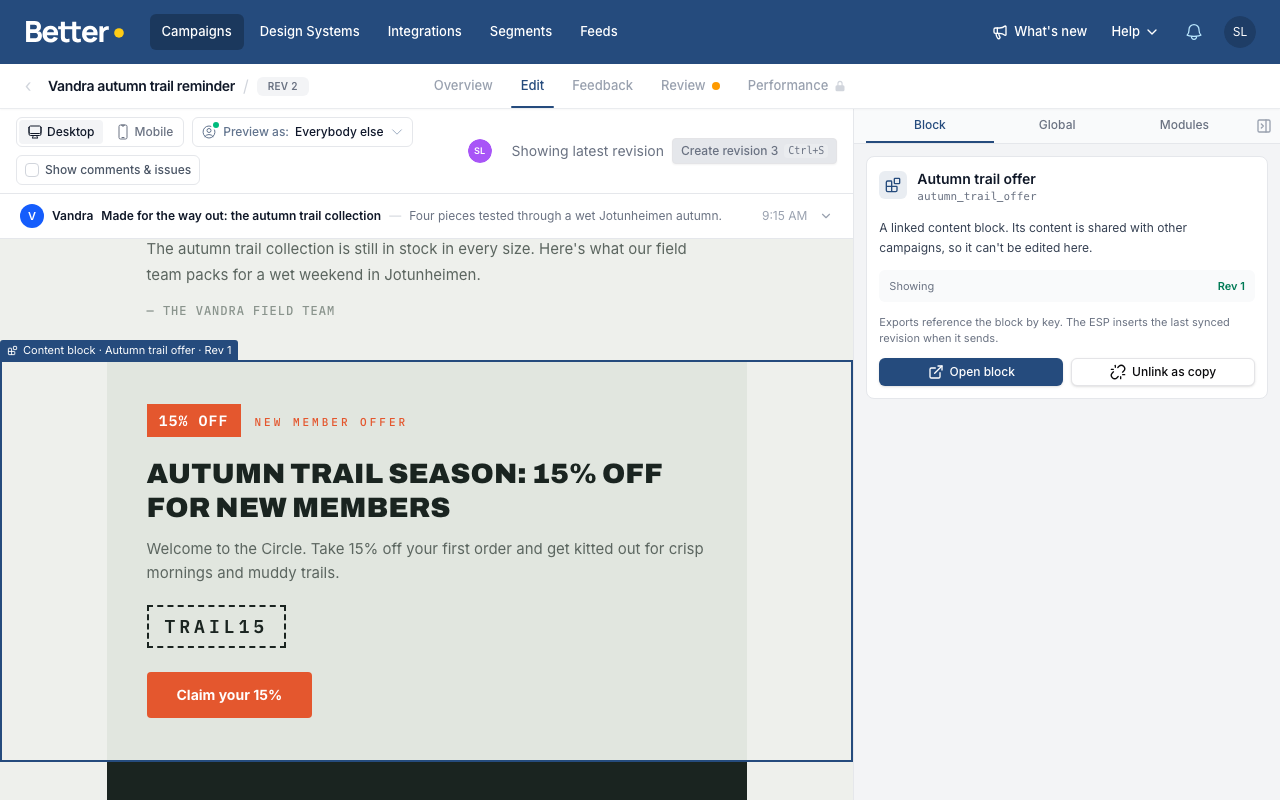
When you export the campaign, Better Email writes a reference to the block instead of its HTML: {{content_blocks.${your_key}}} for Braze and %%=ContentBlockByKey("your_key")=%% for Marketing Cloud. The ESP fills in the last synced revision when the email sends. That's why you don't need to export the campaign again after you sync the block.
A sync updates the block and nothing else. If you change other modules in the campaign, its design system or its template base, export the campaign again and update the email in your Canvas or journey as you normally would.
Sync to Braze or Marketing Cloud
Turn on sync
Tick Sync to when you create the block, or turn it on later:
- Open the block's Review tab. A block without sync says Campaigns get their own copy there.
- Click Turn on sync to followed by your integration's name.
- Check the Key, and click Turn on sync.
The tab is then called Review & sync, and the block gets a Used in tab.
Emails find the block in the ESP by its key, so the key is locked once it's set. Braze won't rename a Content Block that's in use, and a changed Marketing Cloud customer key would break every email that references the old one. Pick a key you're happy to keep.
Campaigns that already have a copy of the block keep it. Campaigns on the block's integration that add it after its first sync link it.
Sync a block
Syncing sends the block's current revision to the ESP. It works like an export:
- Open the block's Review & sync tab. Feedback, approvals and pre-flight checks work the same way they do for a campaign.
- Click Sync to followed by your integration's name, for example Sync to Braze.
- Check the revision and Destination, and click Sync.
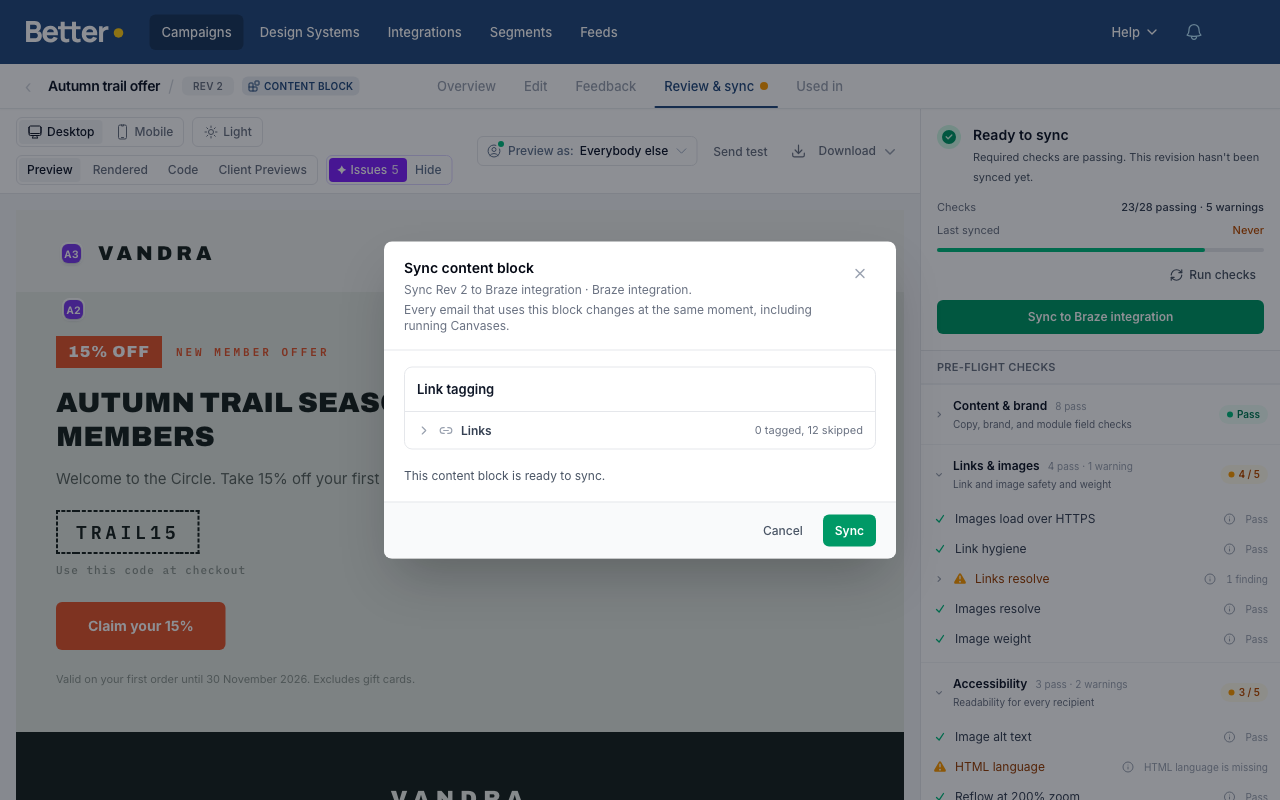
Every email that uses the block changes at the same moment, including running Canvases and journeys. The first sync creates the block in the ESP, and later syncs update it.
In Content blocks, each block that syncs shows its sync status:
| Status | What it means |
|---|---|
| Synced | The ESP has the latest revision. |
| Changes not synced | You've edited the block since the last sync. The ESP still has the older revision, shown under the status. |
| Not synced yet | Sync is on, but the block isn't in the ESP yet. |
| Sync failed | The last sync didn't go through. The ESP keeps the previous revision. Open the block and sync again. |
A block that doesn't sync has no sync status, since campaigns get their own copy.
You can filter the list by sync status and integration, and search by name or key. The sync filter shows once a block syncs.
Marketing Cloud caches content
Marketing Cloud caches the content of a triggered send, content blocks included, so a running journey keeps sending the old version until its send is refreshed. When you sync, Better Email pauses, refreshes and restarts the triggered sends of the Better Email campaigns that link the block. This takes a few seconds per send. Emails built directly in Marketing Cloud that use the block still need their sends refreshed by hand.
Braze reads a Content Block at send time, so there's nothing to refresh.
Content blocks for Braze messages
Braze in-app messages and templates built in Braze have no Better Email frame around them. For these, tick Sync to Braze when you create the block and choose Braze messages built outside Better Email. The block then syncs as a whole document, with the template base, CSS and all, instead of the modules alone.
To use it in Braze:
- Sync the block.
- Open its Used in tab and copy the reference.
- In Braze, create a Custom Code in-app message (or a template), and paste the reference as its whole body.
From then on, you edit the message in Better Email and sync. Braze shows the new version the next time the message displays, and nobody needs to edit the message in Braze.
A Braze message block:
- Can't be added to a Better Email campaign, since it's a full document.
- Can only be chosen when you create the block. A block that turns on sync later is always for Better Email campaigns.
- Has to fit in Braze's 50 KB limit for a content block, design system CSS included. Better Email checks the size before it syncs.
- Is available for Braze only.
See where a block is used
Better Email doesn't track copies, so this applies to blocks that sync. A block without sync has no Used in tab, and its Overview tab says that campaigns get copies. The Content blocks list shows when a campaign last got one.
A synced block's Overview tab shows its key, which revision the ESP has, whether you've made edits since, and how many campaigns link it. The Used in tab lists them:
- Campaigns in Better Email: the campaigns that link the block. They all show the last synced revision.
- Messages built in Braze: for blocks synced to Braze, Better Email asks Braze which campaigns and Canvases include the block. Each one shows its name, the variant or Canvas step, the channel, and whether it's a draft, active or stopped. Click Refresh to ask Braze again.
The Used in tab also has the reference to paste into emails built outside Better Email.
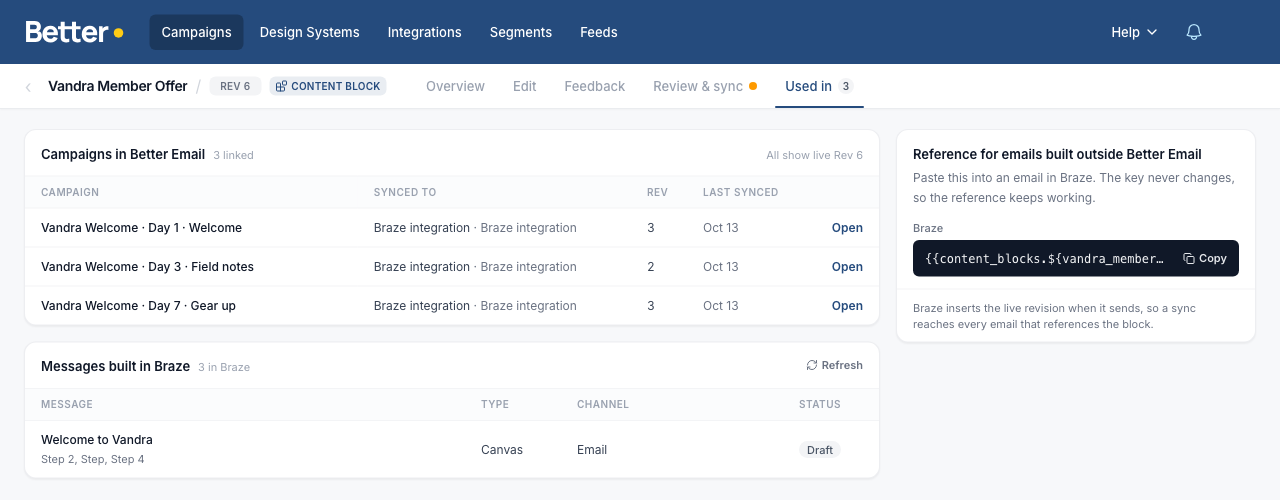
A few things affect what Braze reports:
- Braze counts some uses it can't name, such as another content block that includes this one. Used in shows these as a count.
- Braze doesn't count an email template on its own. A Better Email campaign exported as a template shows up under Braze messages once a Braze campaign or Canvas step uses it.
- Better Email reads up to your 100 most recently edited Canvases. A Canvas step in an older Canvas shows up in the count but not by name.
Ask Betty
In the Campaign Builder, Betty can list the content blocks a campaign can use, add one, and save modules as a new content block. She follows the same rules as the Modules tab, so a block goes in linked or as a copy the same way. For example:
- "Add the Free repairs banner block below the intro."
- "Save the footer as a content block called Legal footer."
Rename a content block
- In Content blocks, click ⋯ next to the block and choose Settings. Or, with the block open, click the settings icon next to the Content block label at the top.
- Change the Name and click Save.
Settings also show the block's design system, integration and key. You can't change those.
Delete a content block
- In Content blocks, click ⋯ next to the block and choose Delete. You can also delete a block from its settings.
- Confirm.
The block moves to the Trash in the Campaigns sidebar, like a deleted campaign, and is deleted for good after 14 days. You can restore it from the Trash until then.
- You can't delete a block that a campaign links, so Delete is unavailable. Unlink the block from those campaigns first.
- Copies already in campaigns stay as they are.
- Deleting a synced block doesn't remove it from Braze or Marketing Cloud. Delete it there if no email uses it.
- The key stays reserved while the block is in the Trash. To reuse it right away, delete the block forever from the Trash.
ESP permissions
You only need these to sync blocks. Copies need no ESP permissions.
Braze
Add these to the Braze REST API key:
- Syncing content blocks:
content_blocks.create,content_blocks.update,content_blocks.list,content_blocks.info - Messages built in Braze on the Used in tab:
content_blocks.info,campaigns.details,canvas.list,canvas.details
If a permission is missing, Better Email names it in the error.
Salesforce Marketing Cloud
The baseline scopes cover syncing blocks to Content Builder. Refreshing triggered sends after a sync also needs the API user to have the Triggered Sends: Publish Changes permission.