For marketers
Feedback and approvals
Collect feedback and get sign-off without leaving the Campaign. Pin comments to the spot you want to discuss, decide who has to approve, and see whether the Campaign is ready to send.
Feedback and approvals live on the Feedback tab of the Campaign Workspace. The sidebar has two tabs, Comments and Approvals.
Need sign-off from someone outside your Organization, like an agency client or a legal team? Invite them as an External Reviewer. They review from a private link and don't need an account.
Leave feedback on the Campaign
Open Feedback to see the preview next to the comments.
To leave a comment:
- Click anywhere on the preview to drop a pin.
- Write your feedback and click Post.
- Reply, edit your own messages, or resolve the thread once the feedback is handled.
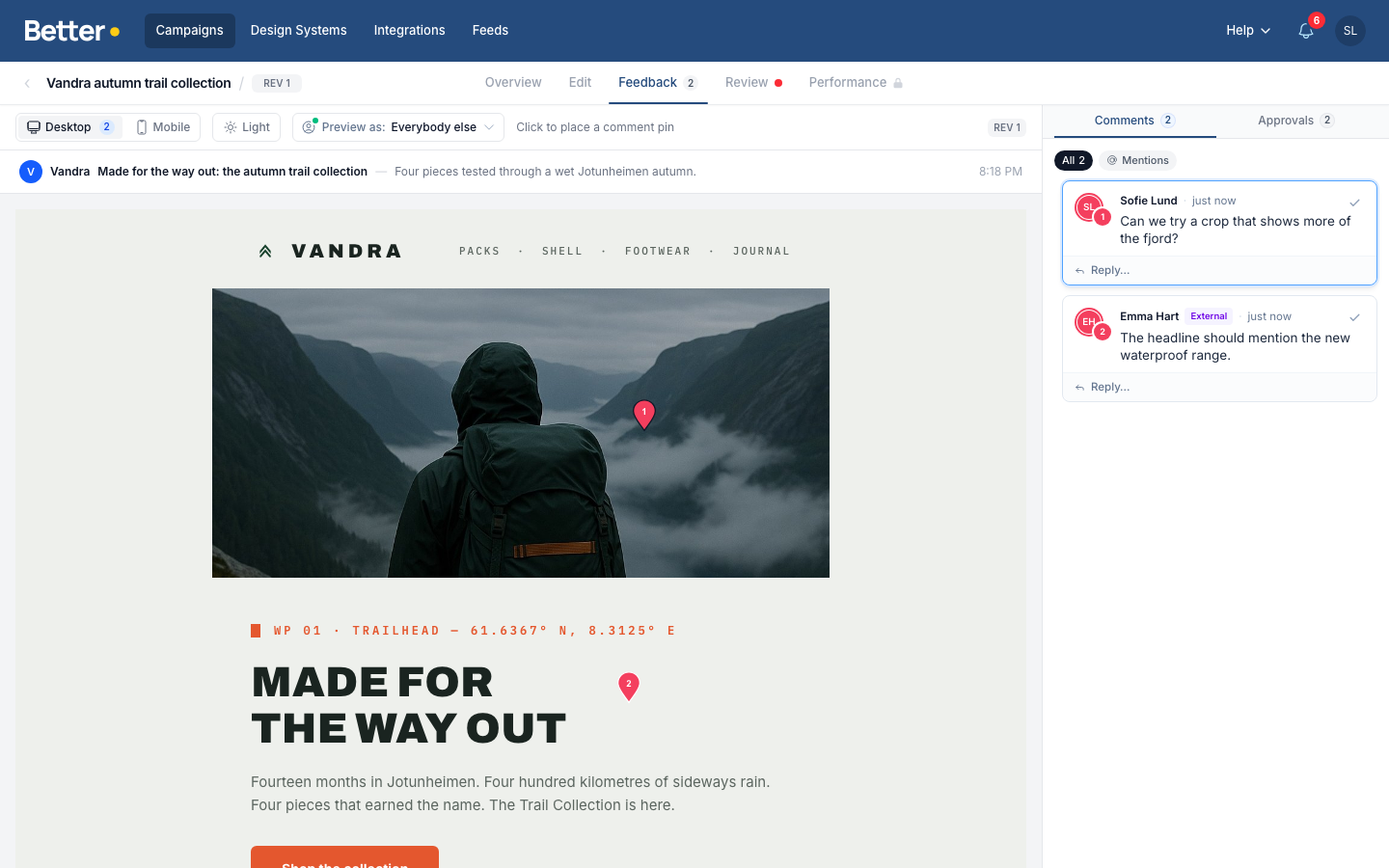
Comments anchor to the part of the Campaign you clicked: a Module, the header, or the footer. They also remember whether you were looking at desktop or mobile, and which variant was showing. The Desktop and Mobile buttons show how many open comments each view has.
Comment numbers
Every thread gets a number, and the number belongs to the Campaign. Comment #5 is the same thread for everyone: Members, External Reviewers, the desktop and mobile views, and Betty. When a reviewer writes "see #5", you can find it.
External Reviewers only see their own threads, so the numbers they see can skip. Threads they start carry an External badge, and when you reply to one, the composer reminds you that they will see your reply.
Mentions and Betty
- Type
@to mention a teammate. They get a notification that links to the thread. Use the Mentions filter to see only threads that mention you. - Editors can click Fix with Betty on a comment to hand the change to AI.
Outdated comments
When a Module changes after someone commented on it, the thread is marked Outdated comment. The original feedback stays, and you decide whether it still applies before resolving it.
Viewing comments while editing
In the Edit tab, turn on Show comments & issues to see the pins while you edit, and reply or resolve from there. New pins are created from the Feedback tab, so there is one place to start a discussion.
Get sign-off from approvers
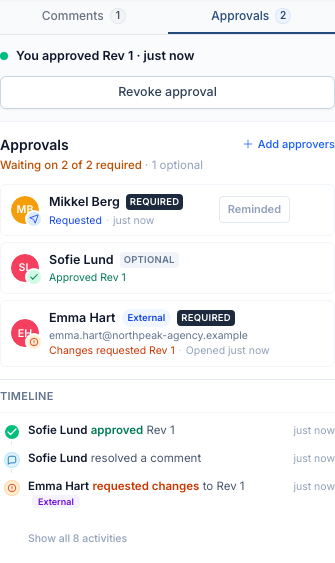
Switch to the Approvals tab to manage who has to approve the Campaign.
Add approvers
Click Add approvers. On the Organization members tab, search for teammates by name or email. For each one, choose:
- Required: export waits for their approval when your Organization's approvals policy is set to block. New approvers start as required.
- Optional: their approval is advisory.
Tick Send request for approval immediately to notify them now, with an optional message. Leave it off to add them quietly and ask later.
A Campaign created from a Campaign type starts with the type's approvers already on the list. Only an admin can remove one the type made required, make it optional or turn it off.
The Someone outside tab, named after your Organization, invites an External Reviewer by email. See External Reviewers.
You don't have to be asked to take part. Anyone who comments on the Campaign or approves it is added as an optional approver if they aren't on the list yet. They show up as Not yet asked rather than Requested, and they don't count toward the approval summary until they approve or someone asks them.
Request, remind, and re-request
Each approver row shows where that person stands:
| Status | Meaning |
|---|---|
| Not yet asked | Added, but nobody has requested their approval. |
| Requested or Reminded | Asked, no decision yet. |
| Approved Rev 3 (green) | Approved the latest Revision. |
| Approved Rev 2 (amber) | Approved an earlier Revision. They need to approve again. |
| Changes requested Rev 3 | Asked for changes on that Revision. |
The button next to a Member does the right thing for their status: Request the first time, Remind while a request is open, and Re-request after a new Revision. After a request or reminder, the button shows Reminded for an hour so nobody gets spammed. You can't send an approval request to yourself.
Hover a row and open its menu to Make optional, Make required, or Remove approver.
If the draft has changes that aren't in the latest Revision yet, a notice at the top of the tab says so. Create a new Revision before you ask for approval, so approvers see the latest content.
Your review
If you can review the Campaign, the top of the Approvals tab tells you where your own review of the latest Revision stands, and offers Approve and Request changes:
| What it says | What to do |
|---|---|
| Rev 3 is waiting for your review | Read the comments, then approve or request changes. |
| You have 2 open comments on Rev 3 | Resolve your comments to approve, or request changes. |
| You requested changes on Rev 3 | Resolve your comments before you can approve. Update request sends a new summary. |
| Your comments on Rev 3 are resolved | You can approve now, or request changes again. |
| You approved Rev 3 | Nothing, unless you change your mind. Revoke approval takes it back. If you comment again, Request changes withdraws your approval. |
| You haven't been asked to approve Rev 3 | You can still approve. You'll be added as an optional approver. |
Approval requests also open a focused review page with the same controls, and Members with the Reviewer role land there when they open a Campaign.
Approving a Revision
Approvals belong to one Revision. To approve:
- Read through the comments.
- Resolve your own open threads. Approve stays disabled while you have open comments on any Revision.
- Click Approve.
When a new Revision is created, earlier approvals stop counting. The row shows the older Revision in amber, and the person who asked can Re-request.
Request changes
Request changes when the Campaign needs work before you'll approve it. You need at least one open comment on the latest Revision, so the team knows what to change.
- Click Request changes.
- Check the open comments the request includes.
- Add a Summary if you like, then click Request changes.
The person who last asked for your approval gets a notification with your summary and your open comments. If nobody asked you, it goes to whoever created the Campaign. If you had approved this Revision, requesting changes withdraws that approval.
A change request doesn't block export by itself. It means you haven't approved: as a required approver you still hold up export, as an optional one you don't. Resolving your comments doesn't clear the request. You'll see Your comments on Rev 3 are resolved and decide again. A new Revision starts everyone fresh.
Track readiness at a glance
The line under Approvals sums it up:
- Waiting on 1 of 2 required: required approvals are still missing.
- Approved · 2 open comments to resolve: every required approver has approved, but open comments still block export.
- Approved · ready to send: every required approver has approved the latest Revision and there are no open comments.
- 1 of 2 approved · none required: people were asked, but nobody is required.
- No approvals requested: nobody has been asked. Export doesn't wait for sign-off until someone is a required approver.
When there are optional approvers, the count follows, for example · 1 optional.
Timeline
Below the approvers, the Timeline shows the latest events on the Campaign: Revisions created, approvers added or removed, requests sent, approvals given or revoked, changes requested, and threads created, resolved, or reopened. Click Show all to see every event and filter them.
Send when ready
Final pre-flight checks live in the Review tab: your Organization's quality checks plus open comments, required approvals, field validation, and export readiness. Open comments always block export. Required approvals warn or block depending on your Organization's approvals policy.
The Review tab is also where you send test emails and sync to your ESP. See Review & testing for the pre-flight workflow.
Stay in the loop
Notifications cover the moments that need a response:
- Approval requested, reminded, or re-requested: sent to the approver.
- Mentioned in a comment: sent to the mentioned teammate.
- Changes requested: sent to the person who asked for the approval, with the summary and comments.
- An External Reviewer commented, approved, or requested changes: sent to the Member who invited them.
Approval requests, mentions, and change requests can also arrive by email. There's no notification for every new comment, so use @mentions when you need someone's attention.
Admin: the approvals policy
Admins control how approvals gate export under Settings → Organization → Approvals. When approvals are missing has three levels: Off (advisory only), Warn (a pre-flight warning that doesn't stop export), and Block (the Campaign can't sync until every required approver has approved the latest Revision). Required External Reviewers count the same as required Members. Open comment threads must be resolved before export whatever this is set to.
The same page has the Allow External Reviewers setting when External Reviewers are available to your Organization. See External Reviewers.
See Email checks for the full picture of export gating.
Who can do what
Access depends on your role on the Campaign:
- Editors and designers edit the draft, create Revisions, manage approvers and External Reviewers, and comment.
- Approvers comment, approve, revoke their approval, and request changes.
- External Reviewers comment on their own threads, approve, and request changes from their private link.
- Exporting to an ESP requires export access.