For admins
Campaign types
A Campaign type is a kind of Campaign your team sends again and again: a brand, a newsletter, a business unit. An admin sets one up once with the Design System, Destination, Folder, approvers and naming rules that kind of Campaign always uses. After that, creating a Campaign means picking the type and filling in a topic. Everything else is already decided.
Without types, every new Campaign starts with the same handful of choices, and every choice is a chance to get it wrong. Someone picks last year's Design System, files the Campaign in the wrong Folder, or forgets to add Legal as an approver. Types take those choices away from the person creating the Campaign and give them to an admin who makes them once.
Campaign types are switched on per Organization. If you don't see Settings → Campaign types, contact us to have them turned on.
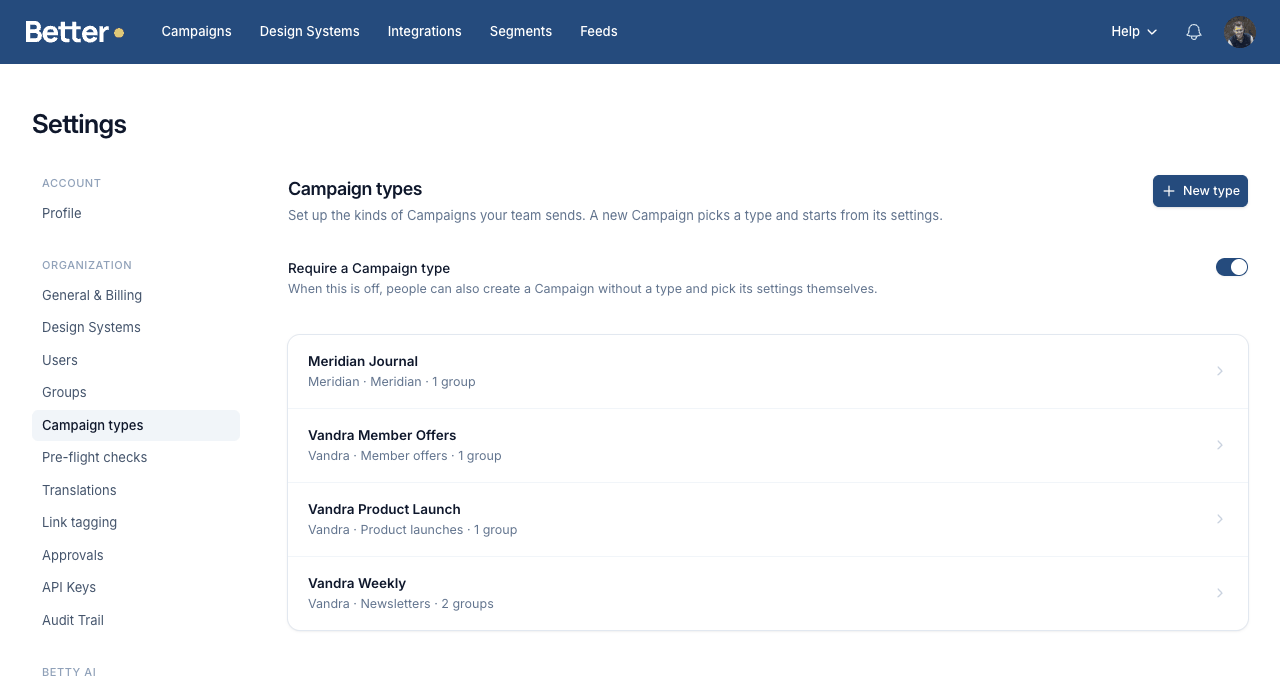
What a type sets
Some settings are copied onto the Campaign when it's created. Editing the type afterwards only affects Campaigns created from then on, so a Campaign already in review doesn't change under its editors and approvers.
Other settings are policy. They follow the type as it is now, for every Campaign of the type, old and new.
| Copied when the Campaign is created | Applies to all Campaigns of the type |
|---|---|
| Design System and channel | Who can create from the type |
| Destination | Keeping Campaigns in the type's Folder |
| Folder | Pre-flight check overrides |
| Language | Instructions for Betty |
| Starting Campaign content | The type's name, as Design System Liquid sees it |
| Approvers | |
| Name, from the naming scheme |
A Campaign's type is set once. It can't be changed later, and a Campaign created without a type can't be given one. Clones and language versions keep the type of the Campaign they came from.
Set up a type
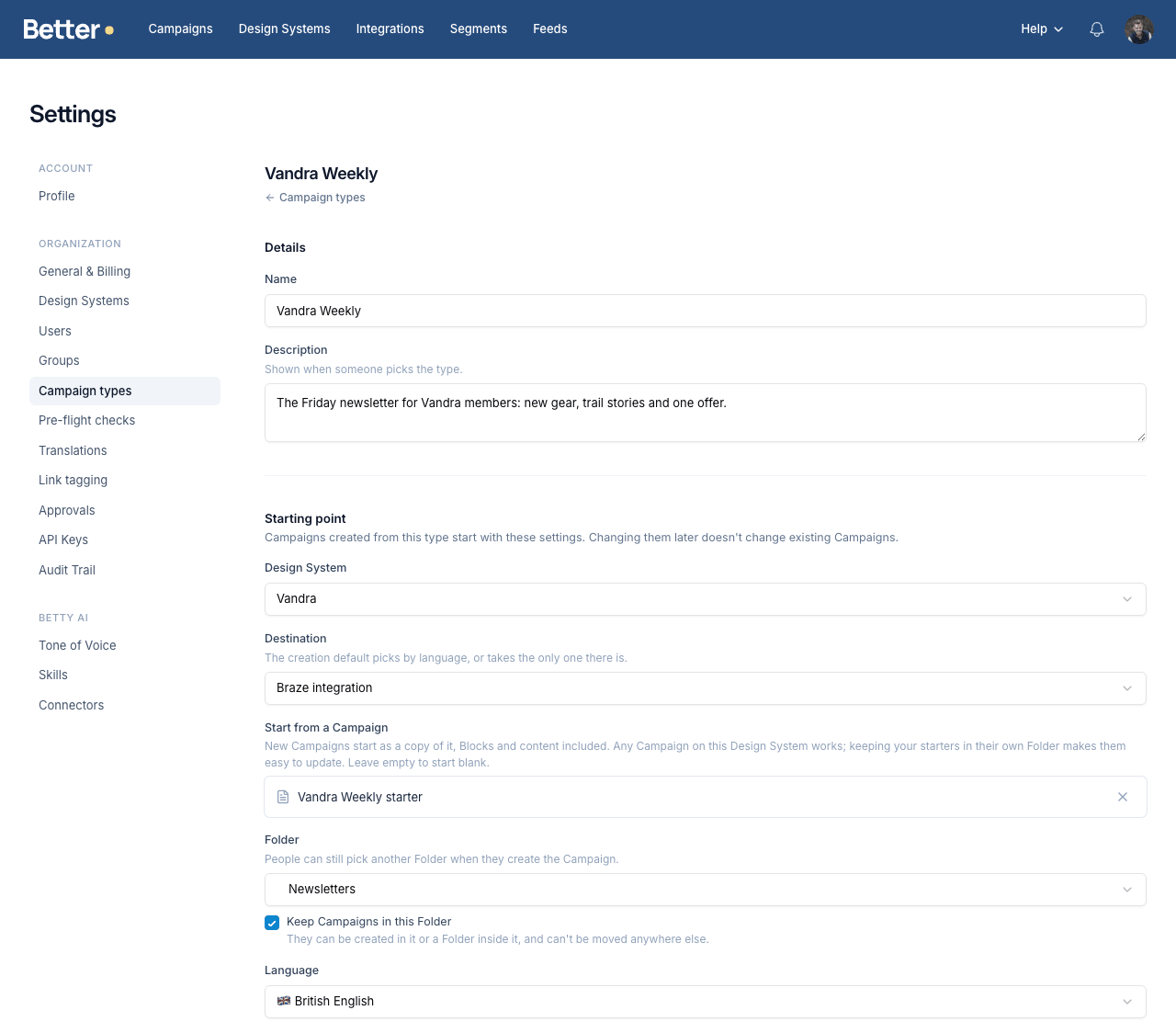
Only admins manage Campaign types. Go to Settings → Campaign types and click New type. Each part of the form is described below; only the name and the Design System are required.
Details
The Name is what people pick in the New Campaign dialog. The Description shows under the picker once someone chooses the type, so use it to say what the type is for: "The Friday newsletter for Vandra members", not "Newsletter type".
Starting point
These are the choices a person would otherwise make by hand in the New Campaign dialog.
- Design System and its channel. Pick Live (latest) for normal Campaigns. Candidate (latest) is for types used to test a staged Design System version; see Candidate testing.
- Destination, the Integration and Destination the Campaign syncs to. Leave it empty and people pick one when they create the Campaign.
- Start from a Campaign. New Campaigns start as a copy of this Campaign, with its Blocks and content. Any Campaign on the type's Design System works. Keep your starters in their own Folder so they're easy to find and update. If the starter syncs to a different Integration than the type, its variants don't carry over, and the form tells you so.
- Folder, where new Campaigns go. Tick Keep Campaigns in this Folder to lock the type's Campaigns to that Folder and the Folders inside it. They can't be created or moved anywhere else. Turning the lock off, or deleting the type, frees them again.
- Language, pre-filled in the New Campaign dialog. Only languages set up under Settings → Translations are available.
The creator still needs access to everything the type points at. A type never gets someone into a Design System, Destination or Folder they couldn't pick by hand.
Who can create
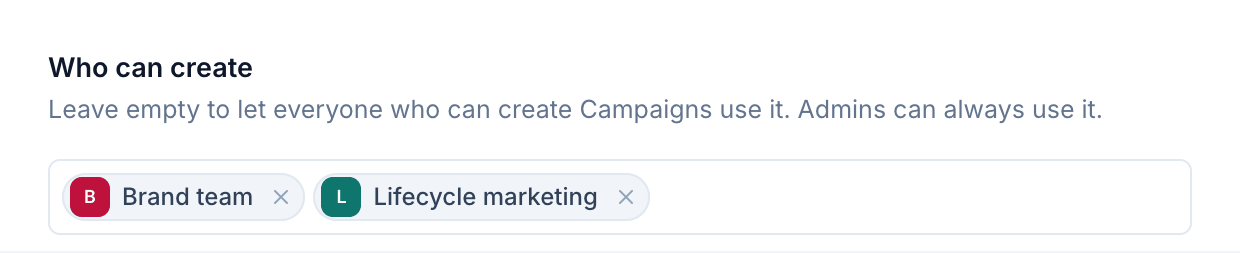
Add the Groups or people who may create Campaigns from the type. Leave it empty to let everyone who can create Campaigns use it. Admins can always use every type.
If a Group you add can't reach the type's Design System, Destination or Folder, the page warns you. Its members can't create from the type until they get that access another way. See Groups and access control.
Approvers
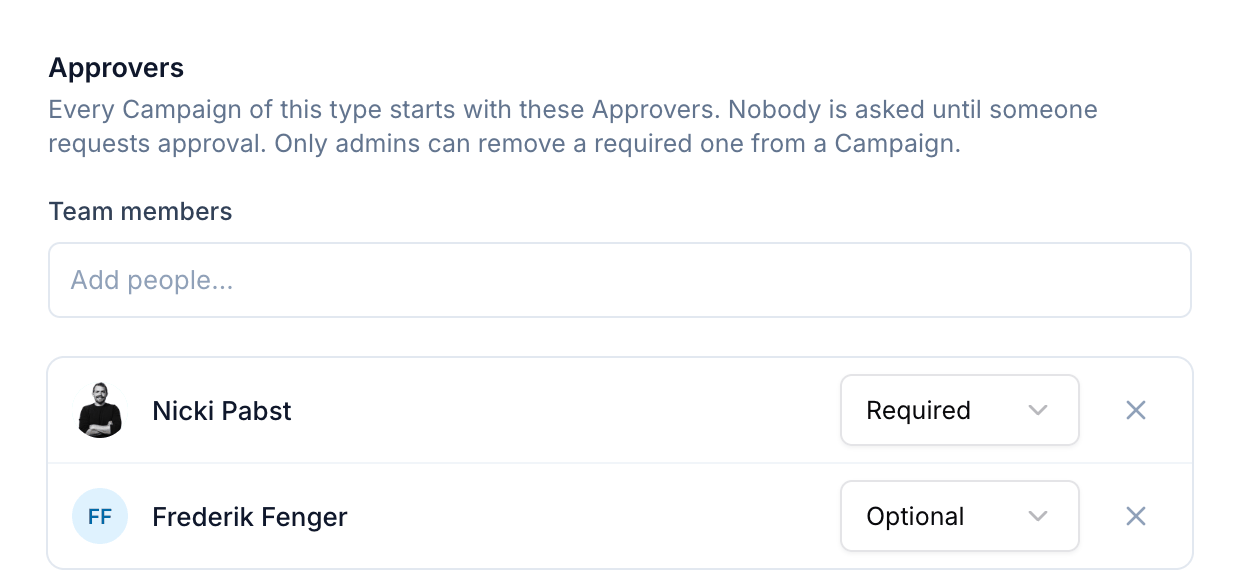
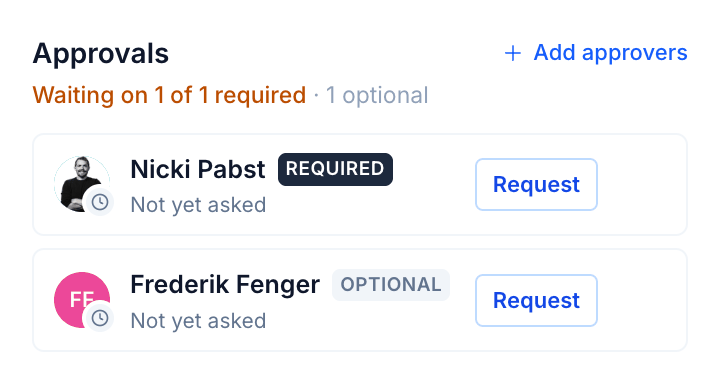
Every Campaign of the type starts with these approvers, each Required or Optional. Nobody gets a notification when the Campaign is created. They hear about it when someone on the Campaign requests approval.
If your Organization uses External Reviewers, you can add them here by email too. They get their review link the first time someone requests approval on the Campaign.
On the Campaign, a required approver who came from the type can only be removed, made optional or turned off by an admin. Everyone else sees those options greyed out, with the reason. The type is where you decide that Legal signs off on every offer, and an editor in a hurry can't quietly drop them.
Naming
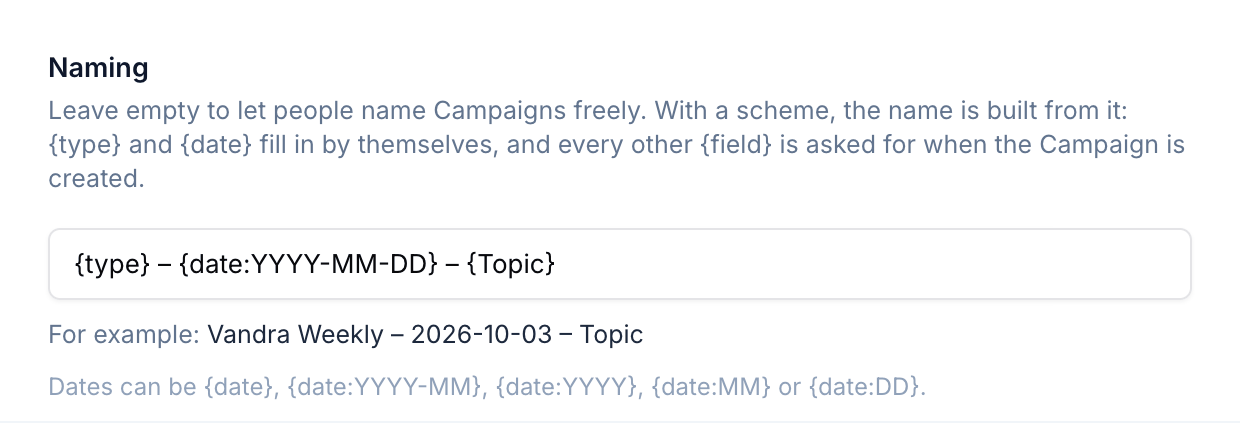
A naming scheme builds the Campaign name for people, so names stay consistent and sortable. Write the scheme with placeholders in curly braces:
{type}fills in the type's name.{date}fills in the creation date in the creator's time zone. It'sYYYY-MM-DDby default;{date:YYYY-MM},{date:YYYY},{date:MM}and{date:DD}also work.- Any other
{Field}becomes a field in the New Campaign dialog. A scheme can ask for up to five fields. The label is the field name exactly as you write it, so{Topic}reads better than{topic}.
Leave the scheme empty to let people name Campaigns freely. With a scheme, the name is built from it and can't be typed over, though anyone can rename the Campaign afterwards.
Pre-flight checks
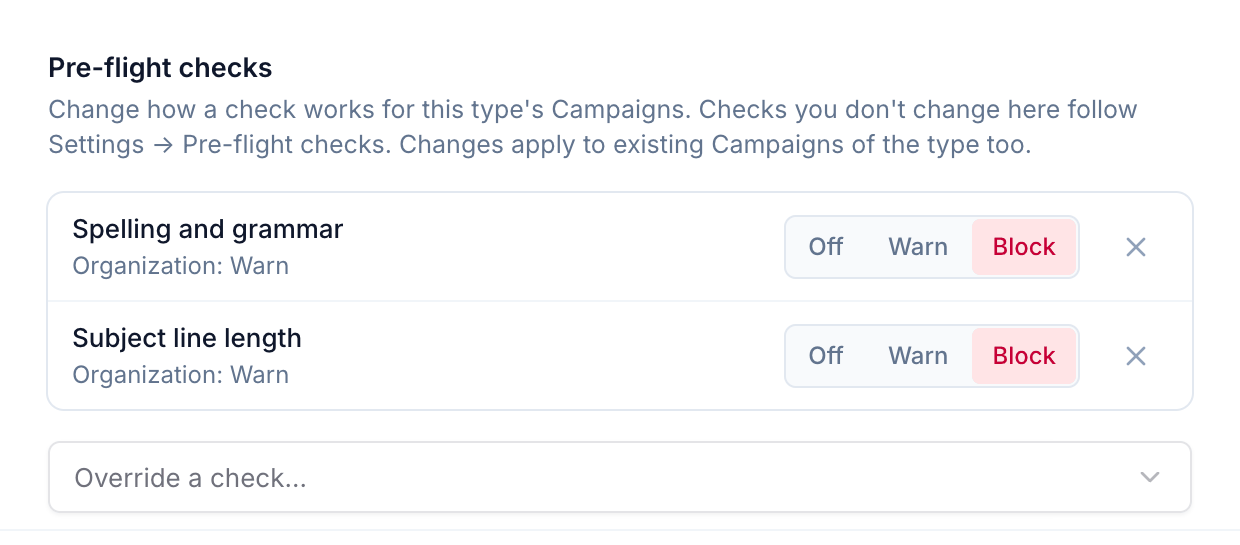
Override how individual checks work for this type's Campaigns. Each one can be off, warn or block. Each override shows what the Organization's setting is. Checks you don't override follow Settings → Pre-flight checks; see Email checks.
Overrides apply to existing Campaigns of the type as soon as you save.
Betty
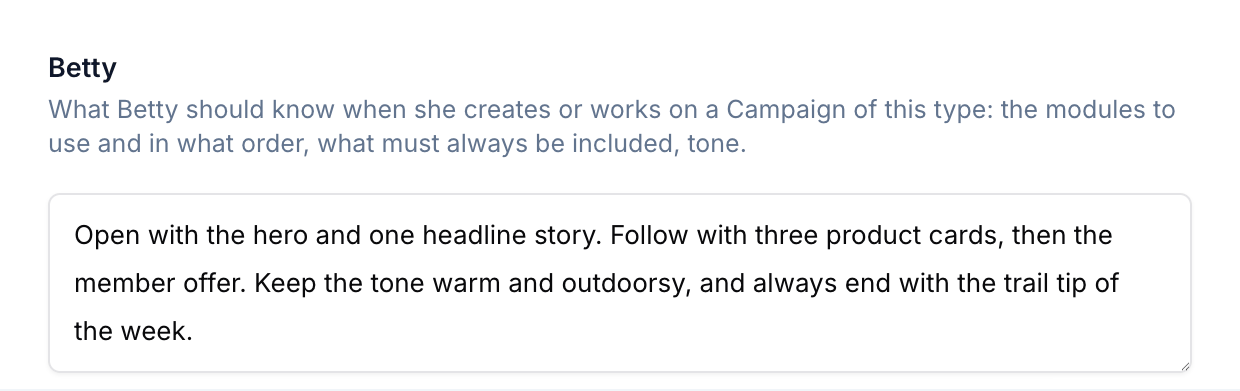
Tell Betty what she should know when she creates or works on a Campaign of this type: which Modules to use and in what order, what must always be included, the tone. She reads the current instructions every time, so editing them changes her behaviour on existing Campaigns too.
Betty can also create Campaigns from a type herself. Ask her for "a new Vandra Weekly about the autumn trail kit" and she picks the type, fills in the naming scheme and starts from the starter Campaign like anyone else would.
Create a Campaign from a type
Click New Campaign and pick a type. If only one type is available to you, it's already picked.
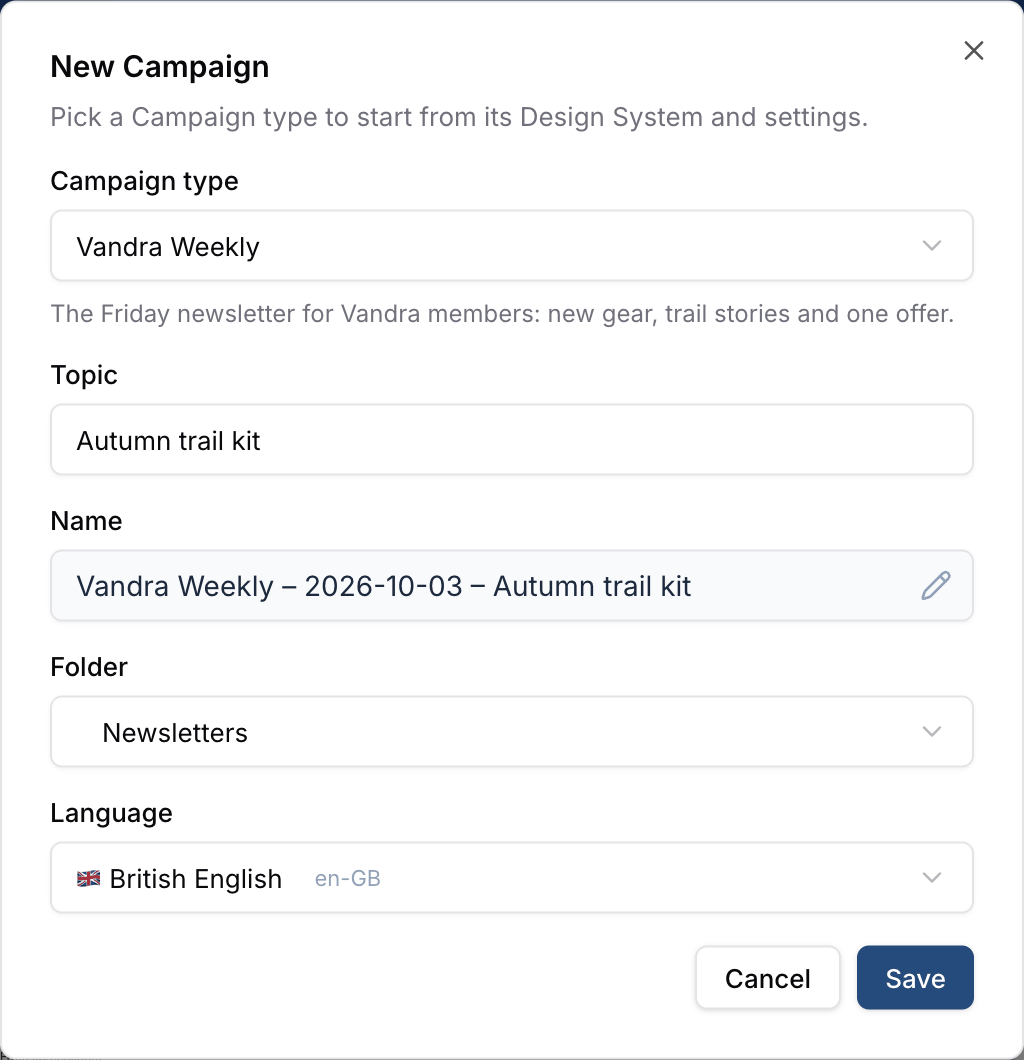
The dialog asks only for what the type leaves open: the naming scheme's fields, and a Destination if the type doesn't set one. The Folder and language come pre-filled. You can change them unless the type locks its Folder, in which case you can still pick a Folder inside it.
A type that can't be used right now stays in the list, greyed out with the reason. That happens when, for example, its Design System or Destination is archived, its Integration is turned off, or its Folder or starting Campaign was deleted. The reason tells you what to ask an admin to fix.
Require a Campaign type
At the top of Settings → Campaign types, Require a Campaign type decides whether people can still create Campaigns the old way.
- Off: the New Campaign dialog also offers Without a type, where people pick the Design System and the rest themselves.
- On: every new Campaign needs a type, Betty's included.
Start with it off while you set up types and see how your team uses them. Turn it on once every kind of Campaign you send has a type.
Admins can always step outside the rules. They can create a Campaign without a type when one is required, type their own name over a naming scheme (the pencil in the Name field), and place a Campaign outside a locked Folder. It's meant for the odd Campaign that shouldn't follow the type, like a new starting Campaign.
Use the type in a Design System
Design System Liquid can read the Campaign's type as context.campaignType, with .id and .name. It's null for a Campaign without a type, for a Campaign whose type was deleted, and in the Design System Editor. It works everywhere context does, including Only show if conditions and dynamic defaults.
This lets one Design System serve several types and still differ where it matters:
{% if context.campaignType.name == "Vandra Member Offers" %}
  <p class="terms">Offer valid for Vandra members only. See vandra.example/terms.</p>
{% endif %}
The name is read when the Campaign renders, so renaming a type changes what this Liquid sees on existing Campaigns too. Branch on names that rarely change, like brands. See Render context for everything else context holds.
Deleting a type
Deleting a type removes it from the New Campaign dialog. Its Campaigns stay where they are with the settings they were created with. What the type applied live stops: the Folder lock is lifted, its check overrides and Betty instructions no longer apply, and context.campaignType becomes null.
Examples
A few ways teams use Campaign types.
One Organization, several brands
Vandra sells outdoor gear and Meridian runs hotels, and both live in the same Organization. Each brand gets its own types on its own Design System, Destination and Folder, with access limited to the brand's team. Nobody on the Meridian team ever sees a Vandra type, so nobody sends a hotel newsletter through the outdoor brand's ESP.
A recurring newsletter
Vandra Weekly goes out every Friday. The type starts each issue from a starter Campaign with the usual Blocks in place, names it Vandra Weekly – 2026-10-03 – Autumn trail kit, files it under Newsletters and adds the same approvers. The Betty instructions describe the issue's structure, so Betty can draft the next one in the right shape. Creating an issue takes a topic and one click.
Offers that Legal signs off
Member offers carry terms and a legal risk. The Vandra Member Offers type adds Legal as a required approver that only an admin can remove, makes No placeholder text block export, and locks the Campaigns to the Member offers Folder. Turn on blocking approvals and no offer leaves Better Email without Legal's sign-off.
Business units on a shared Design System
A bank runs one Design System for Everyday banking, Mortgages and Pensions, each with its own Destination in the ESP. One type per business unit sets the right Destination and Folder. The Design System branches on context.campaignType.name for the parts that differ, like the sign-off and the regulatory footer, so the business units share every Module and still send the right small print.
Markets with their own language
A Nordic team sends in Danish, Swedish and Norwegian. A type per market pre-fills the language and points at that market's Destination. People in Copenhagen pick "Vandra Denmark" and start in Danish, syncing to the right list, without touching a language or Destination picker.
A type only a few people may use
Service announcements, like a store closing or a delivery delay, go to everyone and can't wait for the usual review. A "Service announcement" type limited to the CRM team, with one required approver and its own starter, lets them send fast while keeping it out of everyone else's New Campaign dialog.