For admins
Link tagging
Link tagging adds analytics parameters to the links in your campaigns when they're exported — the utm_source, utm_medium and utm_campaign codes your analytics platform reads to tell you where traffic came from. You set the rules once, and every campaign follows them.
Other email tools call this link tracking. The name here is deliberate: Better Email tags your links, and your analytics platform does the tracking. We never see who clicked what.
Only users with the Admin role can change link tagging settings. Everyone building campaigns fills in whichever fields the setup asks for.
Set up tagging
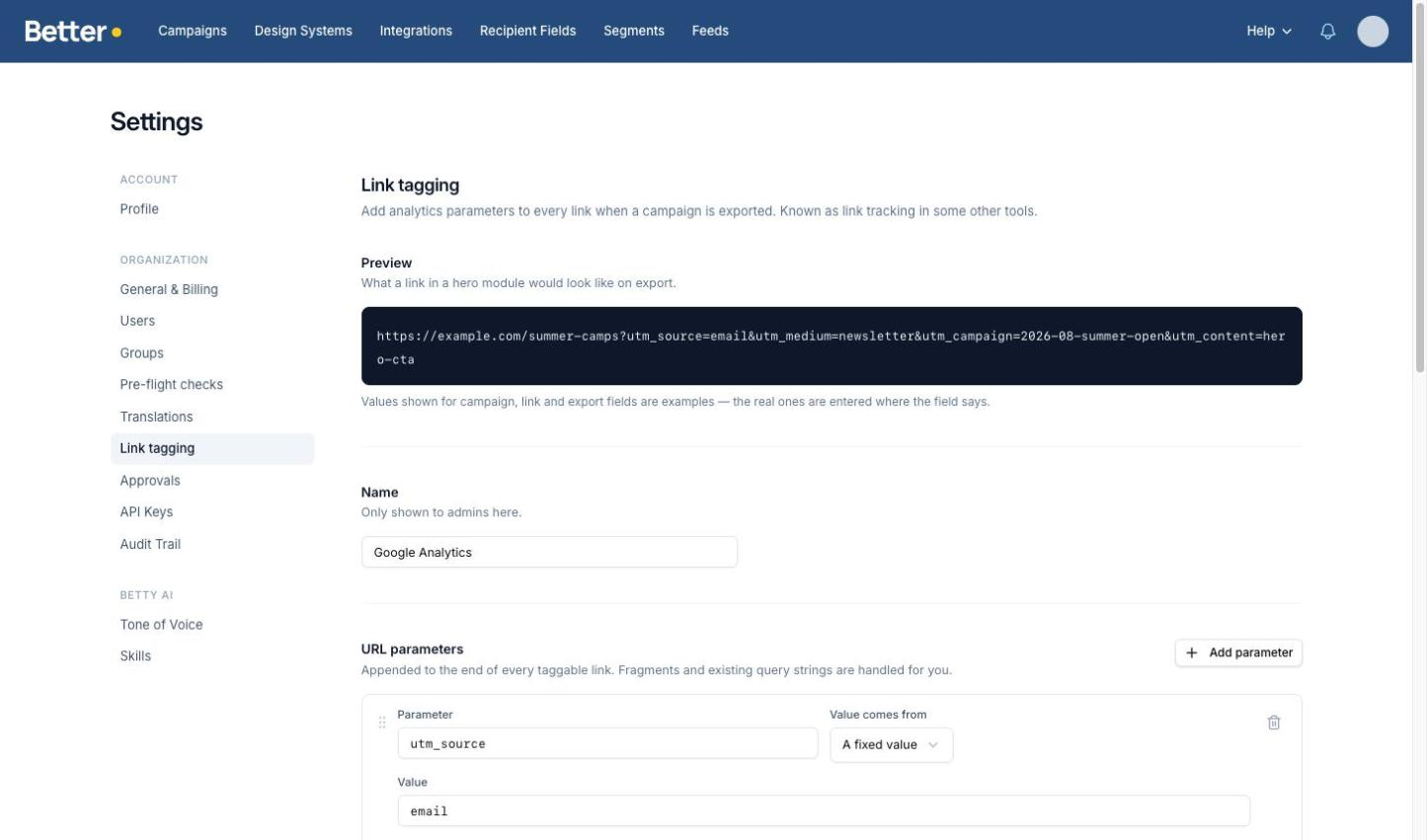
Go to Settings → Link tagging. If nothing is configured yet, you can start from the Google Analytics convention or build your own from scratch.
The Google Analytics preset gives you the four parameters most teams use:
| Parameter | Value comes from |
|---|---|
utm_source | A fixed value — email |
utm_medium | A fixed value — newsletter |
utm_campaign | The campaign |
utm_content | Better Email — the link's name |
A preview at the top of the page shows what a link will look like once tagged, updating as you edit. Use it to check the result before you save.
Where each value comes from
Every parameter answers one question: where does this value come from? That choice decides who fills it in, and where.

| Value comes from | Who sets it | Where they set it |
|---|---|---|
| A fixed value | You, once | Nowhere — it's part of the setup |
| Better Email | Nobody | Filled in automatically |
| The campaign | Whoever builds the campaign | Campaign editor, under Global |
| Each link | Whoever edits the module | On the link itself |
| The export | Whoever exports | The export dialog |
Most setups use a mix: a couple of fixed values, a campaign code typed once per campaign, and the rest filled in automatically.
Values Better Email fills in
Choosing Better Email lets you pick from what we already know about the link and the campaign around it:
- Link name and link text — the name the design system gives the link, or its visible label
- Block name — the module the link sits in
- Link number — its position in the email
- Campaign name, campaign ID, folder name, design system name, revision number, language
- Integration name and export date
This is what makes utm_content work without anyone typing anything. A link called "Hero CTA" in your design system becomes utm_content=hero-cta automatically, and a different link in the same module gets its own value.
A format control decides how the value is written: hero-cta, hero cta, or the original Hero CTA. Names are tidied into the first form by default, which keeps Newsletter and newsletter from showing up as two separate rows in your reports.
Fields people fill in
For the campaign, each link and the export, you also choose the field type:
- Free text — anything
- Date — a date picker
- Dropdown — a fixed list of options you provide, separated by commas
Prefer a dropdown wherever the answer comes from a known set. It's the simplest way to stop typos fragmenting your reporting.
Filling in the fields
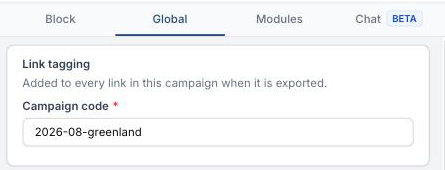
Campaign fields appear in the campaign editor under Global → Link tagging. Fill them in once and they apply to every link in that campaign.
When a required Campaign field is empty, Better Email marks it in red, lists it under Link tagging in the editor's validation summary, and blocks export. The export dialog names the missing fields and points you back to Edit → Global → Link tagging. A configured default counts as a value.
Link fields appear on each link in the module settings, below the URL. Use these when one link needs to differ from the rest.
Export fields appear in the export dialog. They're for decisions about a particular send — a wave number, a send date — that don't belong to the campaign itself.
Checking links before export
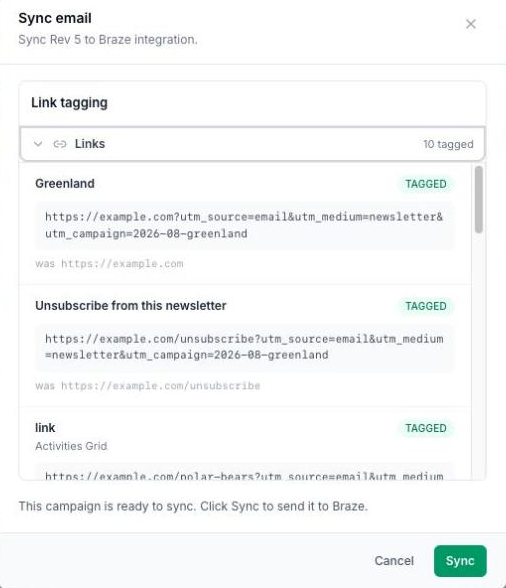
The export dialog includes a Links section listing every link in the campaign with the exact URL it's about to be exported with, and a count of how many were tagged.
Expand it to see each link, the module it came from, and its final URL. These are the real addresses that will go out — resolved by the same process that produces the exported HTML — so it's the fastest way to confirm a setup is doing what you expect.
Links that are never tagged
Some links are left alone automatically:
mailto:,tel:andsms:links- Links that jump to a spot within the email
- Merge tags such as
[unsubscribe] - Personalised URLs that aren't resolved yet
- Links that already carry the same parameters
The Links section labels each of these with the reason it was skipped, so a missing tag is never a mystery.
Advanced options
Link attributes
As well as adding parameters to the URL, you can write attributes onto the link itself. Some providers read these — Salesforce Marketing Cloud uses an alias attribute to name links in its click reports, and Mailchimp uses mc:disableTracking to leave a link out of tracking entirely.
Attributes use the same value sources as parameters. An attribute already set in the design system always wins over one from your tagging setup.
Wrapping links in another service
If your links need to pass through a redirector — a mobile deep-link service, for example — put its address in Wrap links in another service and use {{ url }} where the real link should go:
https://example.onelink.me/ab?web_url={{ url }}
The tagged link is inserted there, correctly encoded. Leave this empty to send links straight to their destination.
Coming from another tool
If you're moving from a platform with its own link tracking, the thing that matters is that your exported links keep working: same parameter names, same values, so your existing reports and dashboards carry on without a break.
Setting that up is a one-time job. Bring your current configuration to the Settings → Link tagging page, recreate each parameter, and check the preview matches what you're sending today. Your design systems don't need any special preparation — link names come from the design system you build here.