For marketers
Campaign Variants
A Campaign Variant is a linked copy of a Campaign for one audience, market or brand, such as Loyal customers or Nordics. It starts as a copy of the Campaign it came from, called the master, and follows the master's design changes. Its copy is its own, and it is reviewed, approved and synced on its own.
Language variants are Campaign Variants too, on the built-in language dimension, and Betty translates them. They have their own page, Translation. Both kinds sit on the master's Variants tab.
Campaign Variants or block variants
Better Email has two ways to give different people different content. Pick by how much of the email differs.
- Block variants keep one Campaign. A few blocks change per audience and the rest is the same email for everyone. The export wraps the differences in your ESP's conditional code, so one send reaches everyone.
- Campaign Variants give each audience its own Campaign. Use them when the copy or tone changes throughout the email, or when each audience gets its own send, Destination or sign-off.
Set up dimensions
A dimension is what a Campaign's variants differ by, such as Audience or Market. Its values are the variants an editor can add. An Organization admin sets them up under Settings → Campaign variants:
- Click Add dimension and name it, for example
Audience. - Type a value, for example
New customers, and click Add value. Repeat for each value. - Click Save changes.
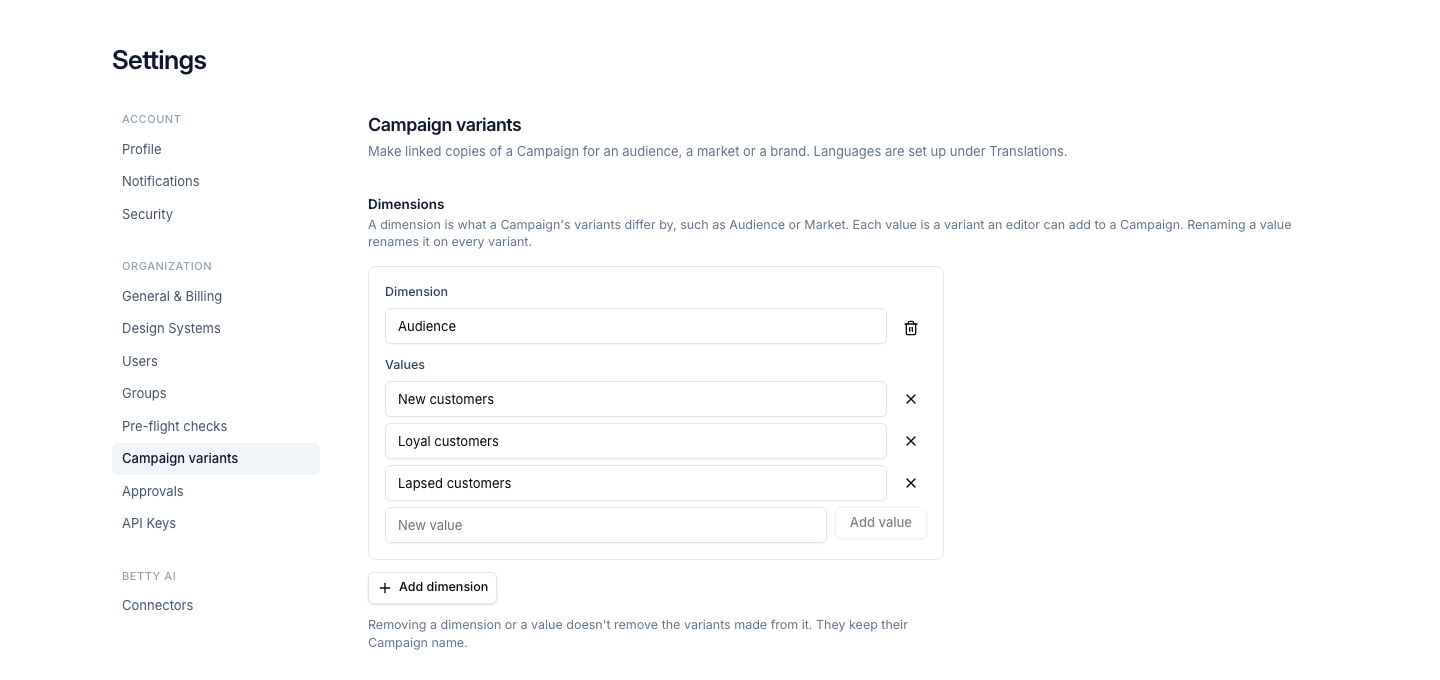
Campaign Variants turn on once a dimension has at least one value. After the Organization has made its first variant, they stay on. An Organization can have up to 10 dimensions, each with up to 50 values. Language isn't one of them. If your Organization uses translations, languages are set up under Settings → Translations.
Renaming a value renames it on every variant made from it. Removing a dimension or a value, even the last one, doesn't remove its variants or turn Campaign Variants off. The variants stay linked to their master and show their Campaign name where the value's name used to be.
Add variants
Admins, Designers and Editors can add variants. Open the master Campaign and go to the Variants tab:
- Click Add variants.
- If the Organization has more than one dimension, pick one.
- Tick the values you want a variant for. A value the Campaign already has shows Already a variant.
- Click Add 2 variants (the button counts what you ticked).
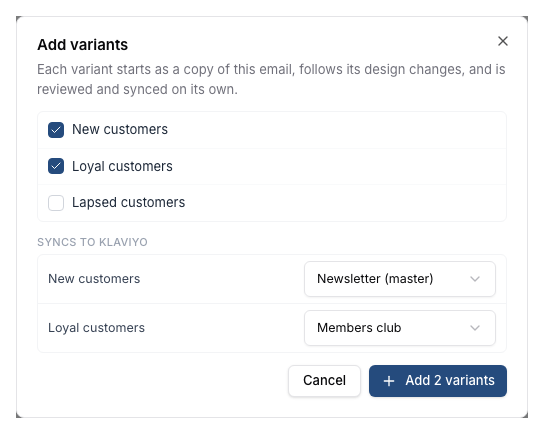
Each variant is a new Campaign in the master's Folder, named after the master and the value, for example "Vandra autumn trail collection (Loyal customers)". If that name is taken, the dimension goes in the name too: "Vandra autumn trail collection (Audience: Loyal customers)". The variant has the master's Campaign type and gets the type's required approvers.
Pick a Destination per variant
A Campaign's Destination is set when the Campaign is created and can't change afterwards, so the dialog is where a variant gets its own. If the master's integration has other Destinations you can use, the dialog lists the ticked values under Syncs to, each with a Destination picker. It starts on the master's Destination, marked (master). Pick another one for a value that syncs somewhere else, such as a members-only list for loyal customers.
The Variants tab
The master's Variants tab lists the master and every variant:
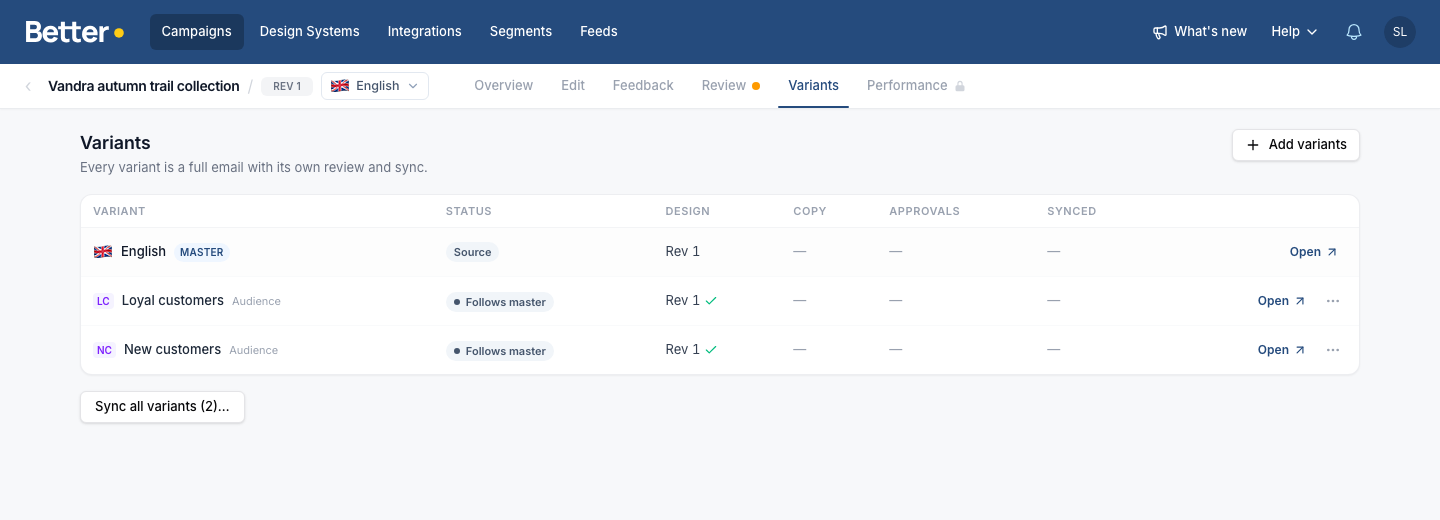
- Variant shows the value with its initials, and the dimension it belongs to. Language variants show their flag.
- Status reads Follows master until something needs a look. It changes to Master changed when the master changed a field the variant changed too, In review while comments are open, and Approved once the variant is signed off.
- Design is the master revision the variant's design is on, and whether it's behind.
- Copy counts the fields the master changed that the variant changed too.
- Approvals and Synced work as on any Campaign.
Edit a variant
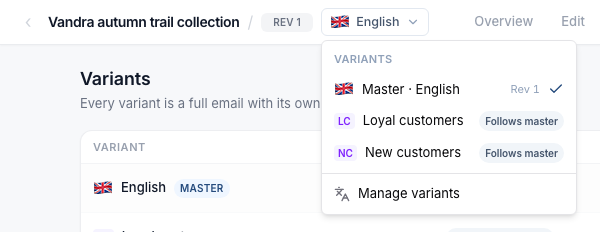
Open a variant from the table, from the campaign library, or with the switcher next to the Campaign name. The switcher lists the master, then any language variants, then the other variants by name. Manage variants opens the Variants tab.
In the editor, a banner such as "Loyal customers variant of Vandra autumn trail collection" links back to the master. Change only what differs for the audience. A field you leave alone keeps following the master, so later changes to the master's copy reach the variant too. A setting you change shows Overridden for Loyal customers, with Revert to master to undo it.
Betty doesn't translate these variants. They have no Translate actions, and the master's new text goes in as it is.
Keep variants in step
Design changes reach a variant the way they reach a language variant. Create a revision on the master, and the Variants tab shows how many variants are on an older revision. Click Push design update to bring them onto the latest design. Each variant keeps its own edits.
When the master changes a field that a variant also changed, the variant keeps its own text and the variant's editor flags the field with Master text changed. Click Use master text to take the master's new text, or Mark as reviewed to keep the variant's. The variant's status reads Master changed until you've handled every flagged field.
Review and sync
On the Review tab a variant is a Campaign like any other, with its own pre-flight checks, comments and approvals. Its Campaign variants check group has two checks for it: Design in sync with master, and No stale fields, which warns when the master changed a field the variant changed too.
Sync a variant from its own Review tab, or every variant at once from the master's Variants tab with Sync all variants. Once approvals are set up, that button reads Sync all approved and only syncs the approved variants. In Iterable a variant gets its own template, unlike a language variant. See Iterable integration.
In the campaign library
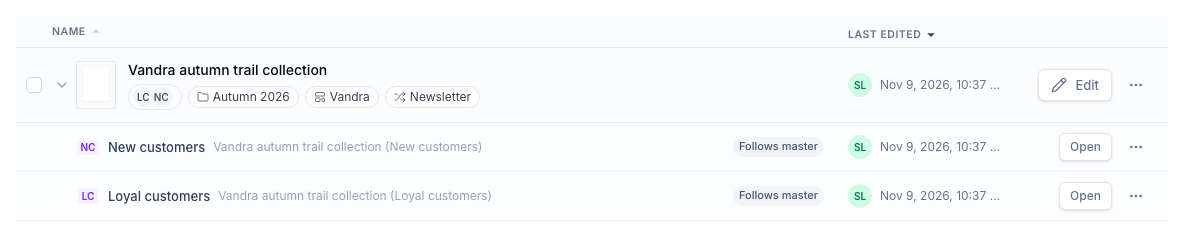
The library folds a master's variants under it. The master's row shows a token for each variant: the initials of a value, or the flag of a language. Click the arrow next to the row to see the variants, each with its status and approval.
Detach or delete a variant
From the row menu (⋯) on the Variants tab:
- Detach from family turns the variant into a standalone Campaign. It keeps its content but no longer gets design updates.
- Delete variant moves the variant to the Trash. Restoring it from the Trash puts it back in the family.
Ask Betty
Once your Organization has a dimension with at least one value, Betty can add Campaign Variants as part of building a Campaign. Ask for the email per audience, for example "Make this for new and for loyal customers, and give loyal customers the members discount."
Betty finishes the master first, adds the variants, then opens each one and changes only what differs for its audience. Copy you give her for an audience goes in word for word. She uses the dimensions and values your admin set up, and if the brief needs one that doesn't exist, she says so instead of picking another. She doesn't add language variants. Add those on the Variants tab.