For developers
Candidate testing
Candidate testing adds a staging step between building a design system and going live. Instead of publishing a version straight to every campaign, you promote it into a Candidate slot, test it in real campaigns, and publish it only once it works.
It is worth turning on when a design system serves several teams, where a broken module or an untested layout change reaches every campaign at once.
Turning candidate testing on or off is Admin-only. Staging and publishing versions requires the Designer or Admin role, the same as any design system editing.
Turn it on
Go to Settings → Design Systems and find the Candidate testing card. The setting applies to the whole organization, and every design system it owns follows it. There are two modes:
- Disabled — design system versions can be published straight to Live. This is the default behavior. The Draft → Live arrow either publishes the latest clean version or creates and publishes a version from the current draft in one step.
- Enforced — after a design system's first publish, Live only changes by publishing a candidate. Every later version is staged for testing before it can go live.
The first version of a new design system can always be published directly. Candidate testing begins once there is a Live version to test against.
Draft, Candidate, Live
With candidate testing on, the top of the Design System Editor shows a timeline with three stages:
- Draft is your working line. It holds saves (any write, including autosaves) and versions (a numbered, named save such as
v8 · Summer refresh). Only versions can be staged or published. - Candidate is the staging slot. It holds one snapshot at a time, labeled with where it came from:
Candidate v8, orCandidate v8 · partialwhen only some modules were staged. - Live is the published channel. Campaigns created on Live follow its latest release. Each publish creates a numbered release (
L1,L2, and so on), so the chip readsLive L4.

Hover any stage for details about what changed, when, and by whom. The history buttons beside Draft and Live open the full draft line and the release history.
Staging never disturbs your draft. Promoting a version into Candidate does not create a new version, renumber anything, or rebase your ongoing work, so you can keep building while the candidate is under test.
The candidate is a single snapshot. You choose what goes into it while staging, and from then on it is tested and published as a whole.
Stage a version
To stage work for testing, save a version first. The Save a version dialog offers to open the staging step right afterwards, and you can also stage any existing version from its preview banner.
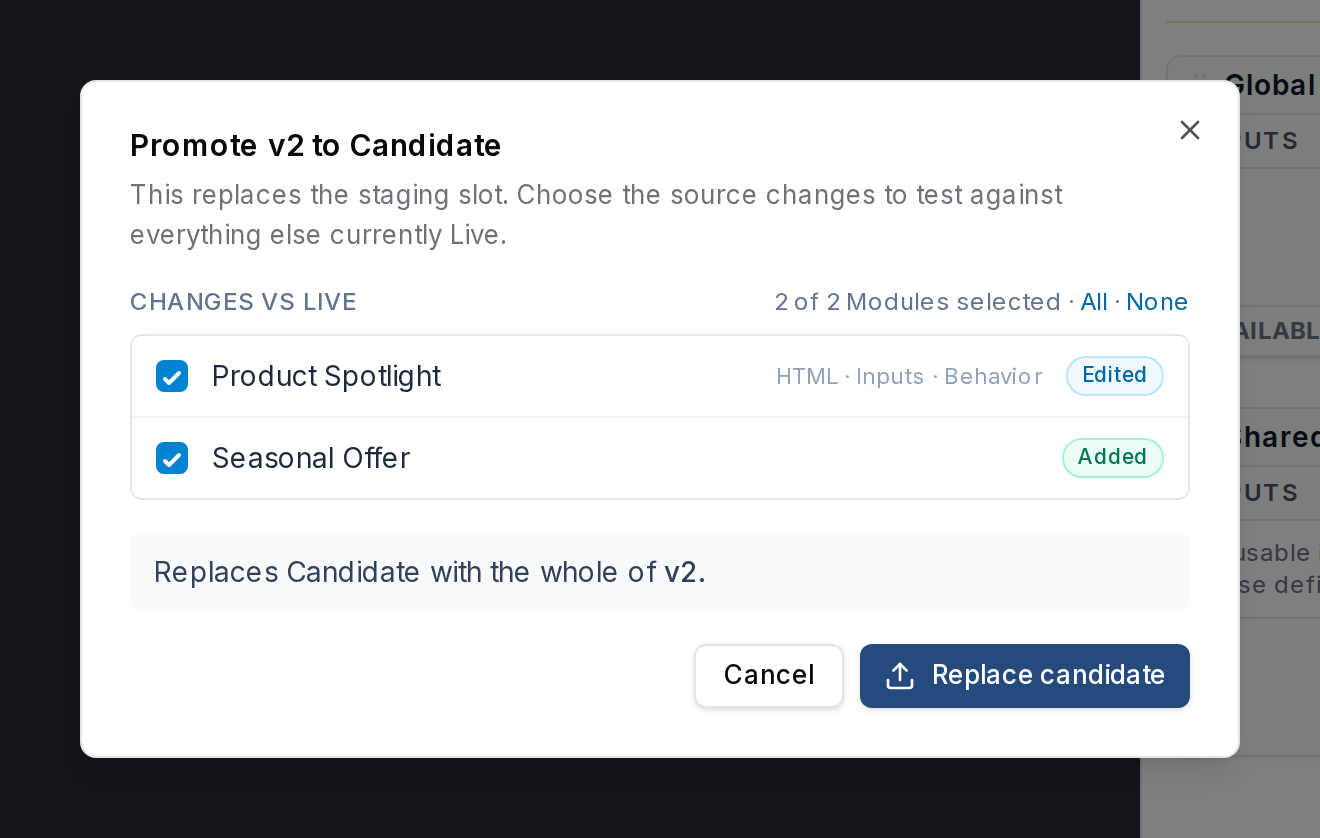
The Promote to Candidate dialog compares your version with Live and lists everything that differs: each changed module with an Added, Edited, or Removed badge, and the Template Base as its own row when it changed.
Full or partial staging
- Leave everything checked and the candidate becomes an exact snapshot of your version.
- Uncheck modules to stage a subset. The candidate gets the selected modules from your version, and everything else from the current Live version. This is how you test one fix without dragging along unfinished work that happens to sit in the same version.
The Template Base has its own checkbox. If your selected modules and the Template Base changed in the same version, the dialog points that out, because that combination has not been tested together.
Older than Live
If a module's staged content is older than what is currently Live, usually because you restored an old version into your draft, it is marked Older than Live and starts unchecked. This stops a restore from quietly rolling back modules you did not mean to touch.
Once something is staged, the Candidate stage names the version it came from:

Every promote replaces the whole slot. If a different version was already staged, it is swapped out; there is no queue of candidates.
Test the candidate in campaigns
When something is staged, an Admin or Designer can test it against real campaign content. There are two paths: preview Candidate without changing an existing Live Campaign, or create an editable Campaign on the Candidate channel.
Choose a channel when creating a Campaign
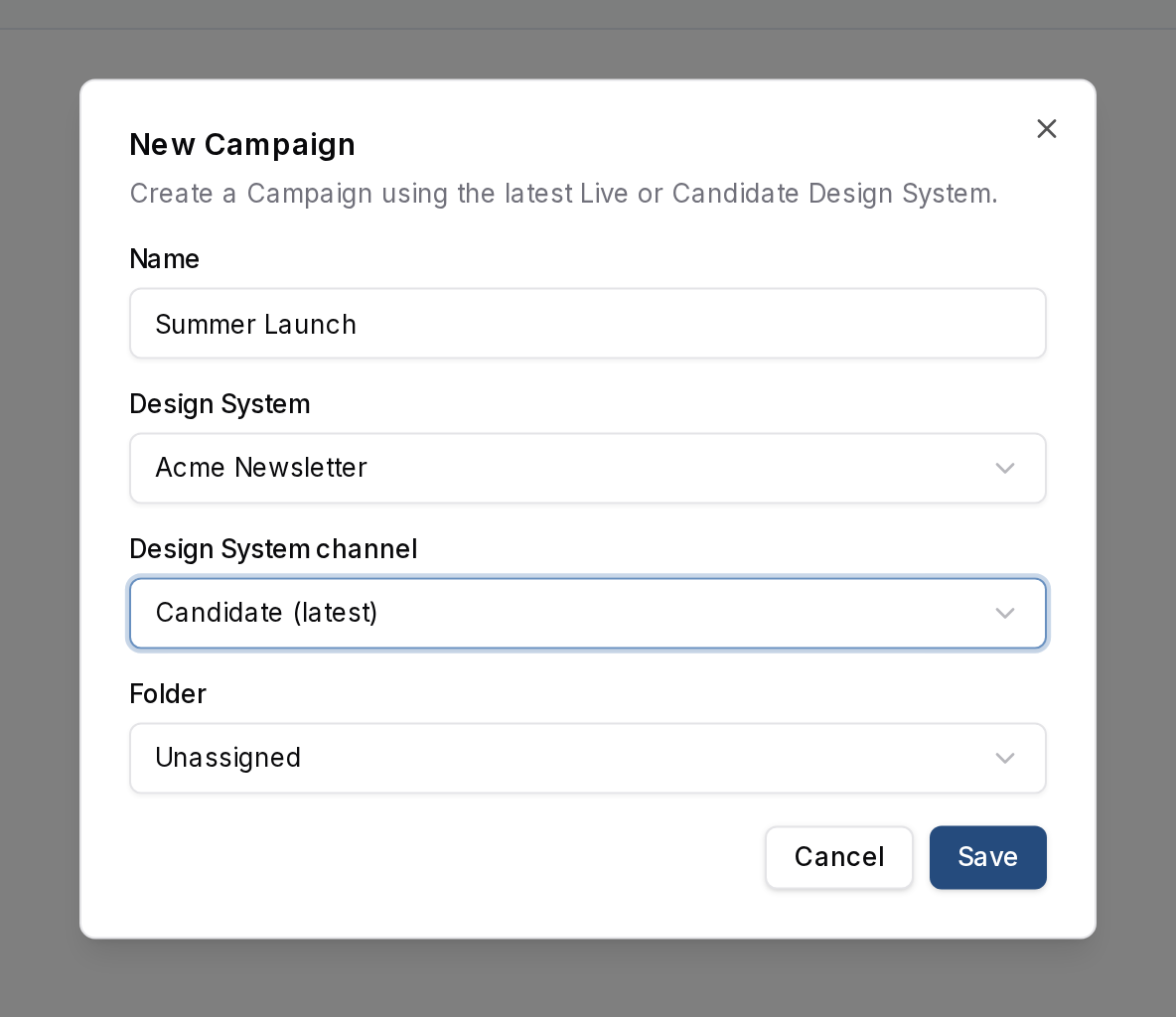
In the New Campaign dialog, choose the Design System and then its channel:
- Live (latest) — follows the latest published release. This is the default.
- Candidate (latest) — follows whatever is currently staged in the Candidate slot.
Only Admins and Designers see the Candidate choice, and only when the selected Design System has something staged. The channel is fixed when the Campaign is created: a Live Campaign stays on Live, and a Candidate Campaign stays on Candidate.
Preview Candidate from an existing Live Campaign
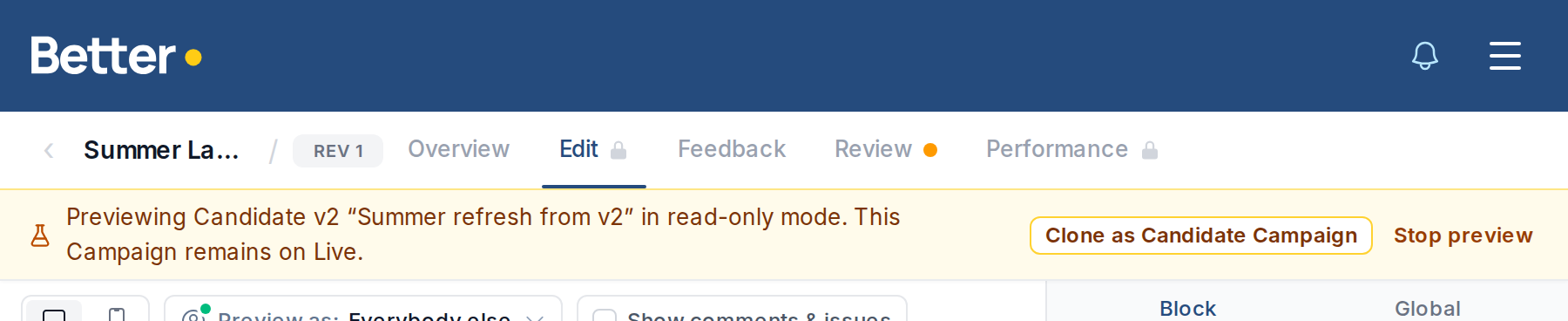
Open the Live menu beside the Campaign name and choose Preview Candidate. The Campaign renders against the staged version and shows an amber Previewing Candidate badge.
This preview is read-only and lasts only for your current editor session. It does not change the Campaign, so use it to inspect how existing content renders. Choose Stop preview to return to Live.
Clone when you need to edit and test
From the preview banner, choose Clone as Candidate Campaign. Better Email suggests a name ending in (Candidate), copies the Campaign, and links the copy to the Candidate channel. The original Live Campaign is unchanged.
The Candidate Campaign shows an amber Testing v8 badge in the editor and Campaign library. In that Campaign:
- Admins, Designers, and Editors with Campaign access can edit the content.
- Test sends render with Candidate, so you can check it in a real inbox.
- Only an Admin can download or sync Candidate-rendered output. Better Email shows a warning before the unpublished Design System content leaves the workspace.
A Candidate Campaign cannot be switched to Live. Keep the original Live Campaign for comparison, or create a new Live Campaign when you need one.
Candidate Campaigns follow the Candidate slot rather than one numbered version. If a different version is promoted, they render with that version. Publishing makes the tested version Live, so the Campaign keeps the same render and the unpublished-content export warning goes away. If Candidate testing is turned off or no Candidate is available, the Campaign renders with Live until Candidate becomes active again.
Publish the candidate
When testing checks out, publish from the timeline. The confirmation spells out what happens:
Publishes v8 exactly as tested. Live becomes exactly what Candidate holds; nothing is merged at publish time.
There is no module selection at publish time. That choice was made while staging, so what you tested is what ships. An optional comment ("What's in this release?") is recorded on the release.
Publishing appends a new numbered release to the release history, with who published it, when, the comment, which version it came from, and whether it was a full or partial stage. Releases are permanent: you can preview a past release and restore it as a new draft version, but the history itself never changes.
With candidate testing enforced, publishing a version without staging it first is blocked, and the editor asks you to promote it into the candidate slot.
Shipping a hotfix while a big build is in flight
This is the case partial staging exists for: a large redesign in progress on the draft line, and a small production fix needed now.
- Apply the fix in your ongoing draft and save a version. Your in-flight redesign work is in there too, which is fine.
- Stage only the fixed module. In the promote dialog, uncheck everything except the module you fixed, and leave Template Base unchecked unless the fix needs it. The candidate is now your fix plus everything else exactly as Live.
- Test the candidate in a campaign.
- Publish. Production gets the fix and nothing else.
- Keep building. Your draft line was never touched by any of this.
If the fix and the redesign collide in the same module, they cannot be separated by a partial stage. Restore the last live-matching version into your draft, apply the fix there, save, stage, and publish, then restore your work-in-progress version and continue.
Who can do what
| Action | Admin | Designer | Editor | Reviewer |
|---|---|---|---|---|
| Turn candidate testing on/off | ✅ | — | — | — |
| Save versions, stage, and publish | ✅ | ✅ | — | — |
| Create a Campaign on Candidate | ✅ | ✅ | — | — |
| Preview Candidate from a Live Campaign | ✅ | ✅ | — | — |
| Clone a Live Campaign onto Candidate | ✅ | ✅ | — | — |
| Edit an existing Candidate Campaign | ✅ | ✅ | ✅ | — |
| Export a campaign using Candidate after confirmation | ✅ | — | — | — |
| See the testing banner and pill | ✅ | ✅ | ✅ | ✅ |