For developers
Design Systems
Only users with the Designer/Developer or Admin role can create and edit design systems.
Design systems are the system behind every campaign in Better Email. They define the layout, the available modules, the editable inputs, and the rules that shape the marketer experience in the Campaign Editor.
If a campaign should feel flexible without going off-brand, that work starts in the design system.
What a design system contains
Every design system has three core parts:
- Template base (the design system's base layout): the outer HTML and Liquid wrapper for the full email
- Modules: reusable content blocks that marketers add to campaigns
- Assets: uploaded files such as logos, icons, and images used across the design system
Design systems can also include:
- Design-system-level settings for global controls like brand, language, footer behavior, or theme
- Module settings such as thumbnails, hidden status, content-zone restrictions, and AI instructions
- Version history so you can restore, review, and publish changes safely
How design systems connect to campaigns
When someone creates a new campaign, they choose a design system first. That design system controls:
- which modules are available
- which fields are editable
- how the email is rendered
- which validations must pass before review or export
This is why design system quality has such a big impact on day-to-day campaign work.
Template base
The template base is the shared wrapper around the full email. It usually includes the outer HTML structure, shared styles, and global sections like the header or footer.
The template base must contain {{ content }} exactly where the default module content should render. Design systems can also define additional content zones, such as {{ content_sidebar }} or {{ content_footer }}, when the campaign layout has more than one place where marketers can add modules. Additional content zone variables always use the content_ prefix.
Each content zone has a name and a Liquid variable. The variable must appear in the template base. When marketers drag a module in the Campaign Editor, Better Email only shows the zones where that module is allowed.
For the full model — adding zones, restricting modules, and how zones flow through the Campaign Editor and Betty — see Content zones.
Use design-system-level settings when a value should affect the whole campaign or several modules at once. Common examples include:
- brand or theme selection
- language or market selection
- global spacing, colors, and typography
- preview text and footer controls
Modules
Modules are the reusable content blocks that marketers work with in the Campaign Editor. Typical examples are hero sections, article cards, product rows, image-and-text layouts, or CTA sections.
A good module should:
- have a clear purpose
- expose only the inputs a marketer actually needs
- inherit global rules from the template base where that makes sense
- include sensible defaults so the preview looks good immediately
Read more in Modules.
Design System Editor
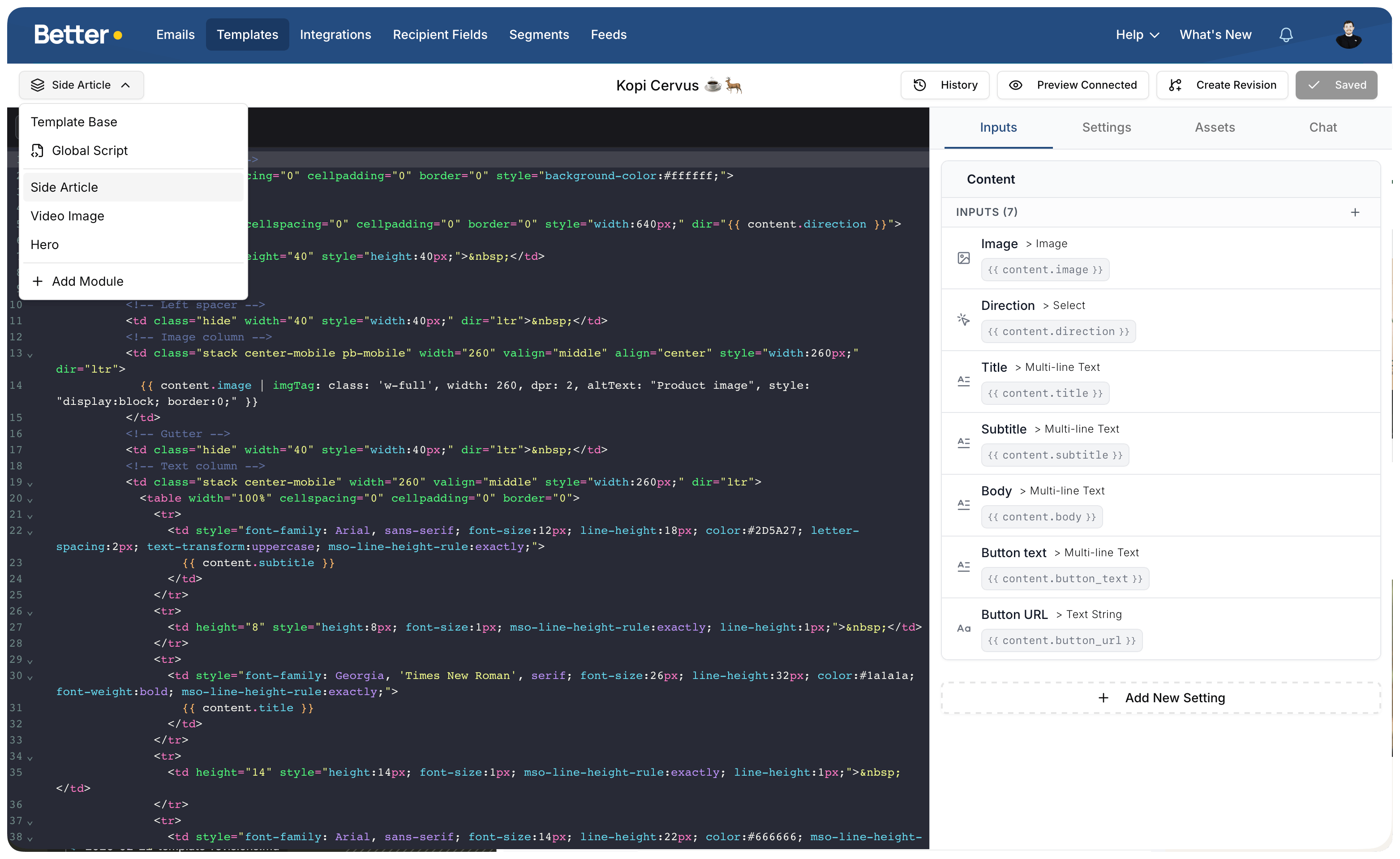
The Design System Editor is where design system authors build and maintain design systems. In the current editor you can:
- switch between the template base and individual modules
- edit HTML and Liquid
- manage settings and inputs
- upload assets
- edit metadata such as thumbnails and AI notes
- open preview in a separate window
- save changes and create versions
For the full workflow, see Design System Editor.
Teams that would rather work in their own editor and review changes in pull requests can keep the whole design system as files in a git repository and sync it with the Better CLI. See Design systems as code.
Assets
Use assets for files that should live with the design system, such as logos, icons, and shared imagery. After upload, you can copy the asset URL and use it in the template base or in a module.
If you use image assets in HTML, prefer the image helpers and resizing tools described in the image input docs so the final email stays optimized.
Metadata and hidden modules
Modules can include metadata that improves both usability and maintenance:
- thumbnail to make module selection easier
- AI metadata to guide Betty when creating or updating content
- content-zone restrictions to control where a module can be added
- hidden status to keep a module out of the marketer-facing module list without deleting its code
This is especially useful when you are phasing out old modules or keeping internal utility modules in the design system.
Versions
Design systems support version history so you can work more safely:
- save your current changes
- create named versions for important milestones
- view older versions
- restore a previous version
- publish a specific version when it is ready
Saves and versions are different things: a save is any write to the draft, including autosaves, while a version is a numbered, named save that can be published. Version history lives in the editor's top-bar timeline, covered in Design System Editor.
When candidate testing is disabled, the Draft → Live action publishes the latest clean version or lets you create and publish one from the current draft in a single step.
If several people maintain the same design system, versions are one of the most important guardrails in the workflow.
Organizations that want a testing gate before later changes reach live campaigns can enable candidate testing. After the first publish, versions are staged in a candidate slot and verified in real campaigns before publishing.