For admins
Performance data from Agillic
Better Email can show how the emails you build actually perform after they are sent from Agillic: sends, deliveries, bounces, opens, clicks, top clicked links, and how engagement develops in the hours after a send.
This guide explains what data is involved and how to set it up in Agillic. It assumes you have already connected Agillic to Better Email.
For what the finished result looks like and how to read it, see Campaign performance.
How the data reaches Better Email
Performance data comes from recipient-level activity in an Activity Export. On a schedule you choose, Agillic writes a ZIP of activity data into a folder inside your own Agillic instance. Better Email reads that folder with the same API credential it already uses to upload templates, turns the rows into campaign totals, and deletes the file.
Two consequences:
- Nothing new to grant: the developer key and secret key you created for the integration already cover this. There is no second credential and no extra scope.
- The export contains recipient-level rows. Better Email uses them to count how many were sent, delivered, opened and clicked, and which links were clicked how often. It keeps only those totals. No email addresses, recipient IDs, or per-person events are stored, and the export file is deleted from your instance once it has been read.
Better Email only ever reads and deletes inside the one folder you set up below. Other export profiles and folders in your instance are left alone.
1. Create an export profile
In Agillic, go to Data → Export → Export Profiles and create a new profile using the leftmost toolbar button. Choose To Folder.
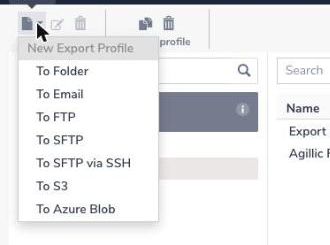
To Folder writes the file into your instance's own file area, which is what Better Email reads. The other destinations (email, FTP, SFTP, S3, Azure Blob) send the file somewhere Better Email cannot reach.
Fill in:
| Field | Value |
|---|---|
| Name | Better Email Performance |
| Folder | better_email_performance |
| Overwrite existing export | leave unchecked |
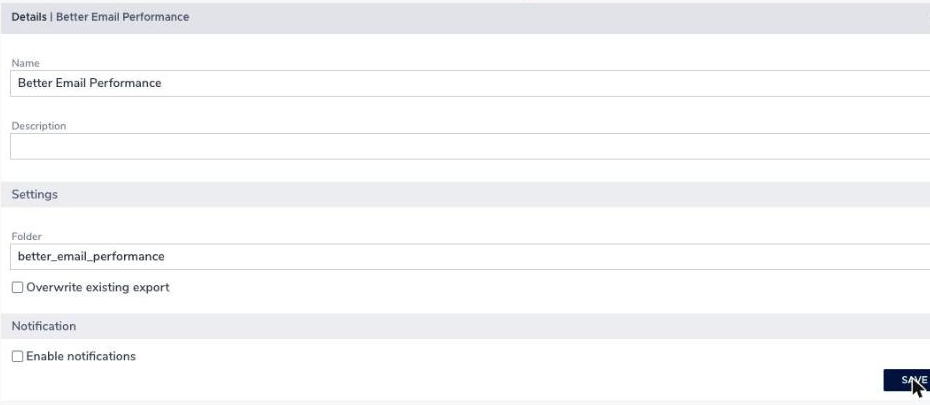
Use exactly that folder name. It is how Better Email recognises its own exports, and it keeps the files it deletes separate from any export your own reporting depends on.
The folder field does not accept hyphens. Agillic allows only letters, numbers and ._\, so use underscores as above.
Leave Overwrite existing export unchecked. Overwriting replaces the previous file, which can drop a few hours of engagement before Better Email has read it.
2. Create the activity export
Go to Data → Export → Activity Exports and create a new activity export. Name it Better Email performance.
Schedule
Select By the hour and set it to repeat every 4 hours, between hours 0 and 24. Both hour fields are required. Leaving them empty prevents saving.
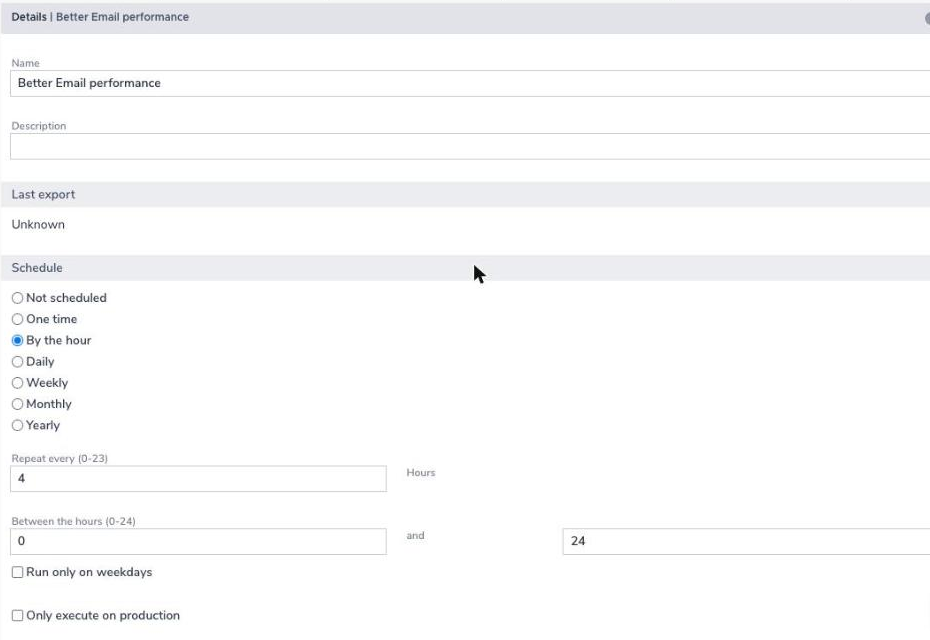
Every four hours is a good default: figures in Better Email stay under half a day old without asking much of your instance. Pick a different cadence if it suits you better. Daily is lighter on the instance; hourly is as fresh as Better Email's own sync can use. Each scheduled run exports only what has happened since the previous one, and Better Email deletes each file after reading it, so a frequent schedule does not pile up files.
Items
Tick these three and clear the rest:
| Item | Provides |
|---|---|
| Sends, delivery failures, bounces, opens, and subject lines | |
| Links | Clicks per link, for "Top clicked links" |
| Events | Unsubscribes, and the events Agillic records for tracked links |
The other channels (SMS, pages, prints, web tracking data, the audience exports) have nothing to do with email performance and only make the file bigger.
Settings
Point the export at the profile you just made, and give it a recovery window:
| Field | Value |
|---|---|
| Export Profile | Better Email Performance |
| Maximum Export Period | 7 days |
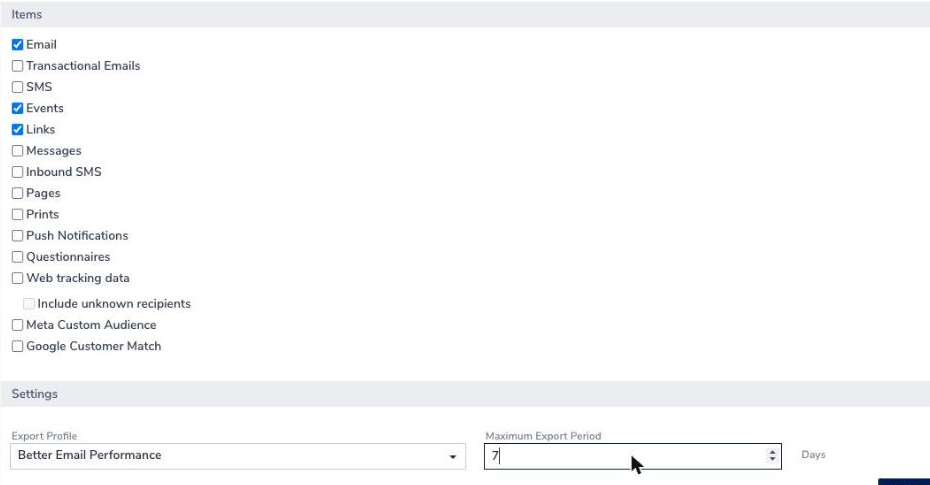
Maximum Export Period decides how far back a single run reaches. Normally a run only covers the time since the previous one, but if an export is interrupted, this is how much history the next run can catch up on. Seven days comfortably covers a long weekend.
Save the export, then activate it with the power button in the toolbar. The Active column changes to true. A saved but inactive export never runs.
3. Check that it works
- Wait for the first scheduled run, or run the export once by hand.
- Open
https://YOUR-INSTANCE.agillic.eu/api/export/filesin a browser and sign in with your Agillic login. A file namedActivity Export_...ZIPshould appear insidebetter_email_performance. - In Better Email, open a campaign you have exported to Agillic and sent. Performance figures appear after the next sync.
Troubleshooting
No performance data at all. Check that the activity export is active in Agillic and that its export profile points at the better_email_performance folder, then confirm the file actually arrives in that folder.
A file never arrives. Agillic puts exports it could not deliver in a folder called failed_export_upload, next to your own folder. If files are landing there, check the export profile's destination.
Sends show up but clicks do not. Clicks are recorded when a recipient follows a link, so a campaign nobody has clicked yet shows none. Only links in the email body are counted.
Numbers differ from Agillic's own reports. Opens and clicks keep arriving after a send, and the two systems refresh at different times. Agillic also records an open only when images load, so open figures are an indication rather than an exact count.
Good to know
- Performance data starts from the moment the export is switched on. Activity from before that is not included, unless you run a one-off export covering the earlier period.
- Figures for a campaign keep updating as long as engagement keeps arriving, because every run adds the newest activity to the totals already collected.
- Agillic adds its own unsubscribe link header to every email it sends, so unsubscribes are counted without anything extra in your design.