For admins
Images from Bynder
If your team keeps its images in Bynder, connect your portal to Better Email. Everyone can then pick images from Bynder in any image field, without downloading and uploading them first. Betty can search it too. Nobody needs a Bynder seat of their own for this.
When you pick an image, Better Email copies it into its own storage. It resizes and crops like any image you upload, and your Campaign keeps working if the original is moved or changed in Bynder. Better Email only reads from Bynder. It never changes or deletes anything there.
If you don't see Bynder under Settings, then Betty AI, then Connectors, it isn't turned on for your Organization yet. Contact us to enable it.
An Organization connects either Bynder or Cloudinary, not both. If you already use Cloudinary, the Bynder page warns you before you connect. Connecting Bynder then removes the Cloudinary connection and clears Recently used. Images already in Campaigns stay as they are.
Before you start
You will need:
- an admin user in Better Email
- admin access to your Bynder portal, to register an OAuth app
1. Register an OAuth app in Bynder
- In Bynder, open Settings, then Advanced settings, then Portal settings, then OAuth Apps.
- Register a new app and name it, for example "Better Email".
- Set the grant type to Client Credentials.
- Give it the scopes
asset:readandcollection:read. Better Email needs nothing else. - If Bynder asks which user the app acts as, pick one who can see the images your team should have in Better Email. Everyone in your Organization browses Bynder as that user.
- Copy the client ID and the client secret.
If your portal has no OAuth Apps page, ask Bynder support to turn it on.
2. Connect Bynder in Better Email
- Open Settings, choose Betty AI, then Connectors.
- Under Asset library, open Bynder.
- Enter the portal address, for example
acme.bynder.com. If your portal is on your own domain, use that. You can paste any link from the portal and Better Email keeps only the address. - Enter the client ID and client secret.
- Click Connect.
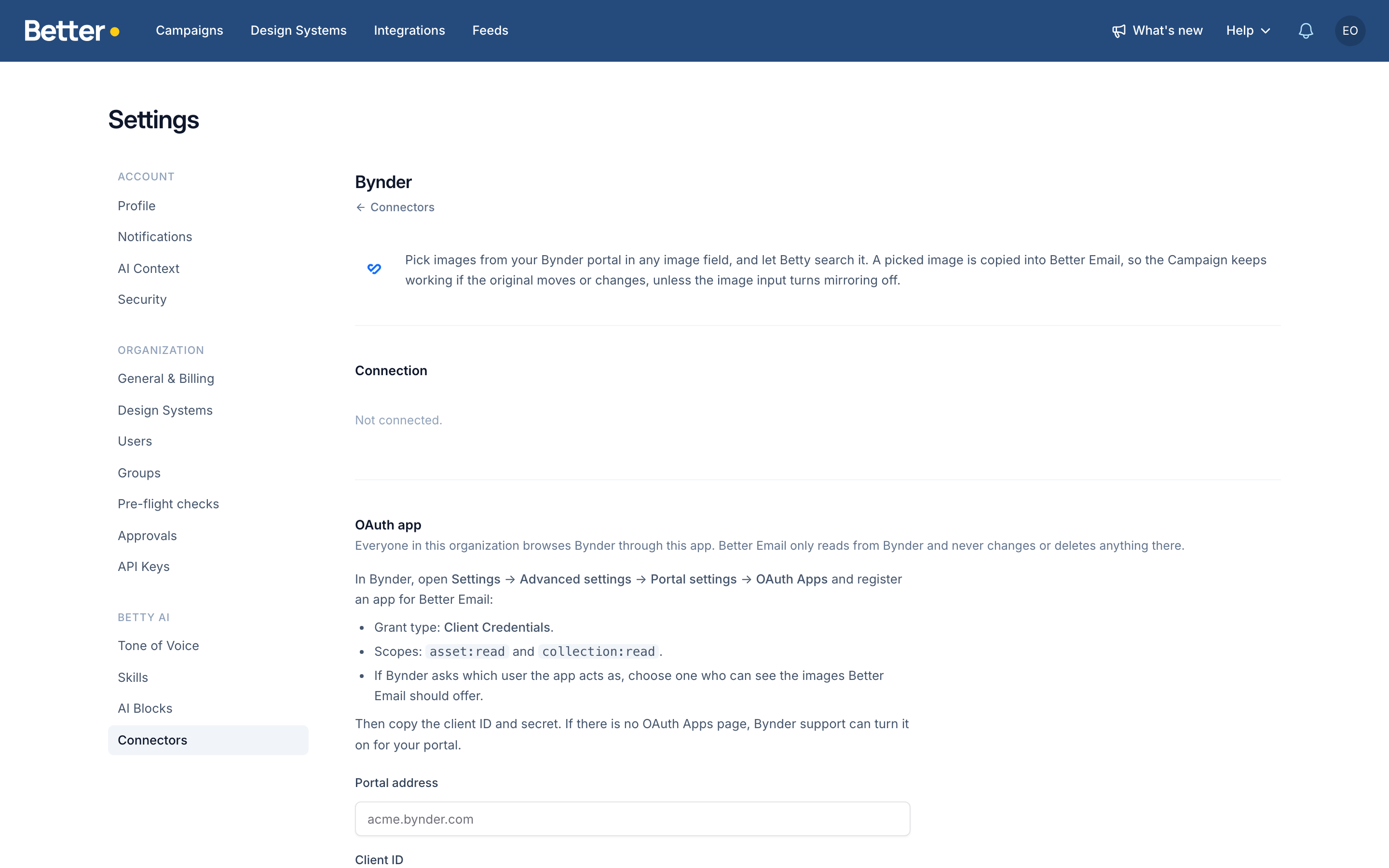
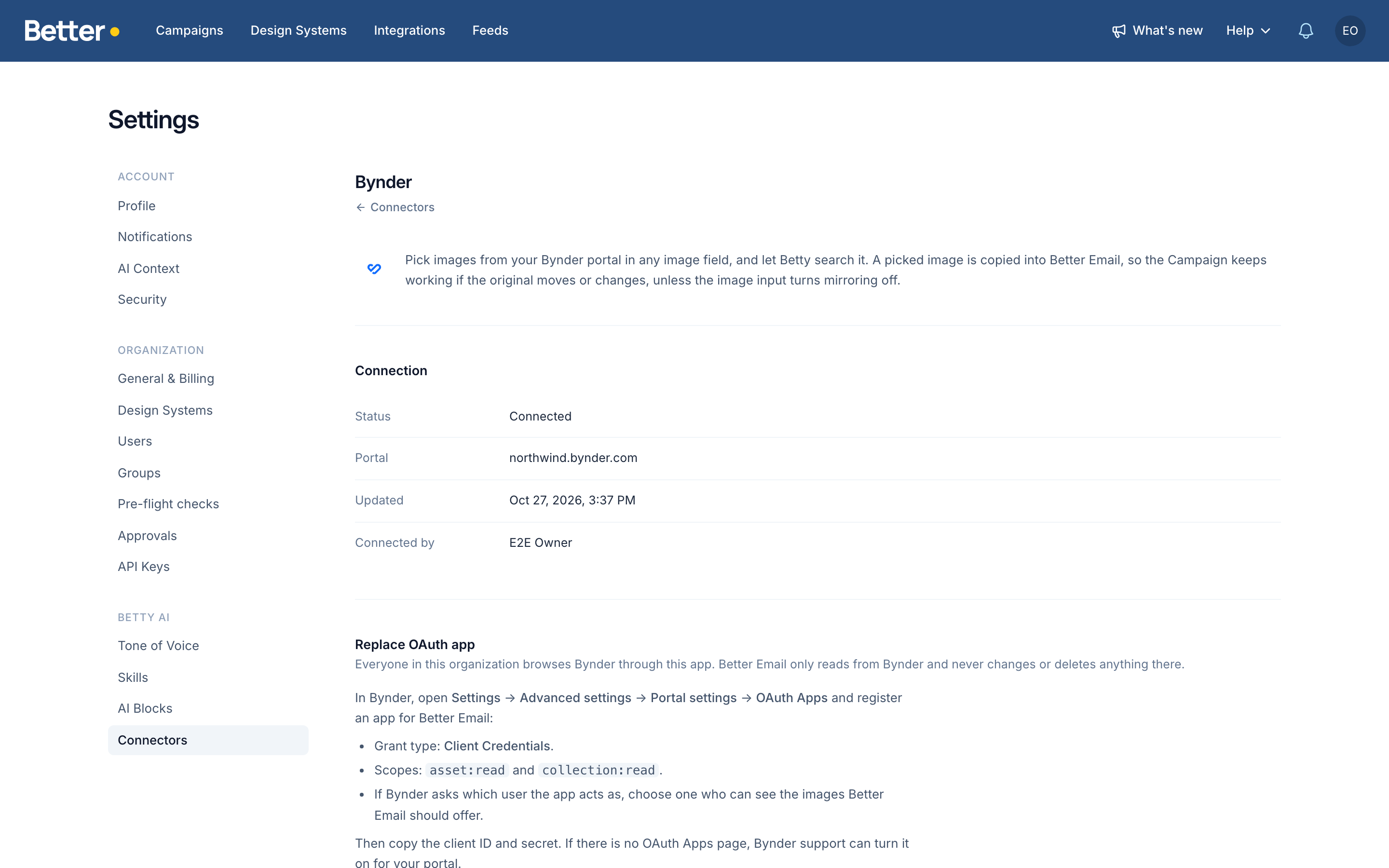
Better Email asks Bynder for a token and a few images before it saves anything. The Connection card then shows the portal, when it was connected, and who connected it. Everyone in the Organization can see this page. Only admins see the OAuth app fields.
Better Email never shows the client secret again. To change the app, enter new details and click Replace. Disconnect deletes the stored secret, and nobody can pick images from Bynder until an admin connects it again. Images already in Campaigns are copies, so they stay as they are.
Choose an image from Bynder
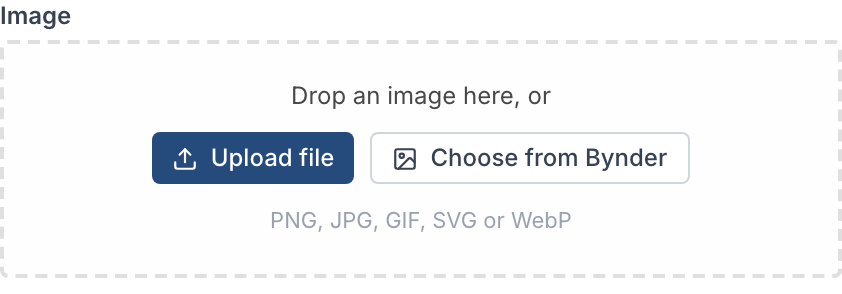
Select a Block in the Campaign Editor. An empty image field offers every way in at once: drop a file, click Upload file, or click Choose from Bynder. Some image fields also take a pasted link. Which of these you see is set per field in the Design System, see Image sources.
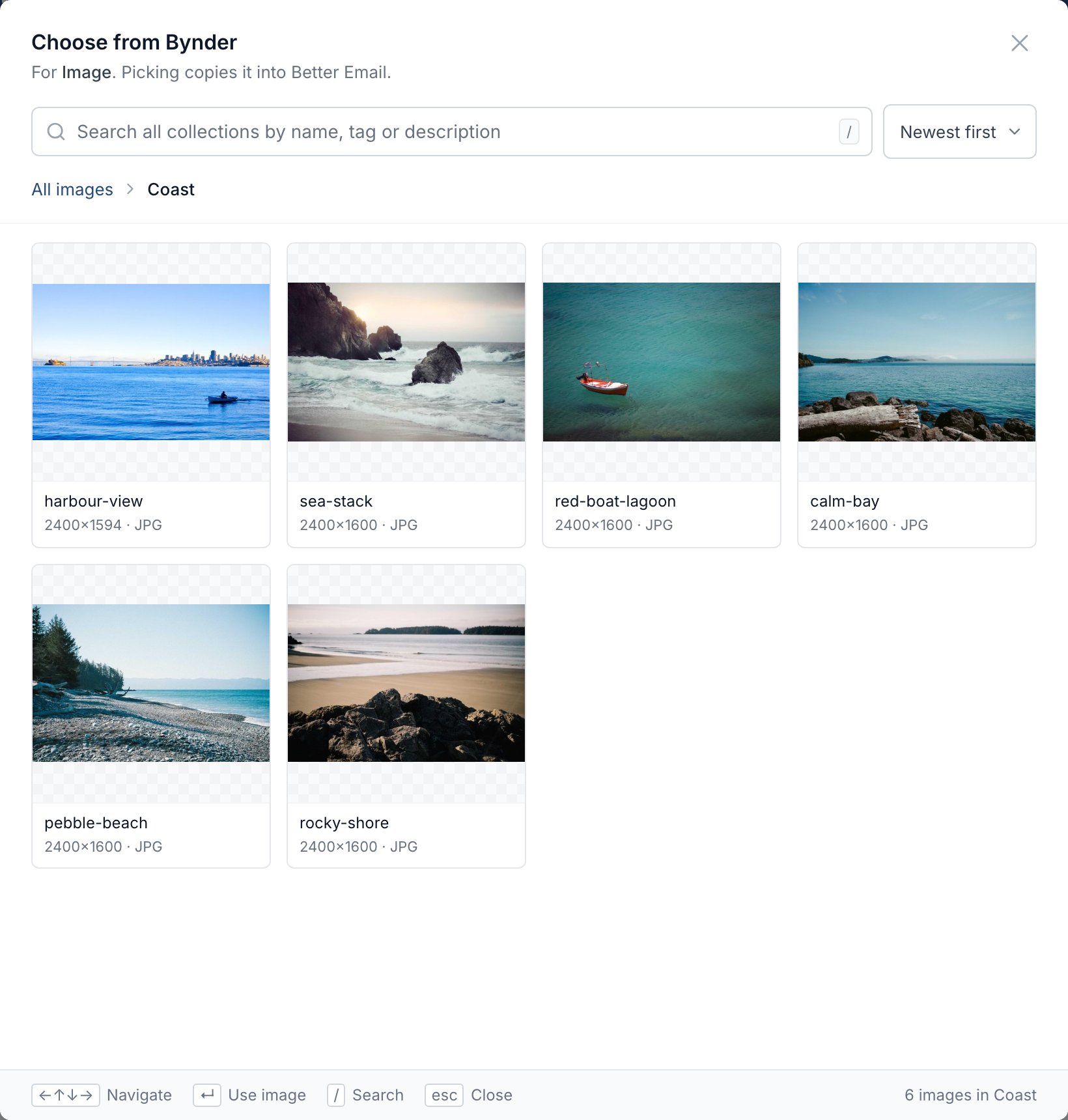
The picker opens on All images, newest first, with your Bynder collections listed above the images. The line under the title names the field you are filling and the size it is shown at.
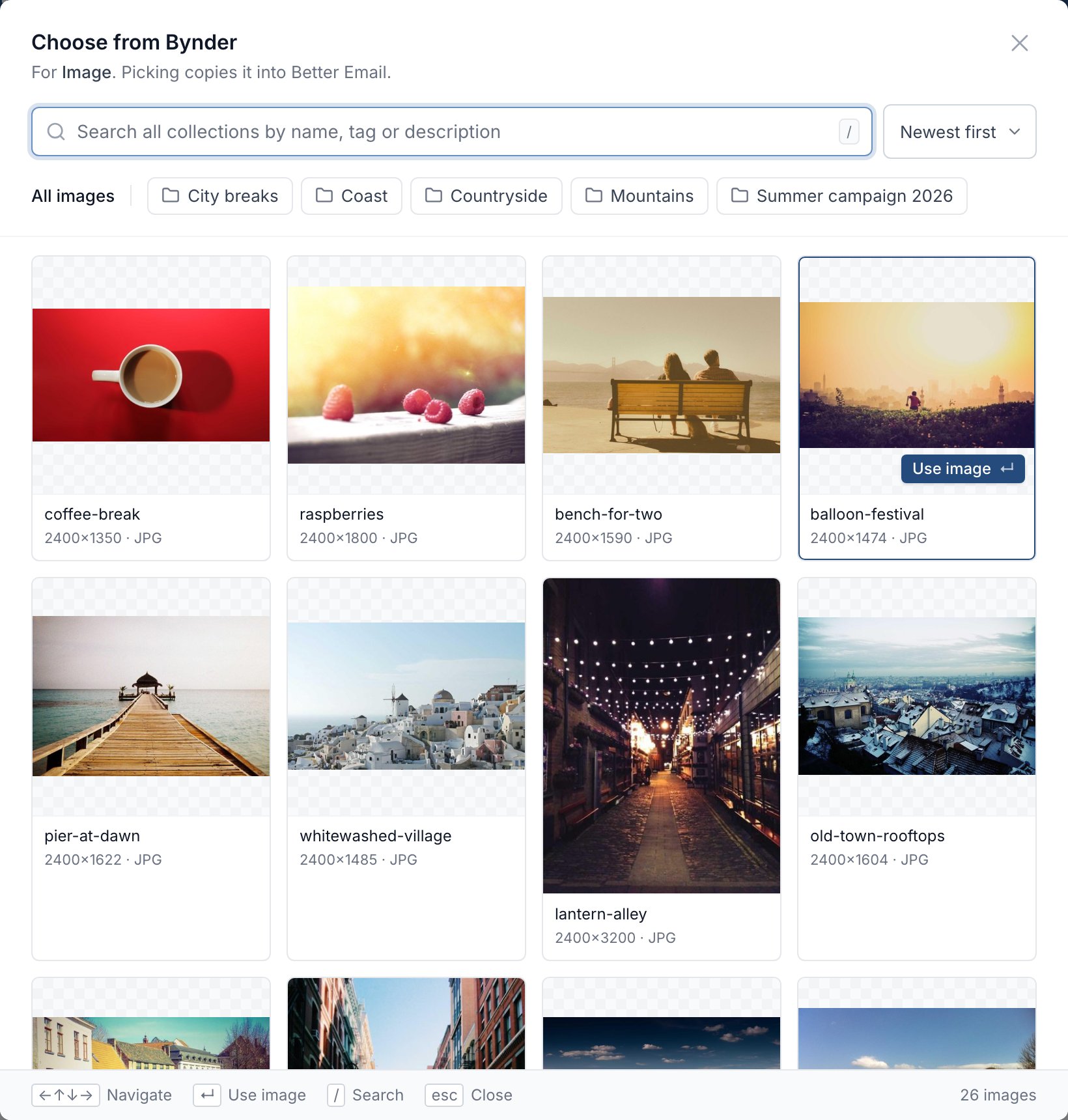
- Browse by clicking a collection. Collections don't nest, so there is one level. Click All images to go back.
- Search by name, tag or description. Search always looks through the whole portal, even when you have a collection open, and the results don't say which collection an image is in.
- Sort by newest, oldest, or name (Name A–Z).
- Pick an image by clicking it. Or use the keyboard: the arrow keys move between images, Enter picks,
/jumps to search, and Esc closes the picker.
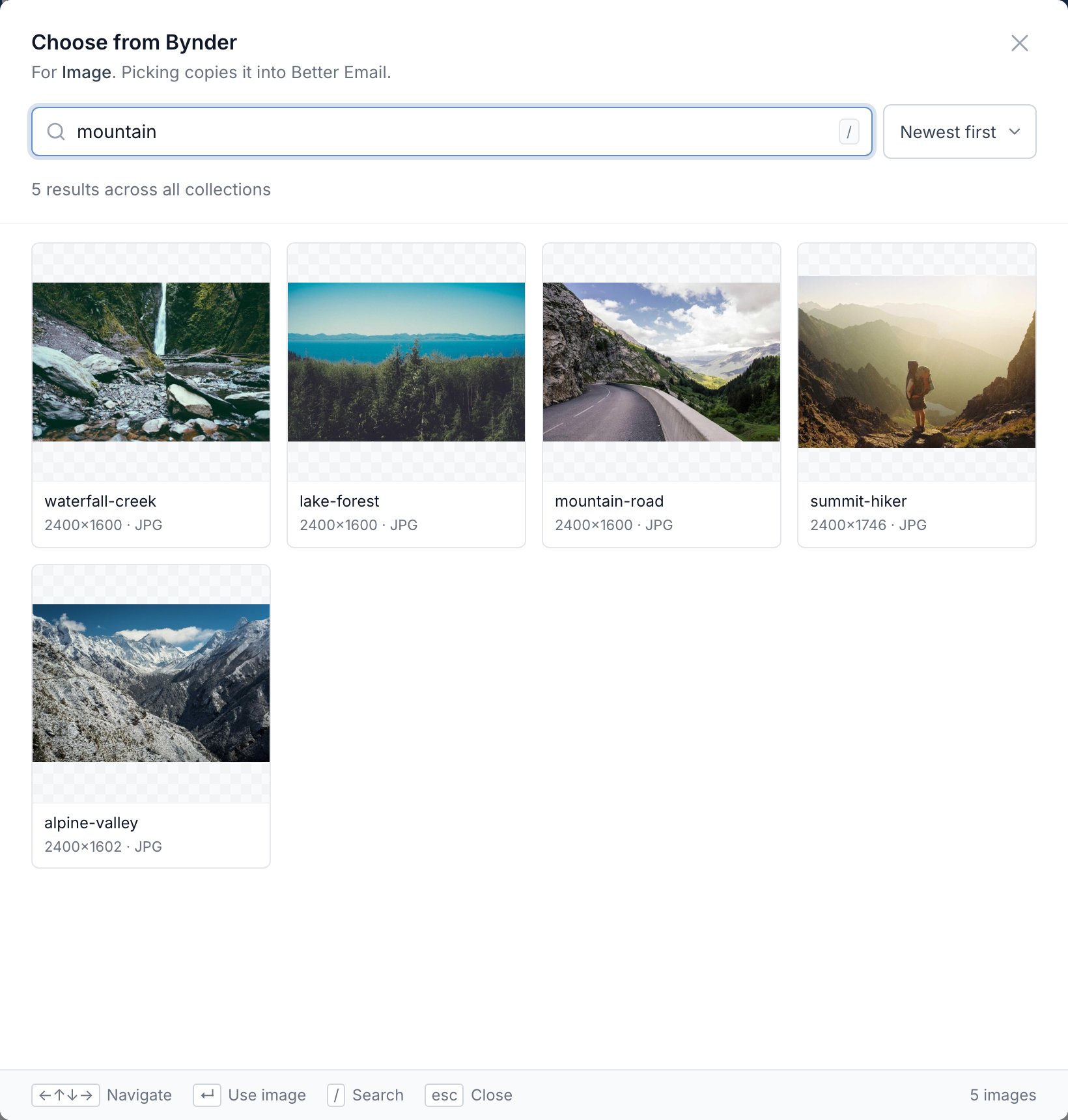
The picker checks each image against the field's size rules, the same way it does for any image library. An image outside the field's minimum or maximum width or height is greyed out and can't be picked. An image narrower than twice the width it is shown at is marked Low res: you can still use it, but it may look soft on high-resolution screens.
Once you pick, the image is copied into Better Email and the field shows it with its size and From Bynder. Add alt text as you would for any other image.
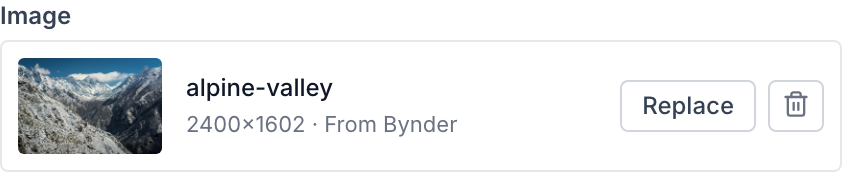
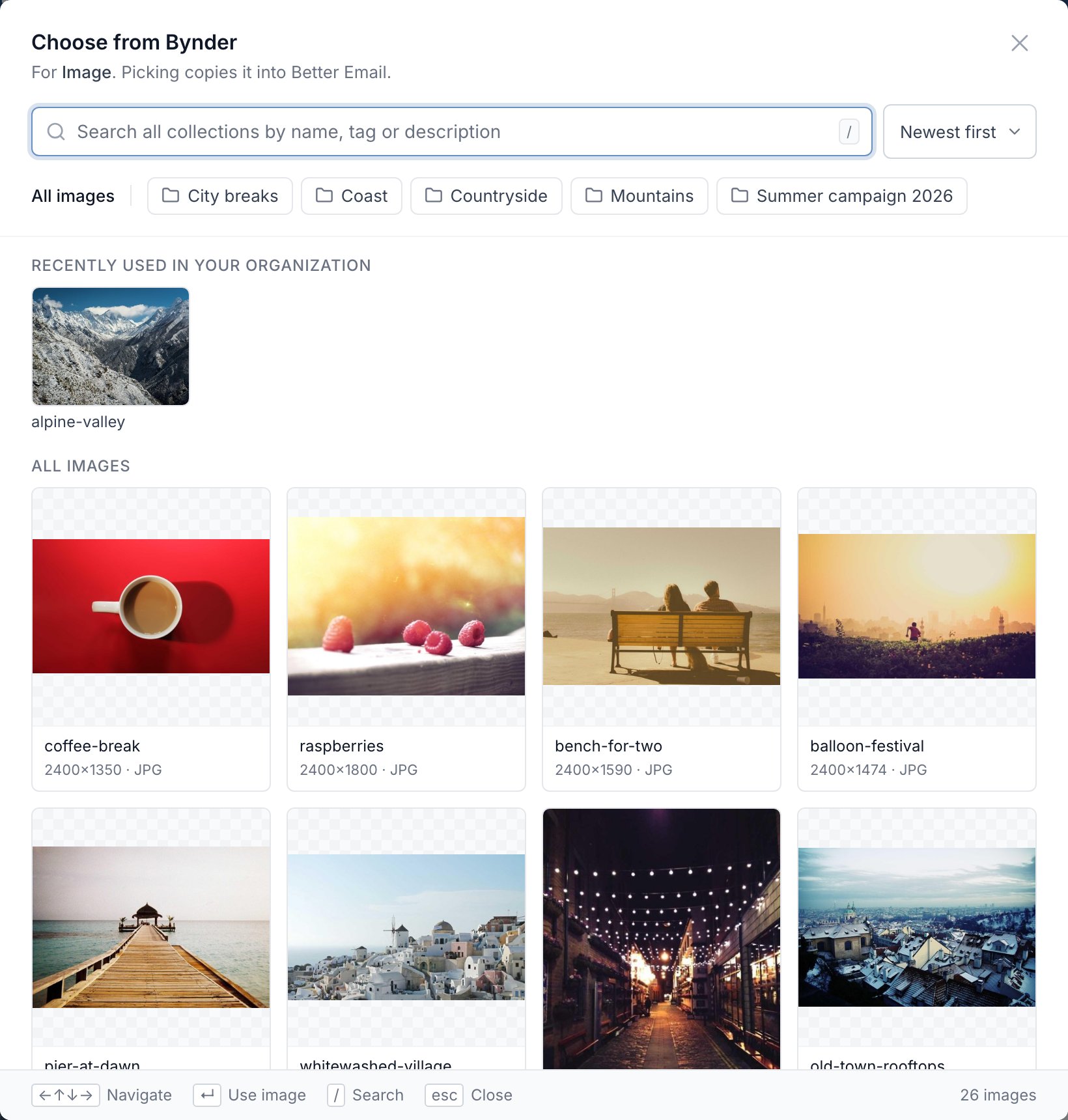
To swap it, click Replace. On an image that came from Bynder, that opens the picker straight away, with the images your Organization used most recently at the top.
The trash button removes the image. If that was a mistake, click Undo on the message that appears.
You can pick from Bynder wherever there is an image field, including default values in the Design System Editor.
Which images are listed
The picker lists Bynder's images only. Videos, documents and other files don't appear. It shows what the OAuth app's user can see, so an image that user has no access to is missing.
Public images are copied from the original. An image that isn't public in Bynder is copied from a version Bynder makes for the web, so it may come in smaller than the original. Formats email clients can't show, such as TIFF, are converted as they are copied.
Copied or linked
By default every image field copies what you pick into Better Email. A Design System developer can turn copying off for a field with Mirror images to Better Email. The field then keeps Bynder's own link, and the email loads the image from Bynder. That image can't be resized or cropped by Better Email, and it breaks if someone deletes it in Bynder. These links keep working after you disconnect Bynder, for as long as Bynder serves them. See Mirror images to Better Email.
Ask Betty to find images
Once Bynder is connected, Betty can search it. Ask her in plain words, for example: "Find a product shot of the red sneaker in our image library and use it in the hero." She searches Bynder, copies the image she picks into Better Email, and puts it in the Campaign. She can also browse a collection if you name it.
Betty treats your Bynder portal as your own images, so she prefers it when you ask for product shots, logos, or brand imagery.
Troubleshooting
- There is no Choose from Bynder button. Bynder isn't connected, or the Design System has turned the image library off for that field.
- "No Bynder portal answered" or "The portal address redirects elsewhere". Enter the address your portal opens on in the browser, such as
acme.bynder.com. - "Bynder did not accept the client ID and secret". Copy the client ID and secret again, and check that the OAuth app uses the Client Credentials grant with the
asset:readandcollection:readscopes. - "Bynder refused the request". The OAuth app is missing the
asset:readorcollection:readscope. Add it in Bynder. - "Bynder did not accept the stored client ID and secret". The app was deleted or its secret changed in Bynder. An admin can enter the new details and click Replace.
- "Bynder's API limit for this portal is used up". Browsing and searching count towards your portal's API limit. Wait a minute and try again.
- An image you expect is missing. Check that the OAuth app's user can see it in Bynder, and that it is an image rather than a video or document.
- An image is greyed out. It is outside the width or height the field allows.