For admins
Images from Cloudinary
If your team keeps its images in Cloudinary, connect it to Better Email. Everyone can then pick images from Cloudinary in any image field, without downloading and uploading them first. Betty can search it too.
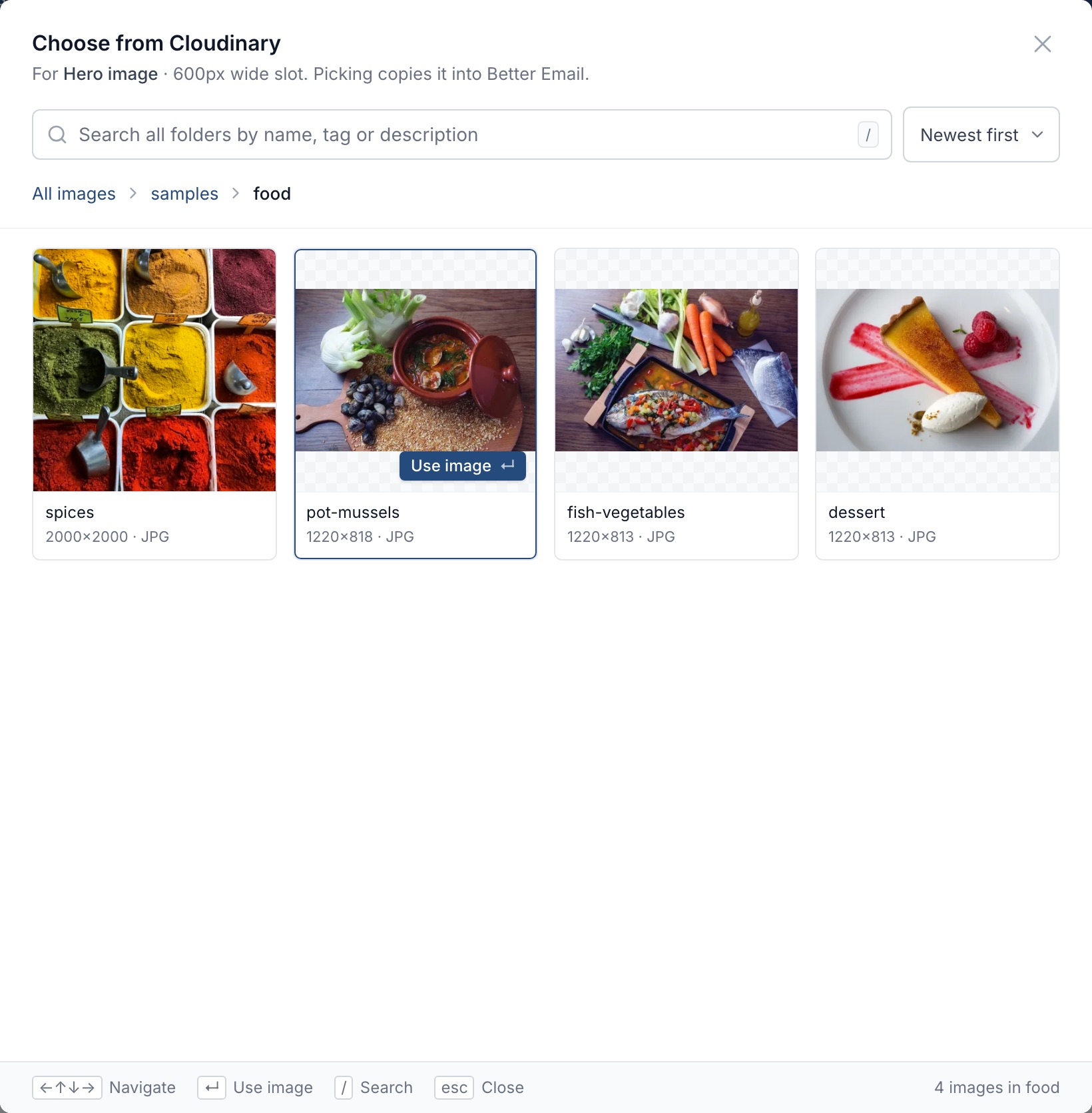
When you pick an image, Better Email copies it into its own storage. It resizes and crops like any image you upload, and your Campaign keeps working if the original is moved, renamed, or deleted in Cloudinary. Better Email only reads from Cloudinary. It never changes or deletes anything there.
If you don't see Cloudinary under Settings, then Betty AI, then Connectors, it isn't turned on for your Organization yet. Contact us to enable it.
An Organization connects one of Cloudinary, Bynder or SFMC Content Builder. If you already use one of the others, the Cloudinary page warns you before you connect. Connecting Cloudinary then removes that connection and clears Recently used. Images already in Campaigns stay as they are.
Before you start
You will need:
- an admin user in Better Email
- access to your Cloudinary Console, to create an API key
1. Create an API key in Cloudinary
- In the Cloudinary Console, open Settings, then API Keys.
- Create a new key and name it, for example "Better Email".
- Give the key a role (see Which role to give the key). A new key has no role, and Cloudinary shows it no images until it has one.
- Copy the cloud name, the API key, and the API secret. You can also copy the whole
CLOUDINARY_URLenvironment variable, which contains all three.
Which role to give the key
Everyone in your Organization browses Cloudinary through this key, so it needs to see the images your team uses.
- Enterprise plans: give the key a read-only role, for example a custom role that can view assets.
- Other plans: give the key Master Admin. These plans offer only Master Admin and Media Library User for API keys.
A Media Library User key sees only folders that have been shared with it, and Cloudinary only allows sharing a folder with an API key through its API. In most cases it sees no images, and Better Email will tell you so when you connect it.
Whatever the role, Better Email only searches and downloads images. See Cloudinary's guide to roles and permissions.
2. Connect Cloudinary in Better Email
- Open Settings, choose Betty AI, then Connectors.
- Under Asset library, open Cloudinary.
- Enter the cloud name, API key, and API secret. If you copied the
CLOUDINARY_URL, paste it into any of the three fields and they fill in. - Leave Data center on United States unless your Cloudinary account was created in Europe or Asia Pacific. Only Enterprise accounts can be, and their
CLOUDINARY_URLends in?upload_prefix=https://api-eu.cloudinary.com(orapi-ap). Pasting that URL picks the data center for you. - Click Connect.
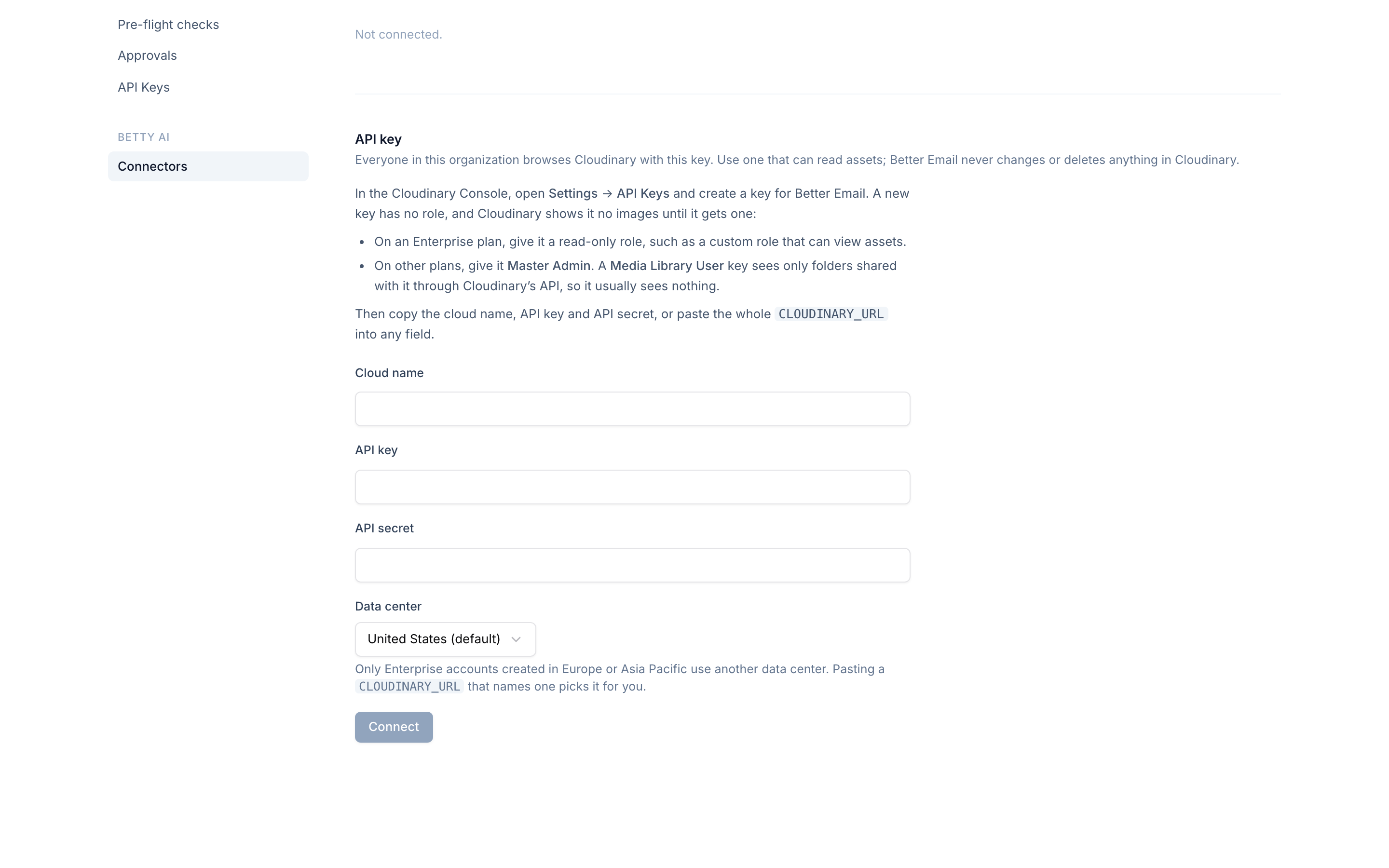
Better Email checks the key with Cloudinary before saving it. The Connection card then shows the cloud name, the data center, when it was connected, and who connected it. Everyone in the Organization can see this page. Only admins see the key fields.
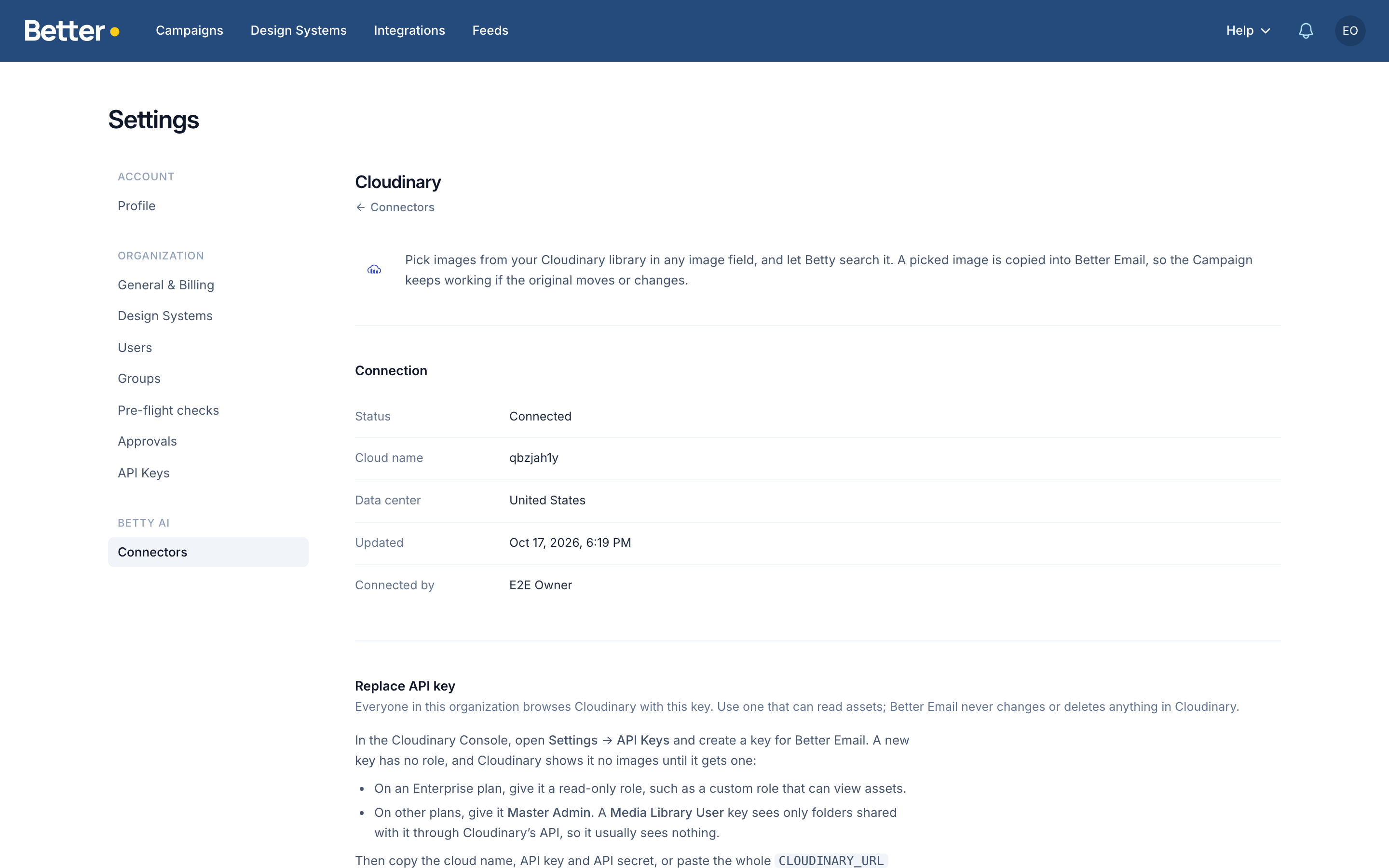
Better Email never shows the API secret again. To change the key, enter a new one and click Replace. Disconnect deletes the stored key, and nobody can pick images from Cloudinary until an admin connects it again. Images already in Campaigns are copies, so they stay as they are.
Choose an image from Cloudinary
Select a Block in the Campaign Editor. An empty image field offers every way in at once: drop a file, click Upload file, or click Choose from Cloudinary. Some image fields also take a pasted link. Which of these you see is set per field in the Design System, see Image sources.
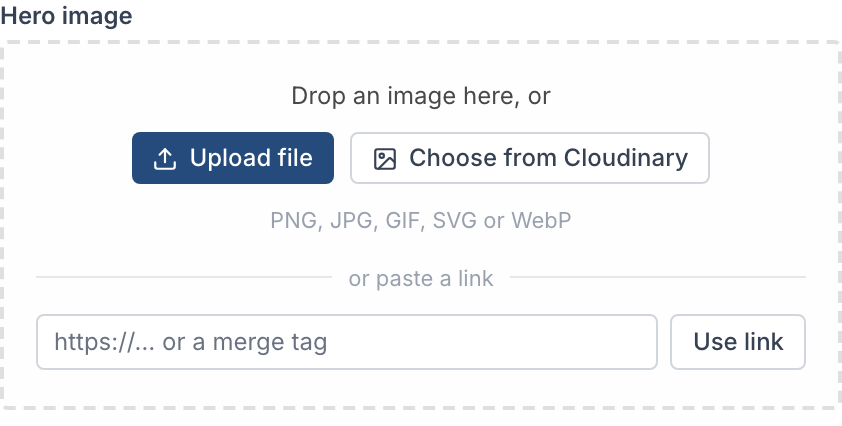
The picker opens on All images, newest first. The line under the title names the field you are filling and the size it is shown at.
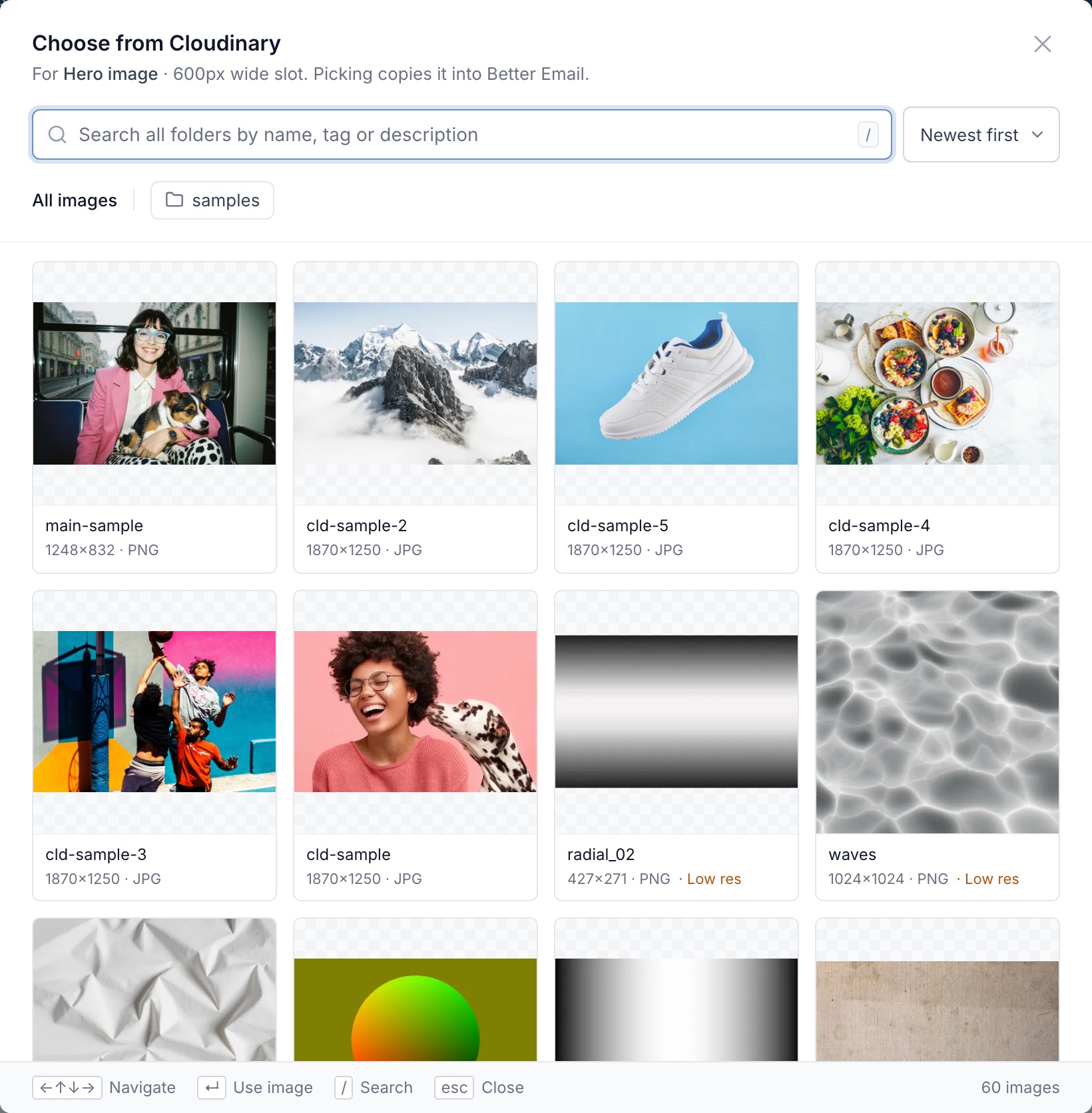
- Browse by clicking a folder. The breadcrumb takes you back up.
- Search by name, tag or description. Search always looks in every folder, wherever you are.
- Sort by newest, oldest, or name.
- Pick an image by clicking it. Or use the keyboard: the arrow keys move between images, Enter picks,
/jumps to search, and Esc closes the picker.
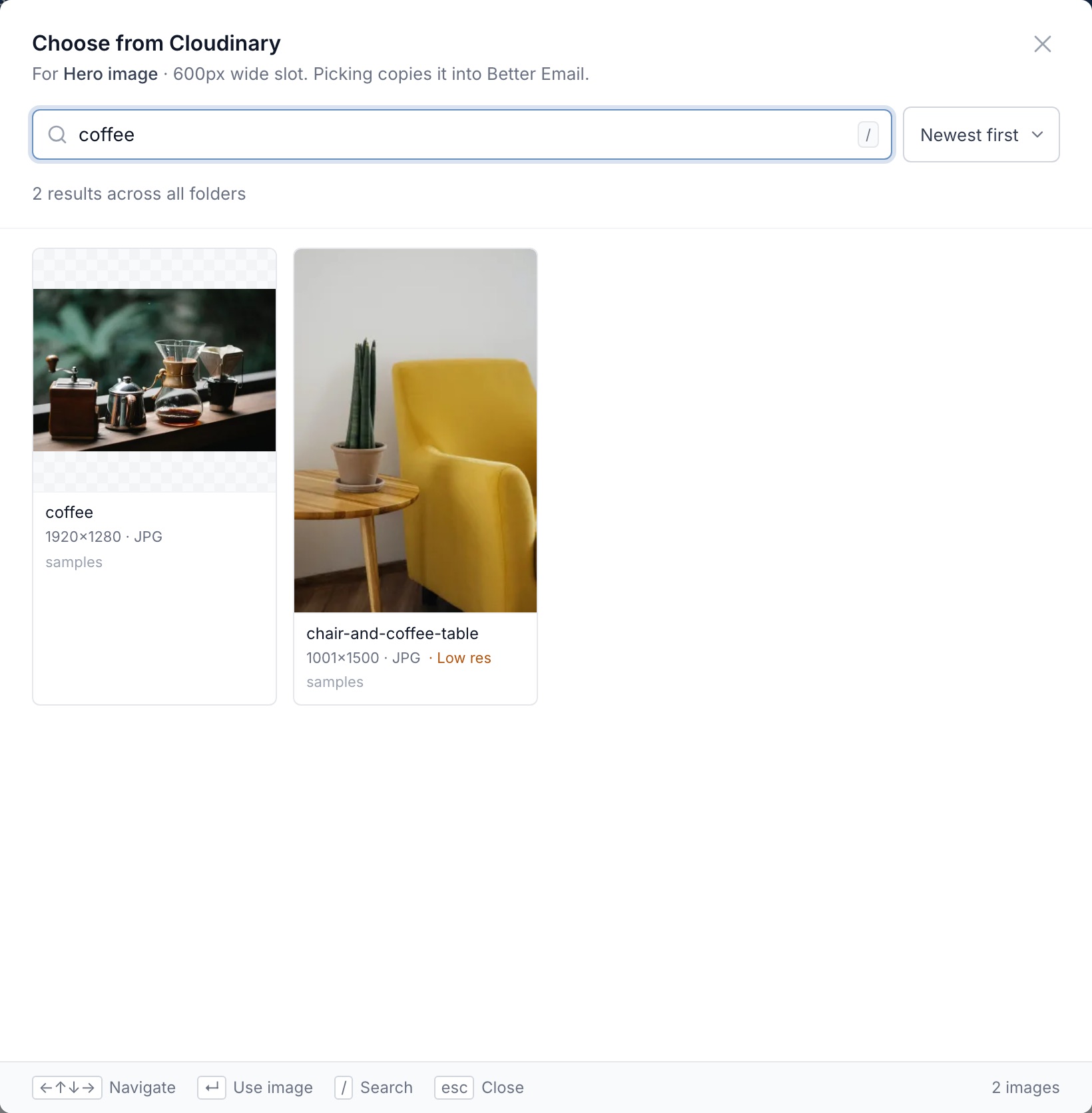
The picker checks each image against the field's size rules. An image smaller than the field's minimum width or height, or larger than its maximum, is greyed out and can't be picked. An image narrower than twice the width it is shown at is marked Low res: you can still use it, but it may look soft on high-resolution screens.
Once you pick, the image is copied into Better Email and the field shows it with its size and From Cloudinary. Add alt text as you would for any other image.
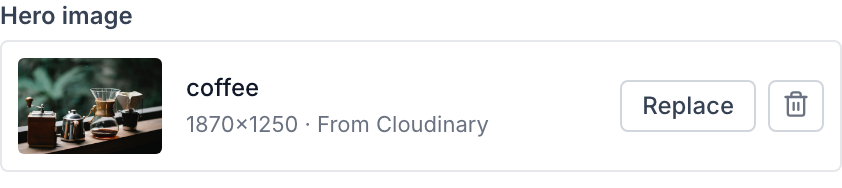
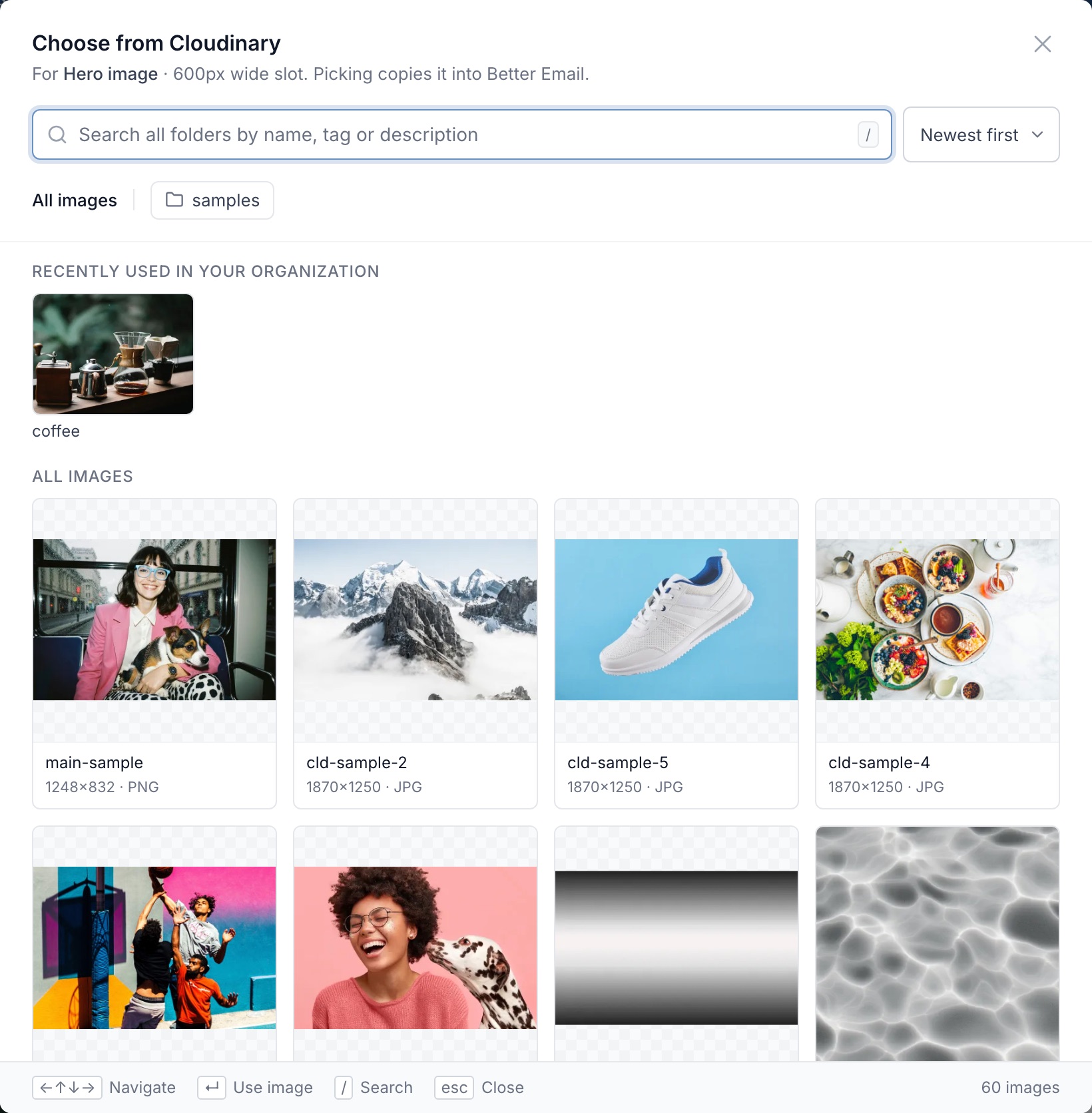
To swap it, click Replace. On an image that came from Cloudinary, that opens the picker straight away, with the images your Organization used most recently at the top.
The trash button removes the image. If that was a mistake, click Undo on the message that appears.
You can pick from Cloudinary wherever there is an image field, including default values in the Design System Editor.
Only public images are listed. Images Cloudinary stores as private or authenticated need a signed link to download, so they don't appear. Very large images and formats that email clients can't show, such as TIFF, are resized or converted by Cloudinary as they are copied.
Copied or linked
By default every image field copies what you pick into Better Email. A Design System developer can turn copying off for a field with Mirror images to Better Email. The field then keeps Cloudinary's own link, and the email loads the image from Cloudinary. That image can't be resized or cropped by Better Email, and it breaks if someone deletes it in Cloudinary. See Mirror images to Better Email.
Ask Betty to find images
Once Cloudinary is connected, Betty can search it. Ask her in plain words, for example: "Find a product shot of the red sneaker in our image library and use it in the hero." She searches Cloudinary, copies the image she picks into Better Email, and puts it in the Campaign.
Betty treats your Cloudinary library as your own images, so she prefers it when you ask for product shots, logos, or brand imagery.
Troubleshooting
- There is no Choose from Cloudinary button. Cloudinary isn't connected, your Organization connected another image library instead, or the Design System has turned the image library off for that field.
- Connecting fails with "This API key cannot see any images". The key has no role, or it is a Media Library User key with no folders shared with it. Give the key a role that can view assets, then connect again.
- Connecting fails because Cloudinary did not accept the key. Check the cloud name, API key, API secret, and data center, or copy the
CLOUDINARY_URLagain. - Cloudinary says its hourly API limit is used up. Browsing and searching count towards your Cloudinary plan's hourly Admin API limit. Wait and try again later.
- An image you expect is missing. Check that it is public in Cloudinary, and that the key can see the folder it is in.
- An image is greyed out. It is outside the width or height the field allows.
- Thumbnails don't load. Your Cloudinary account may block resized versions of images ("strict transformations"). You can still pick the image.