For admins
Bloomreach Engagement integration
This guide walks you through connecting Bloomreach Engagement to Better Email. Each Campaign you sync becomes a draft email campaign in a Bloomreach project, with its subject, preheader, sender and HTML filled in. Your team picks the audience and schedule in Bloomreach and starts it from there. Better Email can also read the project's customer properties into recipient fields, and bring delivery, open and click numbers back once the campaign has been sent.
Better Email talks to Bloomreach through Loomi Connect, Bloomreach's MCP server. Loomi Connect is in early access at Bloomreach, so details of this integration may change as Bloomreach develops it.
Before you start
To connect Bloomreach, you will need:
- a Bloomreach account with access to the Engagement project you want to sync to, with permission to create email campaigns in it
- the region your Bloomreach account lives in: EU, US, UK, Canada or Asia-Pacific
- an admin user in Better Email who can create and edit integrations
There is no API key or developer setup in Bloomreach. You connect by signing in to Bloomreach once from Better Email.
1. Create the integration in Better Email
In Better Email:
- Go to
Integrations. - Create a new integration.
- Choose
Bloomreach Engagementas the type. - Enter a clear name for the integration.
- Choose the
Regionyour Bloomreach account lives in. - Optional: turn on
Sync recipient fields(see Personalization with recipient fields). - Enable the integration and save it.
2. Connect to Bloomreach
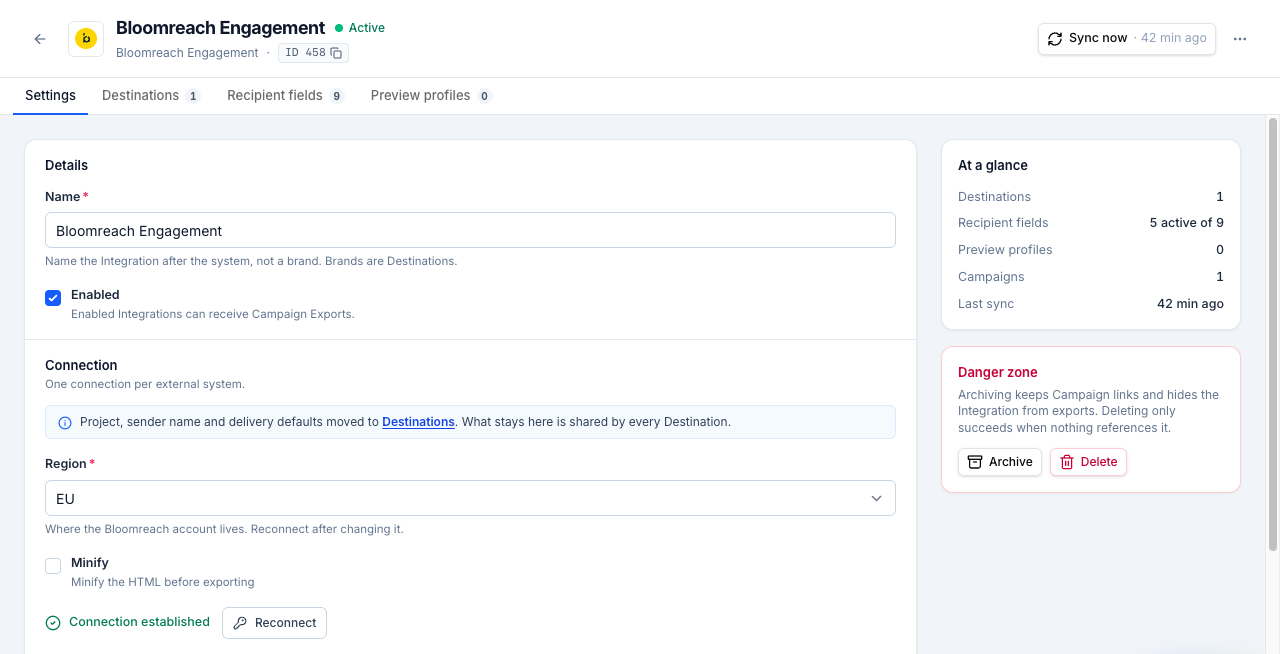
After saving, click Connect Bloomreach Engagement on the integration.
Better Email sends you to Bloomreach to sign in, then to a Loomi Connect page that asks you to allow access. That page also shows Bloomreach's early-access terms for Loomi Connect. Click Allow Access, and Bloomreach sends you back to Better Email with the integration connected.
A few things to know about this connection:
- It acts as you. Better Email reaches exactly the Bloomreach projects your own account can, with your permissions. Connect with an account that will stay with the team, not a personal one that may be deactivated.
- It lasts 30 days. Bloomreach ends the connection after 30 days. When that happens, exports fail with a message to reconnect: click
Reconnecton the integration and sign in again. - Changing the region needs a reconnect. A connection belongs to one region. If you change
Region, clickReconnect.
3. Set up Destinations
Saving the integration creates the default Destination. Open the Destinations tab and fill in where and how campaigns are created:
Project, the Bloomreach project campaigns go to. Use the name after/p/in the Engagement address bar, such asmy-projectfromengagement.bloomreach.com/p/my-project/home. You can also paste the whole address or the project ID.Sender nameandSender email, the From line of created campaigns. Bloomreach checks the sender's domain when the campaign is started, not when Better Email creates it.Consent category, optional. The ID of the consent category campaigns send under, such asnewsletter. Leave it blank and Better Email uses general email consent where your project allows it, and the project's first consent category where it doesn't.Email integration, optional. The name or ID of the Bloomreach email integration campaigns send through, such asMailgun. Leave it blank and Better Email picks the project's email integration when it has exactly one. Without one, Bloomreach can't preview or start the campaign until someone picks it in Engagement.Default subject, the subject when a Campaign has none of its own.
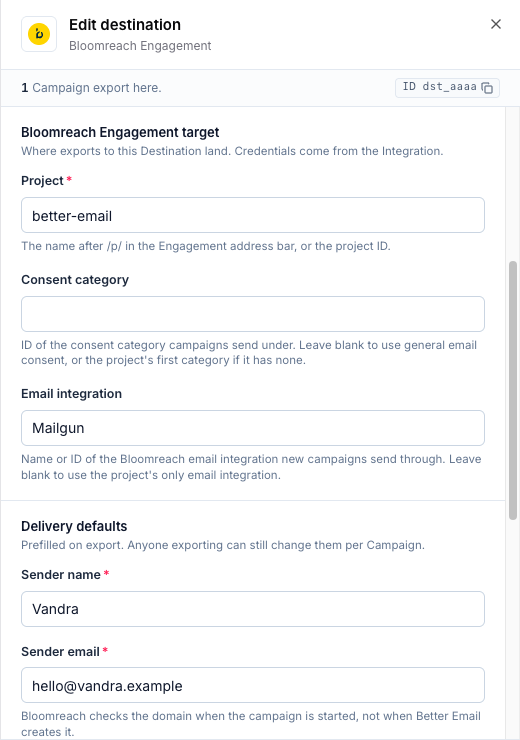
If you send from several projects, or with different senders, add one Destination per combination and pick it on the Campaign.
4. Sync a Campaign to Bloomreach
On the Campaign's Review tab, click Sync to <integration name>.
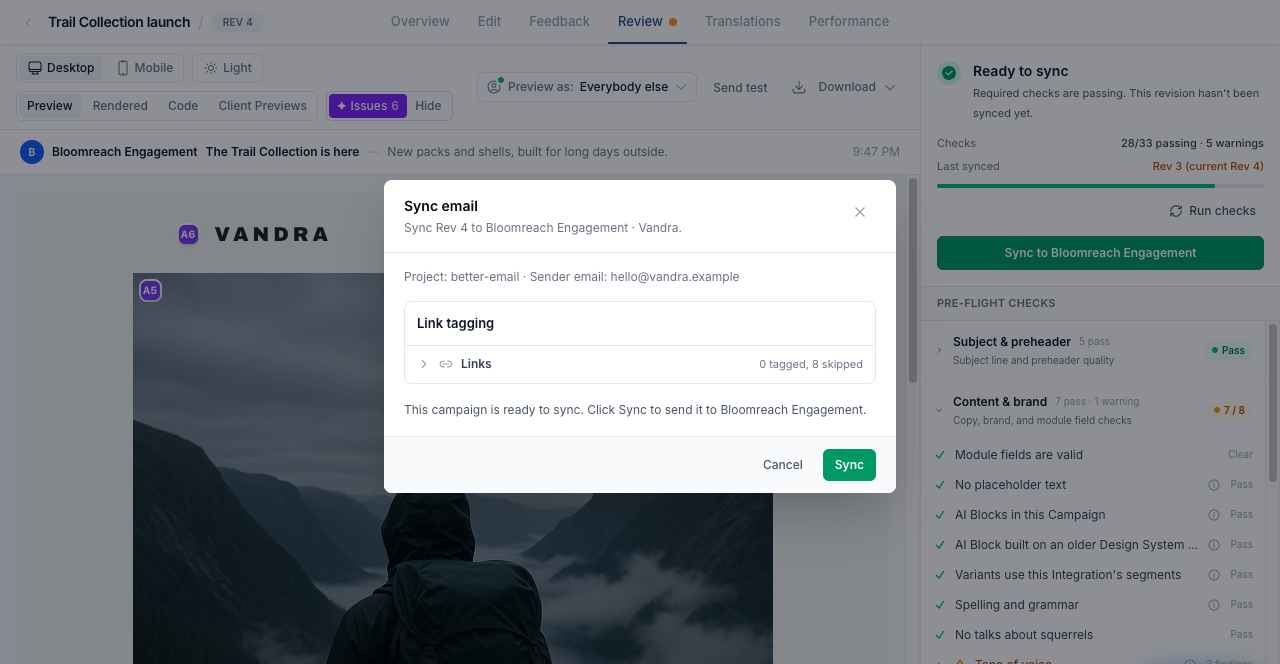
The first sync creates a draft email campaign in the Destination's project, named after the Campaign. It carries the Campaign's subject, preheader and rendered HTML, the Destination's sender, the consent setting and the email integration. You'll find it under Campaigns > Email campaigns in Engagement, built with the HTML editor.
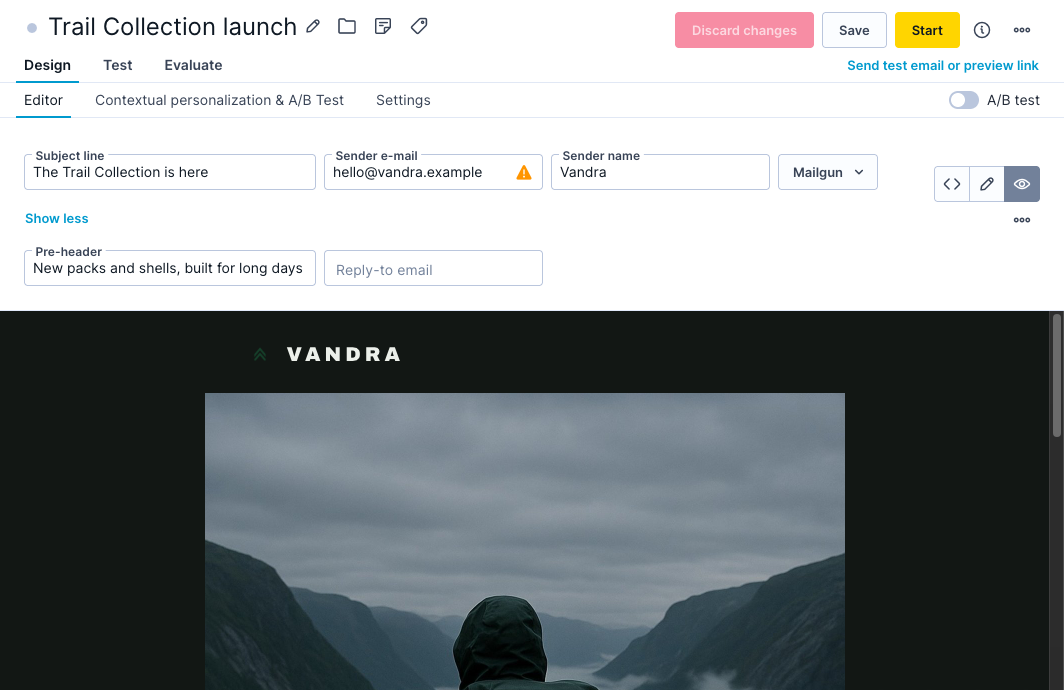
The draft targets all customers and is set to send as soon as it's started. Before starting it in Bloomreach, set the audience and schedule your send needs. Better Email never starts a campaign: every campaign it creates is a draft until someone starts it in Engagement.
Later syncs update the same draft with the latest version: name, subject, preheader, sender and HTML. What your team set up in Engagement stays, including the audience, schedule, reply-to address and translations. If you set a Consent category on the Destination after the first sync, the next sync applies it.
Better Email creates a new draft instead of updating when the earlier one:
- has been started, or is paused or archived
- has been turned into an A/B test
- was rebuilt in the visual editor
- was deleted in Bloomreach
- belongs to a different project than the Destination now names
Bloomreach accepts a limited number of changes per minute from each account, so Better Email doesn't offer bulk sync for Bloomreach. Sync Campaigns one at a time.
5. Personalization with recipient fields
Bloomreach personalizes emails with Jinja, filled in per customer when the campaign sends. Recipient fields export as customer properties:
Hi {{ customer["first_name"] }},
Syncing fields from Bloomreach
- On the integration, turn on
Sync recipient fieldsand save. - Click
Sync nowin the page header.
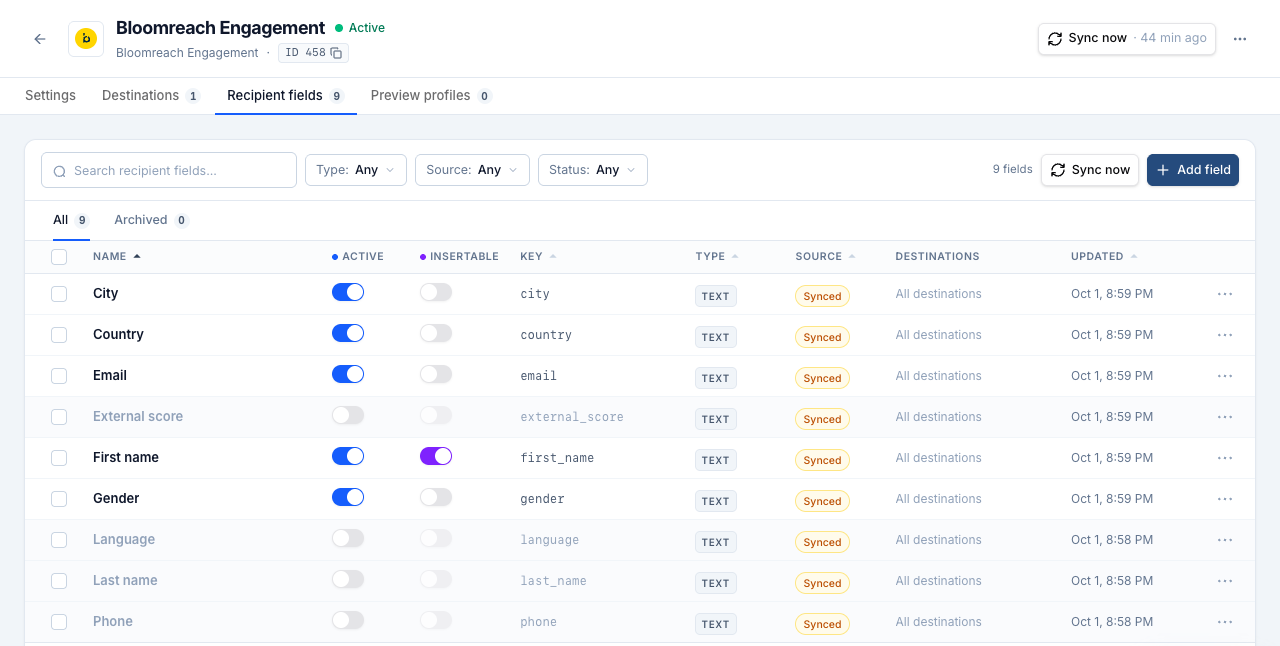
Better Email reads the customer properties of each Destination's project and creates a recipient field for each one. A property's description in Bloomreach becomes the field's name. Without a description, Better Email names it after the property, so first_name becomes "First name". Number, yes/no and date properties keep their types. Every other property, including lists, arrives as text.
New fields arrive inactive. Switch on the ones you want to use on the integration's Recipient fields tab.
Adding a field by hand
You can also add recipient fields by hand under the Recipient fields tab. Set the field's ESP field name to the customer property's name in Bloomreach, such as first_name.
See Recipient Fields / Merge Tags for the general setup.
6. Segmentation and block variants
Segments and block variants export as Jinja conditions around each variant's content:
{% if customer["loyalty_tier"] == "gold" %}
  ...content for gold members...
{% else %}
  ...content for everybody else...
{% endif %}
Bloomreach picks the content for each customer when the campaign sends. The Everybody else fallback becomes the final else branch, so the first matching variant wins, as it does in preview.
A customer without the property matches only is not and is not set, the same as in Better Email's preview. Comparisons such as is greater than never match a missing property. Date conditions compare calendar days in UTC.
Use preview profiles to check the variants before you sync. In Bloomreach, Send test email or preview link on the campaign shows the email as a chosen customer will get it.
7. Performance data
Better Email can bring back delivery, open and click numbers for campaigns sent from Bloomreach, with nothing to set up inside Bloomreach. See Performance data from Bloomreach.
Troubleshooting
- Bloomreach says "No invitation found" when you connect. Your account lives in another region. Change
Regionon the integration, save, and connect again. - Sync fails with a message to reconnect. The 30-day connection has ended, or the account that connected lost access. Click
Reconnecton the integration. - "Set the project on the Bloomreach Destination." The Destination has no
Project. Fill it in on theDestinationstab. The same goes for the sender name and email. - "The connected Bloomreach user has no project …" The project name is misspelled, belongs to another region, or the account that connected can't see it.
- Bloomreach answers "Consent settings mismatch". The
Consent categoryisn't one of the project's categories. Use the category's ID from the project's consent settings, or leave it blank. - Bloomreach shows "Email integration is not set" on the draft. The project has none or several email integrations. Pick one in the campaign's editor in Engagement, or set
Email integrationon the Destination. - A second draft appeared in Bloomreach. The first one could no longer be updated, for example because it was started. See Sync a Campaign to Bloomreach.
- A new field doesn't show up in the Campaign Editor. Synced fields arrive inactive. Switch it on in the
Recipient fieldstab.