For developers
Image
An Image input lets the marketer add an image in the Campaign Editor: upload a file, pick one from your Cloudinary library, or paste a link, depending on the input's sources.
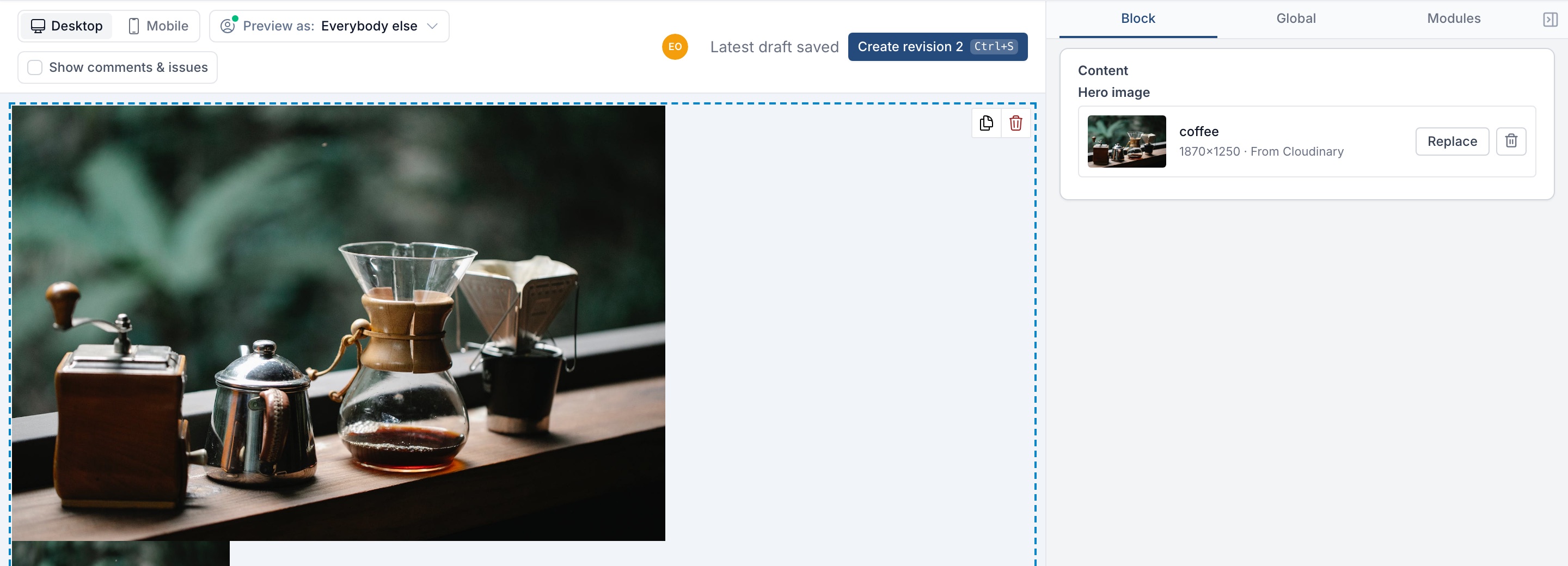
Works great for:
-
Hero images and other primary visuals in an email
-
Product shots, logos, and content imagery that should be swapped per campaign
-
Background images rendered via the resizeImage filter
Validation is optional and can be enabled per input when needed:
-
Required can make the image mandatory before review/export
-
Must change from default can force the marketer to replace the starting image
-
Minimum width / height and Maximum width / height can restrict the intrinsic image dimensions that are allowed for that slot
These size rules are checked in the Campaign Editor for both uploaded files and image URLs. The same rules are also respected when Betty AI updates an image input.
How marketers add an image
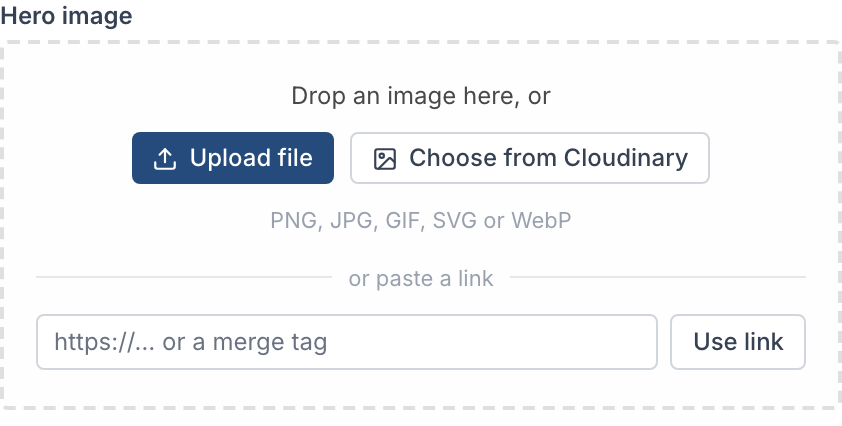
An empty image field shows every source the input allows in one place. Marketers drop a file on it, click Upload file, click Choose from Cloudinary, or paste a link and click Use link.
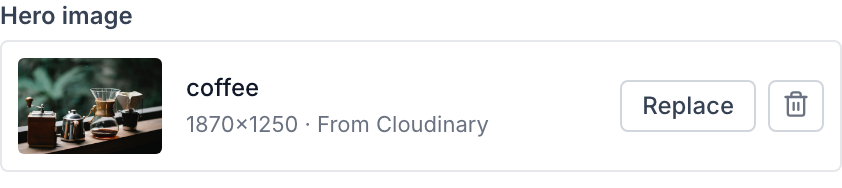
Once an image is set, the field shows a thumbnail, the file name, its size, and where it came from. Replace swaps it, and the trash button removes it, with an Undo on the message that follows.
A pasted link that Better Email doesn't copy is tagged Linked, and the field shows its address instead of a size. The button reads Edit link. If the image can't be loaded from that address, the field says so, because it probably won't show in the email either.
A link can also be a merge tag, such as https://cdn.example.com/products/{{ recipient.product_id }}.jpg. The field saves it as written and shows it as Dynamic image. It resolves per recipient when the email is sent, so there is no preview or size check for it, and Better Email never copies it.
Image sources
Open the input in the Design System Editor and expand Sources to choose what marketers may use:
- Upload a file
- Choose from Cloudinary, shown when your Organization has connected Cloudinary
- Paste a link, an image URL or a merge tag
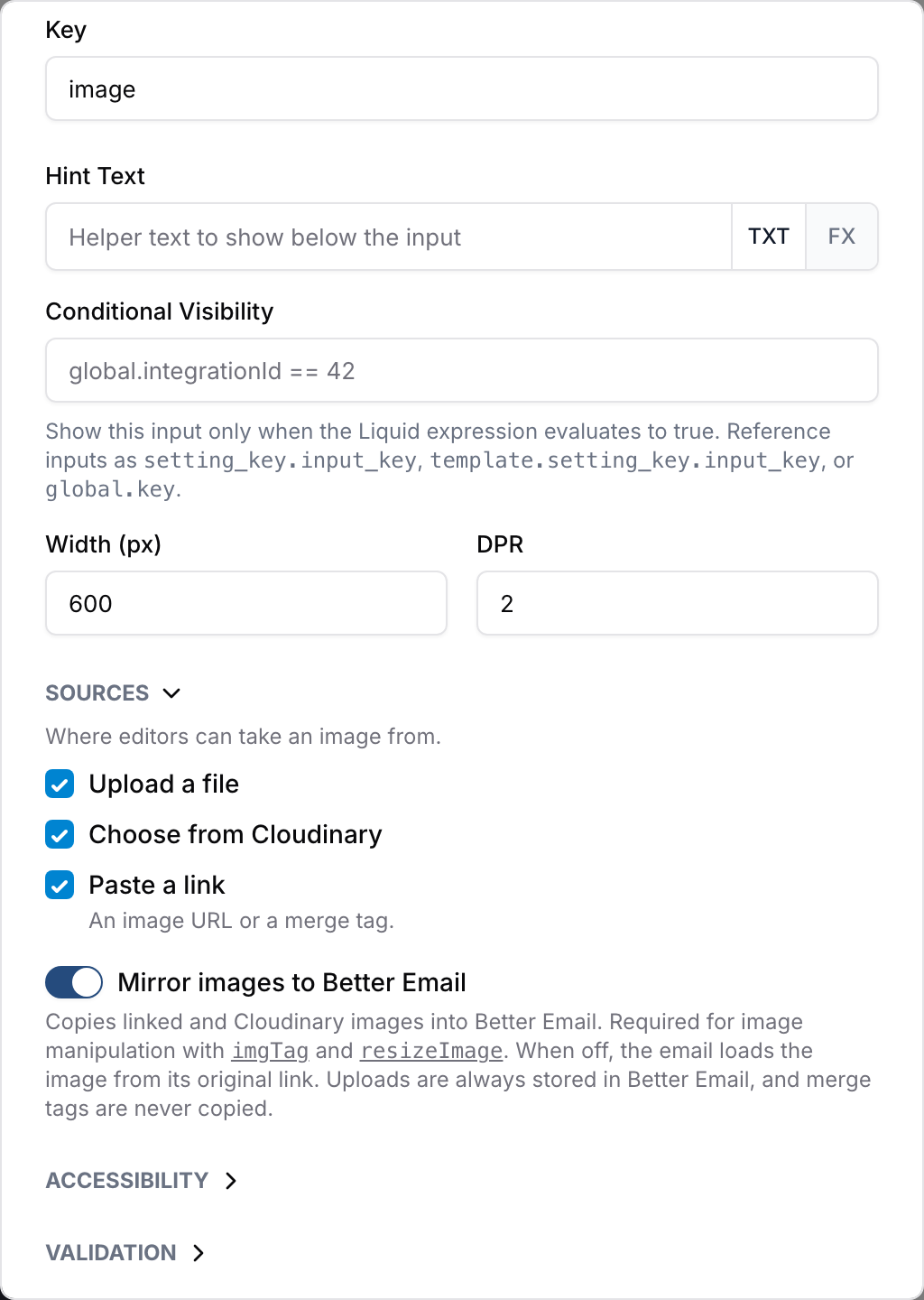
A new image input allows uploads and Cloudinary, and no links. You only have to change this when a slot needs something else, for example links for images your ESP or product feed already hosts, or Cloudinary only so marketers stay on approved brand images.
If you leave the default alone, the input picks up Cloudinary on its own once your Organization connects it. Images already saved in a Campaign stay editable when you turn off the source they came from. A link keeps its Edit link button, for instance.
Mirror images to Better Email
Mirror images to Better Email is on by default. It copies pasted links and Cloudinary picks into Better Email's storage when the marketer adds them. Image manipulation with imgTag and resizeImage needs that copy, and the email no longer depends on the original file staying where it is.
Turn it off only when the image must be served from its original address, for example a live countdown or a feed image that changes after the email is built. The field then saves the link as it is, and the email loads the image from there. Output {{ image.originalUrl }} in a plain <img> tag for such an input instead of resizing it.
Uploads are always stored in Better Email, whatever this setting says. Merge tags are never copied, because they only resolve at send time.
Betty AI
Betty knows these settings. When she creates an image input she leaves both at their defaults, unless you ask for something else, for example "let marketers paste image links in the hero".
Image setting
In this example the snippet imgTag is used
Image object properties
Image inputs expose an object in Liquid. The most common properties are:
-
{{ image.url }}- Outputs the URL of the image, resized with the width and DPR provided in the options. -
{{ image.originalUrl }}- Outputs the original URL. Use it together with the resizeImage filter when you need custom resizing behavior. -
{{ image.altText }}- Outputs the built-in alt text value when Alt Text is enabled on the image input. -
{{ image | imgTag }}- Outputs a complete<img>tag, read more about the imgTag filter.
In the Design System Editor autocomplete, typing {{ setting_key.image_input. }} will suggest the available image properties.
DPR
DPR stands for Device Pixel Ratio and lets you request a sharper source image for high-density screens.
For example, if you have a 200x200 image and set the DPR to 2, the rendered source will be 400x400.
Additional variables are exposed on the image object with the width and height, which is useful for setting width/height in <img> attributes and in style attributes.
-
{{ image.width }}- The width of the image in pixels (after automatic resizing). It ignores the DPR, so ifwidth: 320andDPR: 2is set in options,image.widthwill output320. -
{{ image.height }}- The height of the image. If image resizing is used with width only, the image will be resized preserving aspect ratio, and the outputted height will be the resulting height.
Built-in alt text
Image inputs can now collect alt text directly as part of the image input itself.
In the Design System Editor:
- enable Show Alt Text Field on the image input to show the field to marketers
- optionally enable Require Alt Text to make it mandatory when an image is selected
- if Must change from default is enabled on the image input, the marketer must also change the built-in alt text from its default value when Alt Text is enabled
Image dimension validation
Image inputs can optionally enforce intrinsic size requirements from the Validation section in the Design System Editor.
Common examples:
- require a hero image to be at least
1200pxwide - require a product image to be at least
600pxtall - cap a logo at
800pxwide so oversized source files are rejected
When one of these rules is enabled, Better Email checks the selected image before saving the new value. If the image is too small or too large, the editor shows a clear error and keeps the previous valid image value in place.
In Liquid, you can either use the stored value directly:
{{ hero.image.altText }}
Or let imgTag use it automatically:
{{ hero.image | imgTag }}
You only need to pass altText: manually when you want to override the stored value.
Edit images instantly
Better Email can calculate the dimensions of any uploaded image.
Simply write .height after your image setting, and the height of the image will be displayed. fx
{{ full_image.image.height }}