Connect Better Email to your AI
Better Email is an MCP server. Any AI client that follows the Model Context Protocol can connect to it, sign in as you, and work on Campaigns in your Organization: create one from a Design System, fill it with blocks and images, personalize and segment it, set the subject line, run pre-flight checks, and show you a preview of the result.
The agent builds inside your Design System. What it makes is your brand's own components, assembled well, with the same guardrails Betty has. It works only with the components your Design System offers, and it cannot send anything.
The server
| URL | https://mcp.better.email/mcp |
| Transport | Streamable HTTP, current MCP spec |
| Sign-in | OAuth 2.1 through the normal Better Email login. No API key. |
Sign in
Whichever client you use, the first connection follows the same path:
- The client opens your browser at the Better Email login.
- Sign in as you normally do and pick the Organization the agent should work in.
- Go back to the client. It is connected.
There is no API key to copy or store. Tokens are short-lived and the client refreshes them on its own, so you only see the login again after you disconnect.
The agent acts as you. It has your permissions and no more, in the Organization you picked, and it cannot reach any other Organization. Every change it makes is recorded under your name, together with the client that made it.
Set up your client
Each client has its own way of adding an MCP server, and their menus change often. If a step below does not match what you see, the part that matters is the server URL. Paste it wherever the client asks for one.
Claude
Works the same in Claude.ai and the Claude desktop app.
- Open Settings, then Connectors.
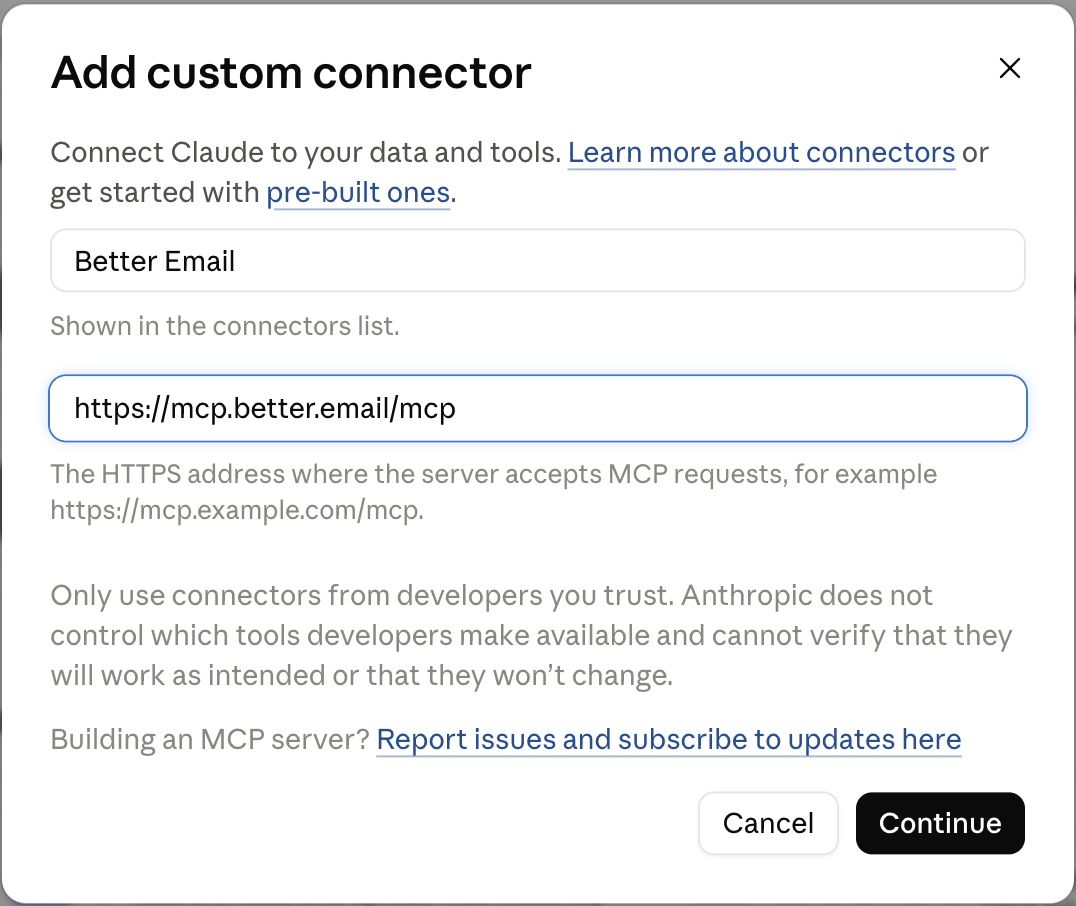
- Choose Add custom connector.
- Name it Better Email, paste
https://mcp.better.email/mcpas the URL, and click Continue. - Click Connect and sign in when the browser opens.
- In a chat, enable the Better Email connector from the tools menu.
ChatGPT
- Open Settings, then Plugins, then the MCP tab.
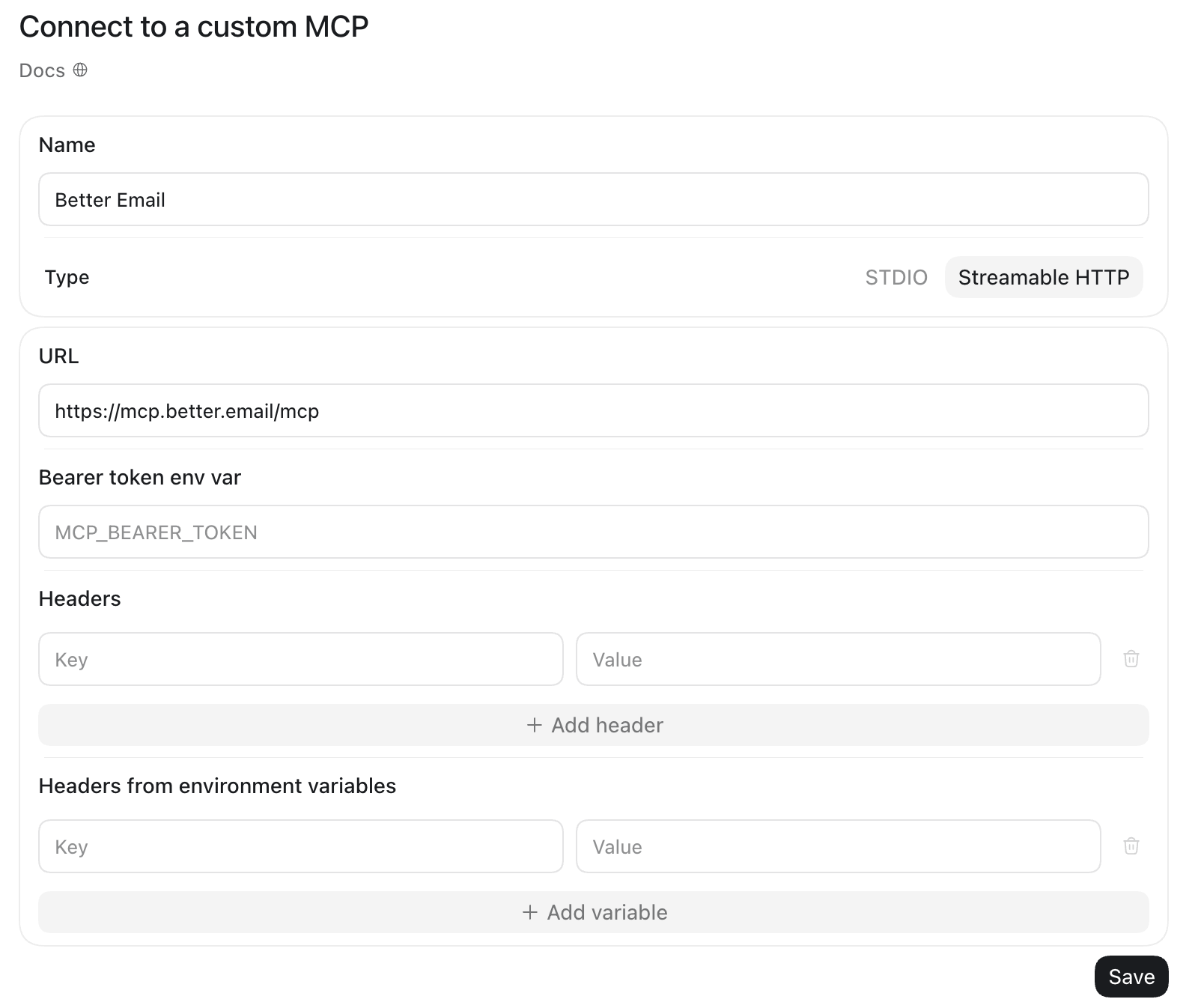
- Click Add MCP server. A form titled Connect to a custom MCP opens.
- Name it Better Email and select Streamable HTTP.
- Paste
https://mcp.better.email/mcpas the URL and click Save. Leave the bearer token and header fields empty. - Click Authenticate on the new connector and sign in to Better Email. The connector is enabled once you are signed in.
Other clients
- Claude Code: run
claude mcp add --transport http better-email https://mcp.better.email/mcp, then sign in from the/mcpmenu. - Cursor: add an MCP server of type HTTP with the server URL, and sign in when Cursor asks.
- Your own agent: use an MCP client library that supports streamable HTTP and the spec's OAuth 2.1 flow, and point it at the server URL. Sign-in happens in the browser the same way.
What the agent can do
Once signed in, an agent can:
Look around
- List Campaigns you can access, and search Campaigns and Design Systems by name or by meaning
- List Folders, Design Systems, and Integrations
- Read the Organization profile: name, configured languages, and how many Campaigns and Design Systems it has
Create and organize
- Create a Campaign from a Design System, optionally in a Folder, in a language, and for an Integration. When the Organization has more than one Integration, the agent picks one.
- Duplicate a Campaign, optionally with a new name, Folder, language, or Integration
- Move a Campaign to another Folder
Build
- Read a Campaign and its blocks, and check whether the draft holds changes not yet in a revision
- List the components the Design System offers
- Insert, update, delete, and move blocks
- Set the subject line and preheader
- List Recipient Fields for personalization
Segment
- List the segmentation catalogue: Recipient Fields and Segments
- Create a reusable Segment from Recipient Field conditions
- Create, edit, reorder, and delete audience variants of a block, including hiding the fallback variant
Segmentation follows the Campaign's Integration. When the Integration cannot segment, the catalogue says so and the agent gets no variants or Segments, the same rule the Campaign Editor applies.
Upload
- Upload an image from a public URL, or a file from the agent's own disk
- Upload an SVG the agent drew
- Upload a non-image asset from a URL
An image attached in the chat reaches Better Email only when the client can hand the file to the tool. Claude Code and homegrown agents can. From Claude.ai and Claude desktop, put the image at a URL first.
Check
- Run pre-flight checks on the draft and read the results
- Take a desktop or mobile screenshot of the rendered Campaign
- Show an interactive preview of the Campaign inside the chat: an inbox line with sender, subject, and preheader that you can edit in place, the rendered email with a desktop and mobile switch, a pre-flight button, and a link to open it in Better Email. Blocks with audience variants show their fallback in the preview. This needs a client that renders MCP Apps, which today means Claude.ai, Claude desktop, and ChatGPT. Other clients get a screenshot instead.
Results from the Campaign tools carry the Campaign's link, so the agent can hand you one to open it in Better Email. Every edit is checkpointed per call. The Campaign's version history shows each step an agent took, and you can roll back to any point before it. Every write is recorded with the client that made it, so you can tell an agent's edits from your own.
Your organization's rules travel with it
The tone of voice and skills an admin sets under Settings, then Betty AI, apply to every AI client that connects, not only Betty. Before building, an agent reads them with get_guidelines, which returns the working rules, your Organization's tone of voice, and the skills catalogue. When a skill fits the task, it loads the full instructions with load_skill.
Manage connected clients
Open your Organization's settings, choose Betty AI, then Connectors. The AI clients card lists your own active sessions, named after the client that opened them, for example "Claude Code". Admins do not see other members' sessions here.
Each sign-in is its own session, so the same client on two computers shows up twice. Disconnect ends a session at once. If that client wants to keep working, it asks you to sign in again.
An admin who needs to end a member's AI access asks that member to disconnect. Removing the member from the Organization also ends every session they have.
FAQ
Can the agent personalize and segment a Campaign? Yes. It can insert Recipient Fields, add audience variants to a block, and create reusable Segments, as long as the Campaign's Integration supports segmentation.
Can I give the agent an image? Yes. Point it at a public URL, or let it upload a file from disk when the client runs on your machine, or ask it to draw an SVG. Chat attachments work only from clients that can pass the file to the tool.
Can I limit what an AI client can do? It has exactly the permissions of the user who signed in. Users remove their own sessions from the AI clients card; an admin who needs to cut off a member's access asks them to disconnect, or removes them from the Organization, which ends every session.