AI metadata
AI metadata is the design-system-level and module-level guidance you define in the Design System Editor so Betty can use your design system well.
Betty already has visual awareness. She takes screenshots of the campaign to understand how it looks. AI metadata is not a substitute for that. It exists for cases where visual context alone is not enough: modules with very specific usage rules, constrained placement, prescribed setting combinations, or specialized content logic that Betty cannot infer from appearance.
Use AI metadata when you need Betty to understand how and when a design system or module should be used, not just what it looks like.
If you want the broader model for how Betty gets context from the current campaign, tone of voice, skills, and AI metadata together, start with Betty AI.
How Betty uses AI metadata
AI metadata is defined in the Design System Editor and read by Betty when she is helping build campaigns.
That means this content should focus on:
- how to use the design system well
- what good composition looks like
- how modules should be configured
- what implicit best practices the email or design system designers want Betty to follow
It is not mainly a place to explain how to build the design system itself.
Template base AI metadata
Template-base AI metadata should focus on things that are specific to the overall design system, not on one individual module.
Good examples include:
- which modules fit well together
- which modules usually follow each other
- how global settings should usually be configured
- how brand, BU, or language choices should affect the email
- what writing patterns work especially well in this design system
- what layout or pacing rules Betty should keep in mind across the full email
In other words, use template-base AI metadata for the guidance that shapes the whole composition.
Module AI metadata
Module AI metadata should focus on how to use that specific module well.
Good examples include:
- the kinds of content the module is best for
- how settings should be combined
- what alignments or color combinations work well
- rules like "when this module is used for blog articles, always left align the text"
- constraints or special behaviors that are not obvious from the module preview alone
Use module AI metadata to capture the designer's intent for that one module.
When to write a meta description
Write AI metadata when one or more of these apply:
- The design system or module has placement rules (e.g. must always appear at the bottom of the email)
- The module has setting combinations that should or should not be used together
- The design system or module has content rules that Betty should follow when writing or building with it
- The module has a specialized technical function that is not obvious from its appearance
- The design system or module is only appropriate for specific use cases and Betty should know when to suggest or avoid it
If Betty can figure it out visually and contextually without guidance, a meta description is not needed.
What to include
A good AI meta description covers:
- What it is: one sentence on the function
- Visual: how it looks (only what affects Betty's decisions)
- Use for: the specific scenarios where this design system or module is the right choice
- Settings: key inputs, what they control, and any important defaults
- Special notes: technical details, constraints, rules, and instructions for Betty when assisting users
Keep the language direct and instructional. Betty reads this to make decisions, not for documentation purposes.
Document the implicit knowledge
The best AI metadata often captures knowledge that is obvious to experienced email and design system designers, but not obvious to anyone else.
That might include:
- visual combinations that reliably look good
- content structures that work for a certain module
- pairings between modules
- rules for when to use one module instead of another
- brand-specific do's and don'ts
If that knowledge normally lives in comments, Slack threads, or a designer's head, it is usually a good candidate for AI metadata.
Example: Calendar Button module
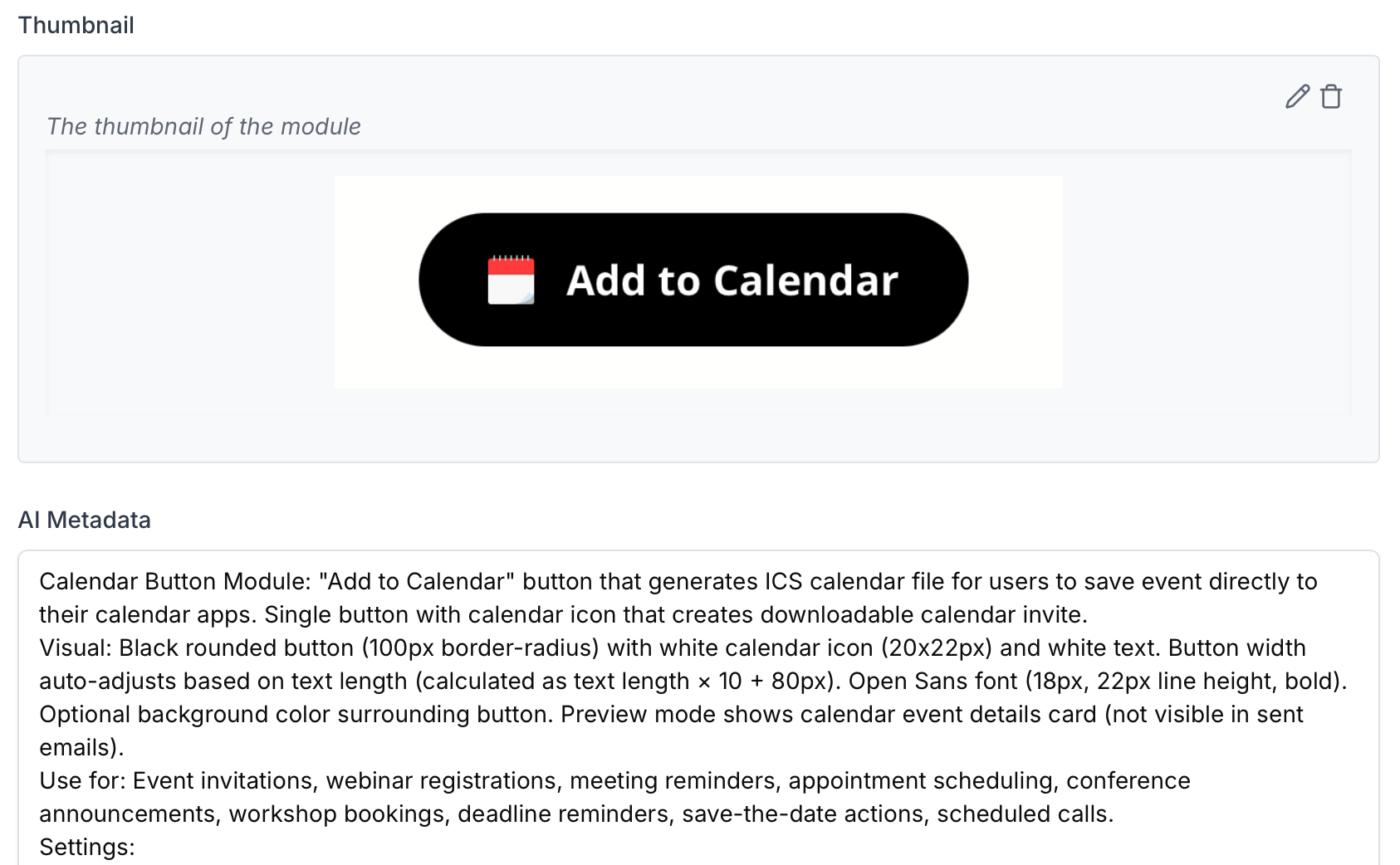
The Calendar Button module is a good example of a module that needs AI metadata. Visually it looks like a standard CTA button. Betty cannot tell from a screenshot that clicking it downloads a .ics calendar file rather than navigating to a URL. The metadata tells Betty exactly what the module does, when to use it, and how to fill its settings correctly.
AI metadata used in this module:
Calendar Button Module: "Add to Calendar" button that generates ICS calendar file for users to save event directly to their calendar apps. Single button with calendar icon that creates downloadable calendar invite.

Visual: Black rounded button (100px border-radius) with white calendar icon (20x22px) and white text. Button width auto-adjusts based on text length (calculated as text length × 10 + 80px). Open Sans font (18px, 22px line height, bold). Optional background color surrounding button. Preview mode shows calendar event details card (not visible in sent emails).

Use for: Event invitations, webinar registrations, meeting reminders, appointment scheduling, conference announcements, workshop bookings, deadline reminders, save-the-date actions, scheduled calls.

Settings:
- 'calendarButtonSettings': Background color (hex input - optional background color behind button, leave empty for transparent). Button align dropdown (Left/Center/Right). Button text (text input - default: "Tilføj til din kalender" / "Add to calendar").
- 'calendarSettings': Title (event title). Description (event description). Start date (dd-mm-yyyy). Start time (HH:MM). End date (dd-mm-yyyy). End time (HH:MM). Alarm (minutes before event - leave empty for no alarm). Location. URL (meeting link or event page).

Special notes:
- Generates a downloadable .ics file. This is not a standard CTA link. Use this module when the goal is for recipients to save an event to their calendar, not to navigate to a page.
- Title, start date/time, and end date/time are required for a functional calendar event. Description, location, URL, and alarm are optional but recommended.
- Preview mode shows a calendar event card so the sender can verify details before sending. Recipients do not see this card.
- Compatible with all major calendar apps: Google Calendar, Microsoft Outlook, Apple Calendar, Yahoo Calendar.
- Keep button text concise. Width scales with text length, so long labels create an oversized button.
- When helping a user: fill all calendar fields based on the event context. Suggest alarm if the event type benefits from a reminder (e.g. webinars, meetings). Center alignment works well as a featured action.
Where to add it
The metadata lives in the AI Metadata field in the Metadata tab of the Design System Editor.
You can add it for:
- the template base
- any individual module
The same field is used in both places, but the content should be different depending on whether you are guiding Betty at the design-system level or the module level.
Write it as plain text. There is no character limit, but be precise rather than exhaustive. Every sentence should help Betty make a better decision.