Skills
Skills are pre-defined prompts that appear as clickable pills in the Betty chat inside the Campaign Builder. When a user clicks a pill, it sends a pre-written prompt to Betty and triggers the right task instantly, without the user having to type or explain anything.
This is an organization-level Betty setting. Skills mainly shape how Betty behaves in the Campaign Builder across your workspace.
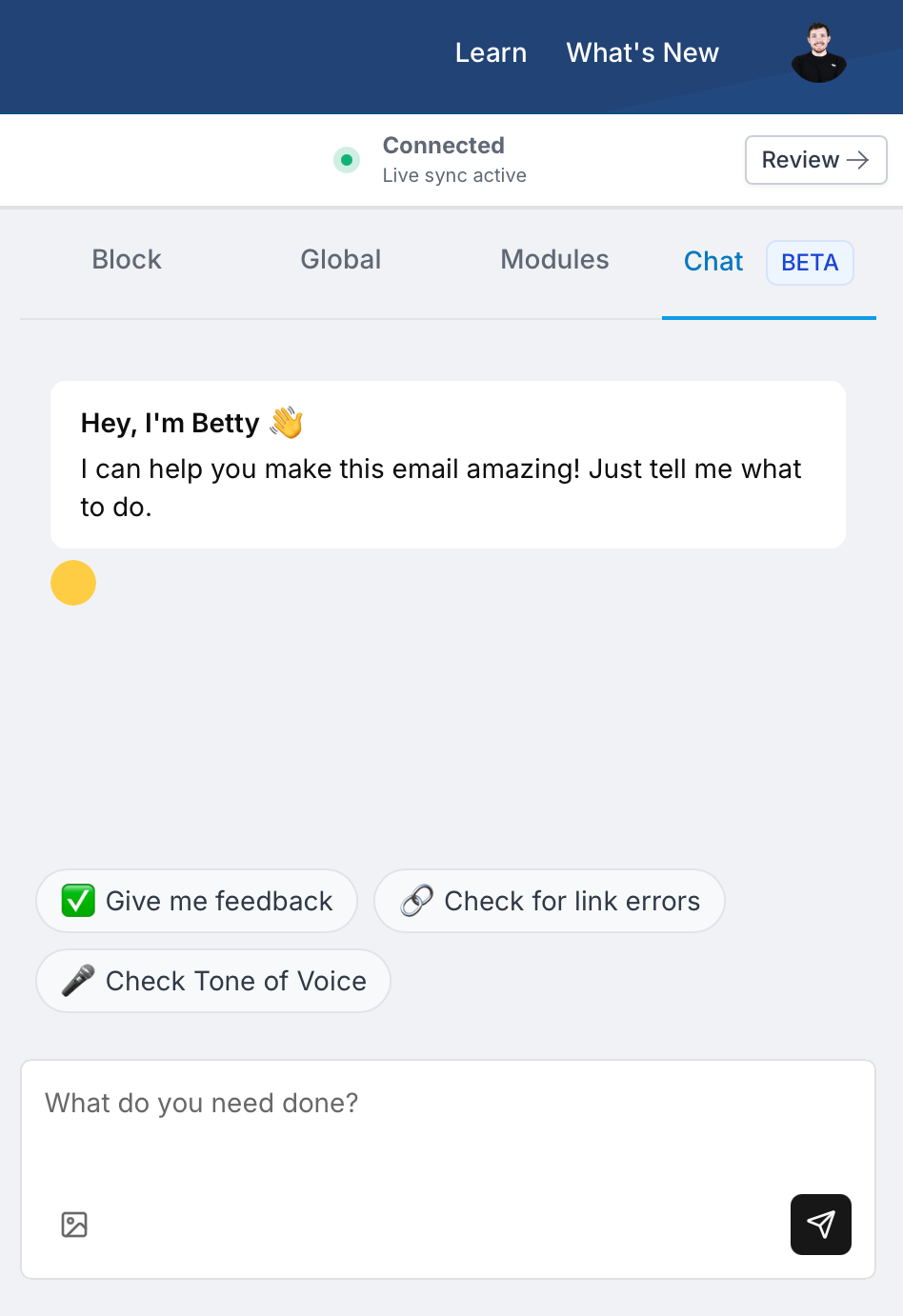
Skills are configured in organization settings: click your profile image, select your organization name, then choose Betty AI in the sidebar.
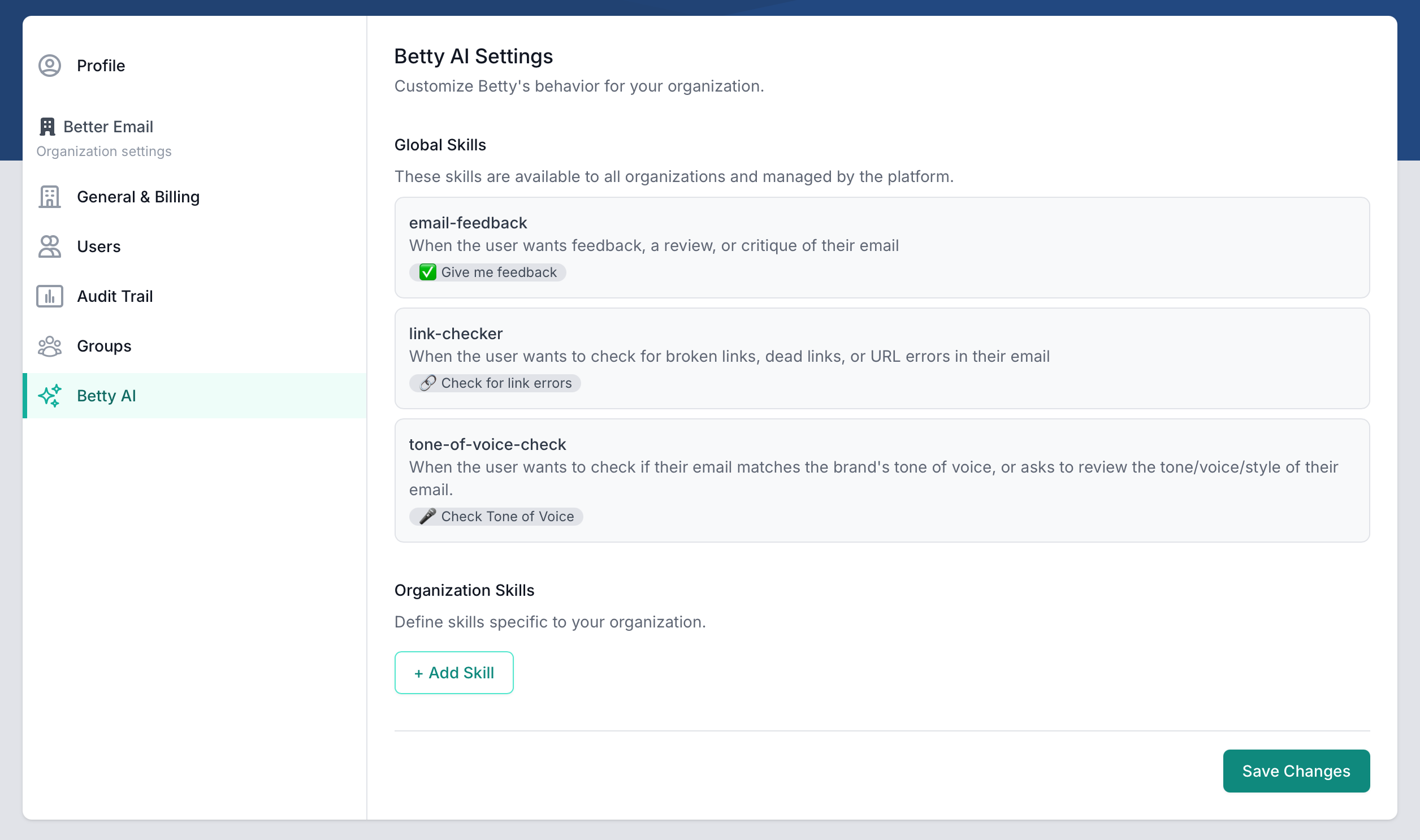
Global Skills
Global Skills are built and maintained by Better Email. They are available to all organizations and cannot be edited.
| Skill | When it triggers | Pill |
|---|---|---|
email-feedback | The user wants feedback, a review, or critique of their campaign | Give me feedback |
link-checker | The user wants to check for broken links or URL errors | Check for link errors |
tone-of-voice-check | The user wants to check if the campaign matches their brand tone of voice | Check Tone of Voice |
Organization Skills
Organization Skills are custom skills you define for your own team. They let you encode repeatable tasks, content rules, or brand-specific workflows so Betty handles them the same way every time, without users having to explain the context themselves.
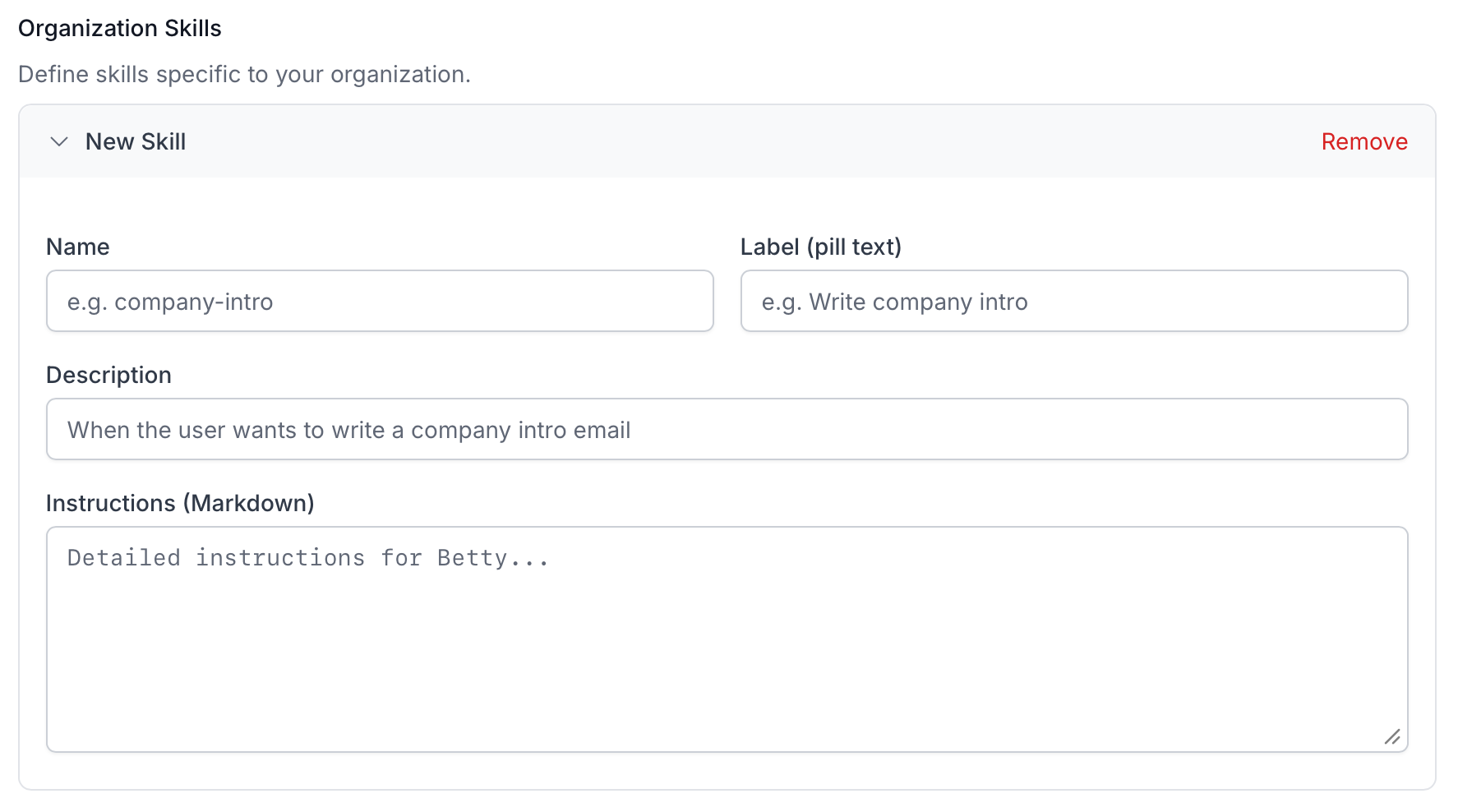
Click + Add Skill to create one.
Fields
Name: A short, hyphenated identifier for the skill (e.g. company-intro, product-launch, newsletter-intro). Not visible to end users.
Label (pill text): The short label shown as a clickable pill in the chat (e.g. Write company intro). Keep it action-oriented and concise.
Description: A short explanation of what the skill does (e.g. When the user wants to write a company introduction email). This is purely for your own reference so you can tell your skills apart.
Instructions (Markdown): The detailed instructions Betty follows when the skill is triggered. This is where you put the actual rules, structure, tone requirements, content guidelines, and any other specifics. Supports Markdown formatting.
Writing good instructions
The Instructions field is the most important part of a skill. Think of it as a standing brief Betty reads every time the skill runs. Good instructions are:
- Specific: tell Betty exactly what to do, not just what to aim for
- Structured: use headings and bullet points so rules are easy to scan
- Complete: cover what to include, what to avoid, and any required structure or phrasing
Example: company-intro skill
Name: company-intro
Label: Write company intro
Description: When the user wants to write an introductory section about the company
Instructions:
Write a short company introduction for use in emails.

## Structure
- Opening sentence: who we are and what we do (1 sentence)
- What makes us different (1-2 sentences)
- Closing: a warm, forward-looking statement (1 sentence)

## Rules
- Maximum 4 sentences total
- Do not use the words "innovative", "leading", or "solutions"
- Always write in second person (address the reader as "you")
- Tone: confident and approachable, never salesy

## Example output
"We are Better Email, an email platform built for marketing teams who care about quality. Unlike generic tools, we give your team full design control without sacrificing speed. Every email you send is built to look great, everywhere. We are glad you are here."
Example: pre-send checklist skill
Name: pre-send-checklist
Label: Pre-send check
Description: When the user wants to review or check their email before sending
Instructions:
Run a pre-send review of the email and check the following:

## Content
- [ ] Subject line is present and under 50 characters
- [ ] Preheader text is present and adds context beyond the subject line
- [ ] All placeholder text has been replaced (look for brackets, "lorem ipsum", "TBD", etc.)
- [ ] CTA button text is clear and action-oriented

## Links
- [ ] All links are present and look correct
- [ ] No links pointing to example.com or placeholder URLs

## Tone
- [ ] Content matches the brand tone of voice
- [ ] No typos or grammatical errors

Report each item with a pass or fail and a short explanation for any failures.
Skills are saved per organization and available to all users in the Campaign Builder. Remember to click Save Changes after adding or editing a skill.