Images, GIFs and files
Betty can make and edit files, not only write content. She can change an image you attach, draw a new one, animate it, or make a calendar invite. When the file is ready she shows it in the chat, and she can put it straight into a Campaign or a Design System.
Edit an image
Attach an image and say what to change, for example:
- "Make the flat background of this image our brand blue."
- "Crop this to a square."
- "Put these two product shots side by side on one image."
You don't need to attach an image that's already in the Campaign or Design System. Ask Betty to change "the hero image" and she works on the original file.
Betty changes only what you ask for and keeps the image's full size and format. Better Email already serves each image at the size the Design System sets, so there's no need to make it smaller first.
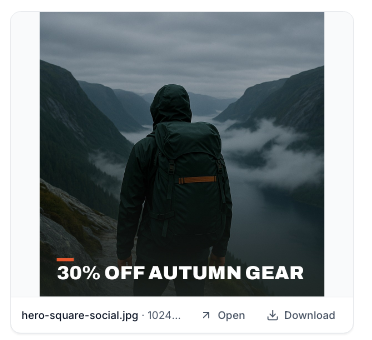
The result appears in the chat as an image card. Use Open to view it at full size, or Download to save it. Ask Betty to put it in the Campaign, and she adds it to the Block you name.
Make an animated GIF
Betty can make short animations, such as a slideshow of product photos, a pulsing badge, a chart building up, or a banner with moving text. She can also edit the frames of a GIF you attach. Describe what should move and how long it should take, for example:
- "Make a GIF that cycles through these three product photos, two seconds each."
- "Animate our sale badge so it pulses gently."
- "Make a 600×200 banner that cycles through 'Autumn sale', '30% off all gear' and 'Ends Sunday'."

Classic Outlook for Windows shows only the first frame, so make sure the first frame works on its own.
For a timer that counts down to a deadline, use a countdown timer instead. A GIF Betty makes is the same for everyone, while a countdown shows the time left whenever the email is opened.
Text in your brand fonts
When Betty draws text onto an image, such as a headline on a banner, she uses the fonts your Design System uses. She reads them from the Design System's code, including fonts hosted in Better Email and Google Fonts.
If she can't load a font, she uses a similar one and tells you which typeface the text should have been in.
Images in the Assets panel
When Betty adds an image she made to a Design System, she gives it a descriptive name, so you can find it in the Assets panel.
Calendar invites
Ask for an "Add to calendar" button and Betty makes a calendar invite (.ics file) with the event's title, time, place and description. She uploads it and links the button to it, so readers can add the event to Outlook, Google Calendar or Apple Calendar.
Web fonts
Attach a font file (TTF, OTF, WOFF or WOFF2) and ask Betty to use it in a Design System. She converts it to WOFF2, the format email clients that support web fonts load best, uploads it as a Design System asset, and adds it to the Design System's code.
Check that your font license allows use as a web font in email.
Files in the chat
Each file Betty makes appears in the chat as a card with Open and Download. Files stay in that chat until she puts them in a Campaign or a Design System. They aren't visible to anyone else in your Organization until then.