Countdown timers
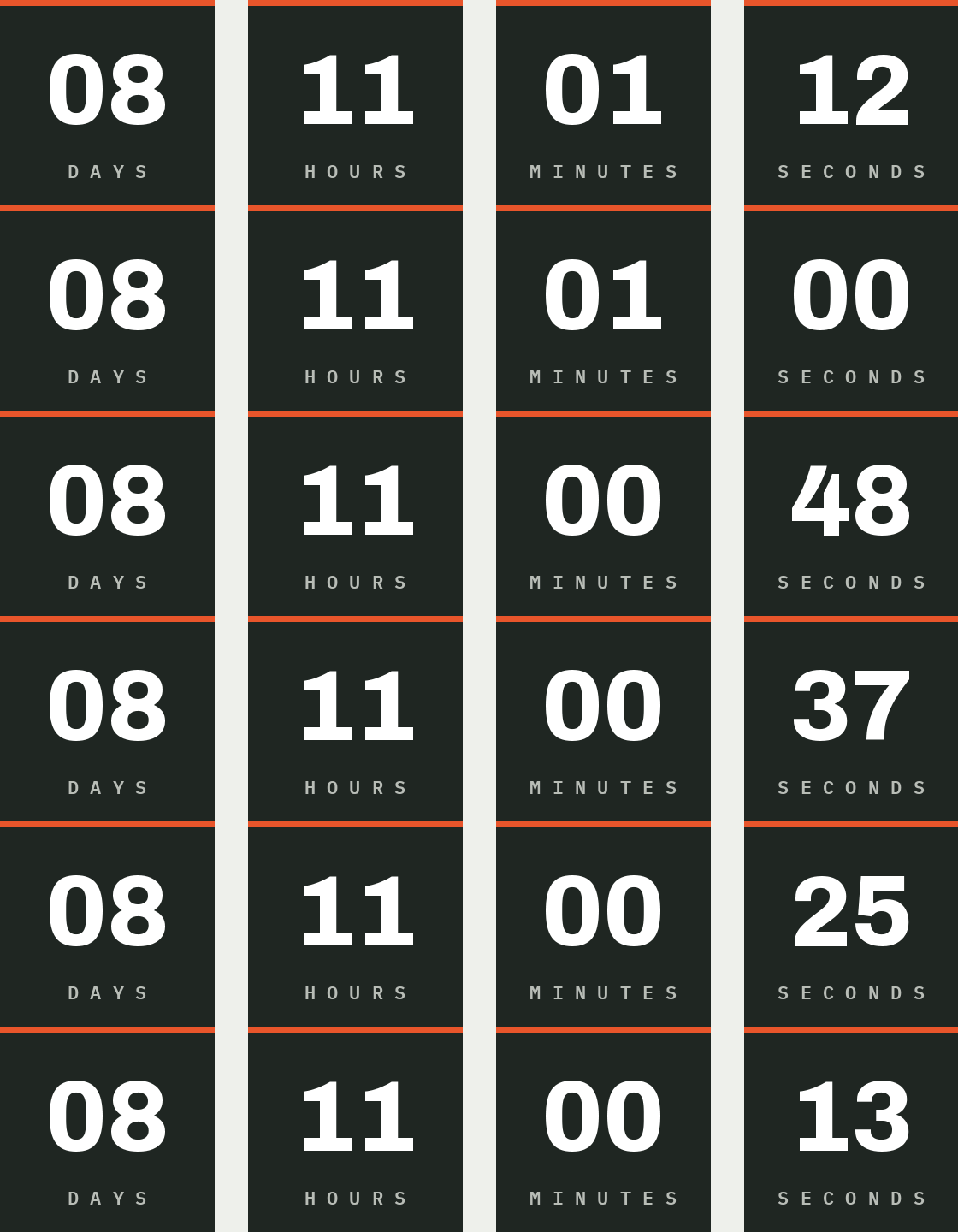
A countdown timer shows how long is left until a deadline, such as the end of a sale. Each time someone opens the email, the timer is drawn fresh, so it shows the time left at that moment, not when the email was sent.
Betty designs the timer for you, in the Design System's fonts and colors. You set the deadline.
Add a countdown
Betty builds the countdown as an AI Block, so AI Blocks need to be on for your Organization. An admin can turn them on under Settings → Betty.
- In a Campaign, add an AI Block where the timer should go.
- Describe the countdown, for example: "A countdown to our Black Friday sale ending Friday 28 November at 23:59 Copenhagen time, in our brand style."
- Betty draws the timer, uploads it, and builds the Block. The preview shows it counting down.
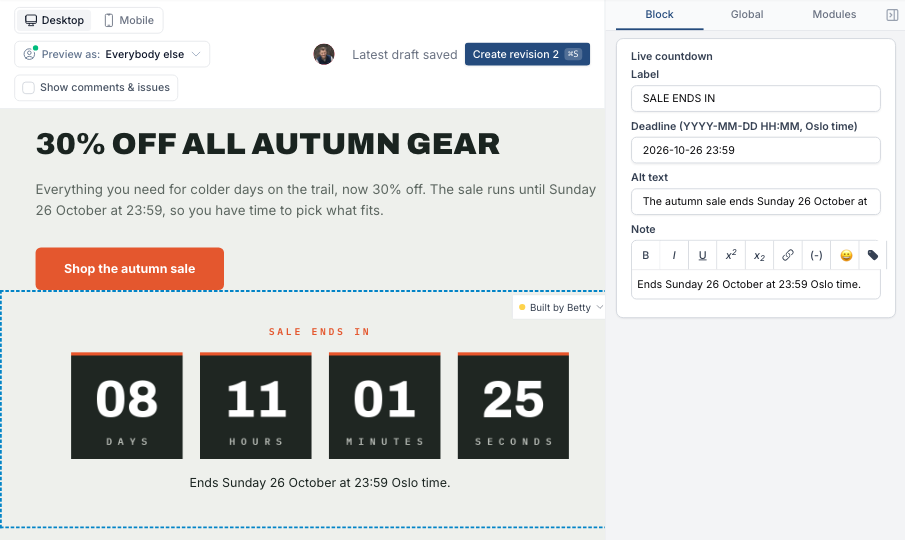
- Change the deadline in the Block's settings whenever you need to.
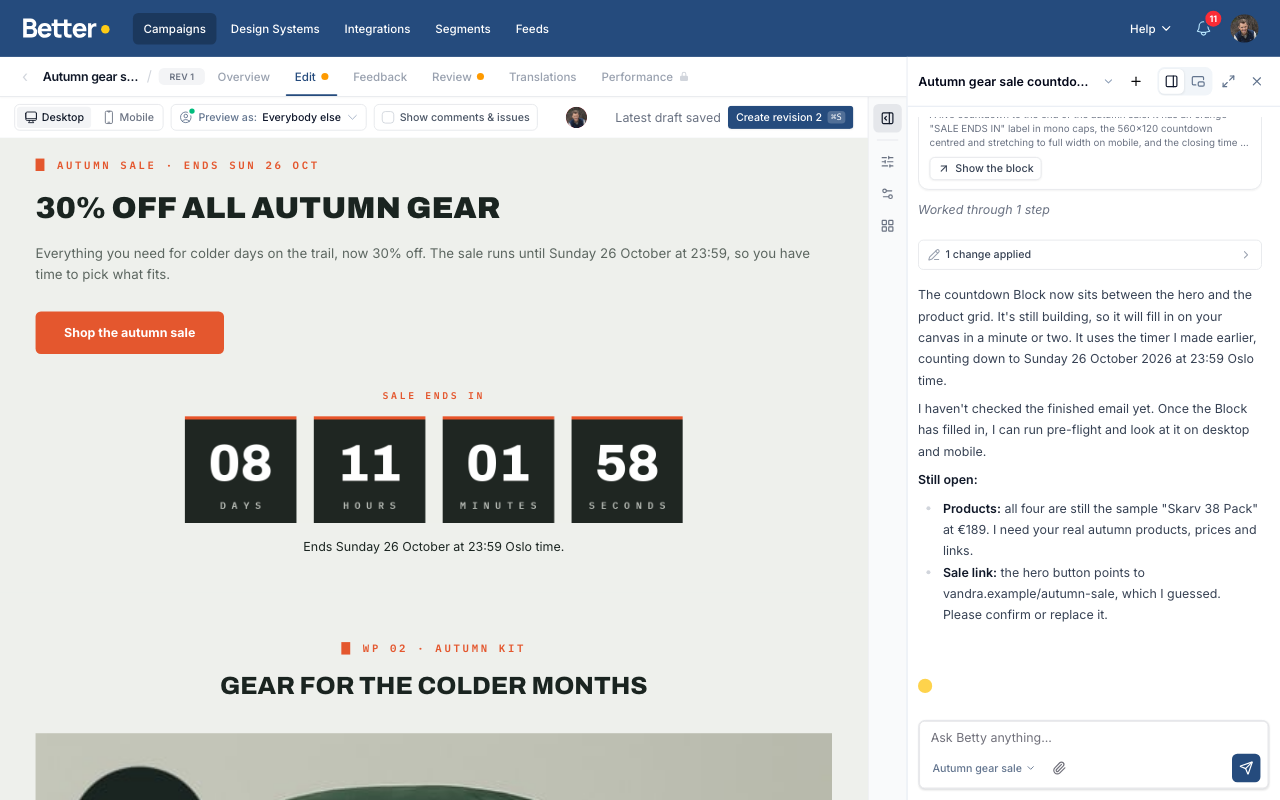
To change how the timer looks, ask Betty for a new design. She draws a new timer and swaps it into the Block.
Setting the deadline
The deadline is a text input in the Block, written as YYYY-MM-DD HH:MM, for example 2026-11-28 23:59. It uses the time zone Betty set up for the Block. If your audience is in one place, tell her which time zone, for example "Copenhagen time" or "New York time". Without one, the timer uses UTC.
A date without a time counts down to midnight at the start of that day. 2026-11-28 means the very start of 28 November, so add a time if the offer runs to the end of the day.
Once the deadline has passed, the timer shows its expired design if Betty drew one, or zeros if she didn't.
A deadline per recipient
A countdown can also use a different deadline for each recipient, such as the end of their free trial. Ask Betty to use a Recipient Field that holds the date, for example: "Count down to each recipient's trial end date."
On export, Better Email swaps the field for your ESP's merge syntax, and the ESP fills in each recipient's date when it sends. The timer reads these date formats:
| Format | Example |
|---|---|
| ISO 8601 with a time zone | 2026-11-28T23:59:00+01:00 |
| Date and time | 2026-11-28 23:59 |
| Date only | 2026-11-28 |
| Marketing Cloud's US format | 11/28/2026 11:59 PM |
| Unix time, in seconds or milliseconds | 1795906740 |
Dates without a time zone use the Block's time zone. Dates such as 05/11/2026 without AM or PM aren't read, because they mean different days in the US and in Europe.
If a recipient's field is empty, or the ESP writes the date in another format, that recipient sees the countdown to the Block's fixed deadline. Set the fixed deadline to something sensible, such as the end of the campaign. Before you send, check how your ESP prints date fields. A test send shows you.
How it looks in email clients
The timer is an animated GIF, about one minute long. It counts down from the moment the email is opened, then stops. Opening the email again shows the new time left.
- Most email clients, including Gmail, Apple Mail and new Outlook, play the animation.
- Classic Outlook for Windows shows only the first frame. That is still the correct time left when the email was opened, but it doesn't tick.
- Clients that block images until the reader allows them show the timer's alt text instead. Betty writes alt text that says what the countdown is for, such as "Sale ends Friday at midnight".
Some email clients and image proxies keep a copy of an image. The timer tells them not to, but if a client caches it anyway, a reader may see an older time when they open the email again.
For Design System authors
Betty builds countdowns in AI Blocks with the countdown Liquid filter. You can use it in your own Modules too. Ask Betty in the Design System Editor to draw a timer for you: she gives you a timer URL that starts with https://countdown.better.email/. Then write that URL into the Module's code. Here timer.deadline is a text input in a setting called timer:
{{ "https://countdown.better.email/v1/…/….gif?w=600&h=150"
  | countdown: until: timer.deadline,
    tz: "Europe/Copenhagen",
    alt: "Sale ends Friday at midnight" }}
| Option | Required | What it does |
|---|---|---|
until | Yes | The deadline, usually from a text input. |
tz | No | The time zone the deadline is in, as an IANA name like Europe/Copenhagen or America/New_York. UTC when missing. |
recipient_until | No | A Recipient Field token, such as "[trial_end]", for a deadline per recipient. The timer falls back to until when it's empty or not a date it reads. |
alt | No | Alt text for the image. |
The filter writes a responsive <img> tag at the timer's size. Keep the timer URL in the code, not in an input, so marketers only change the deadline.