For admins
SendX integration
Better Email syncs your Campaigns into SendX as draft campaigns. The first sync creates the campaign with the Campaign's name, subject, preview text, sender and HTML. Your team picks the audience and schedules the send in SendX, or, with sending turned on, sends or schedules it from Better Email. Recipient fields, Default values, Segments and block variants come across as SendX template code.
This guide covers finding your API key in SendX, connecting it to Better Email, what each sync does, sending from Better Email, and bringing performance data back from SendX.
Before you start
You need:
- A SendX team with at least one verified sender
- Access to Settings → API in SendX, to copy the Team API Key
- An admin user in Better Email who can create and edit integrations
1. Copy the Team API Key from SendX
- Sign in to SendX.
- Go to Settings → API.
- Copy the Team API Key.
SendX shows a team encrypted ID on the same page. Better Email doesn't use it.
2. Create the integration in Better Email
- Go to Integrations in Better Email.
- Create a new integration, choose SendX as the type and give it a clear name.
- Paste the Team API Key.
- To bring your SendX contact fields into Better Email, turn on Sync recipient fields. See Recipient Field sync.
- Optional: turn on
Sync performance data. See Performance data. - Optional: turn on
Send and schedule from Better Email. See Send and schedule from Better Email. - Check Enabled and click Save.
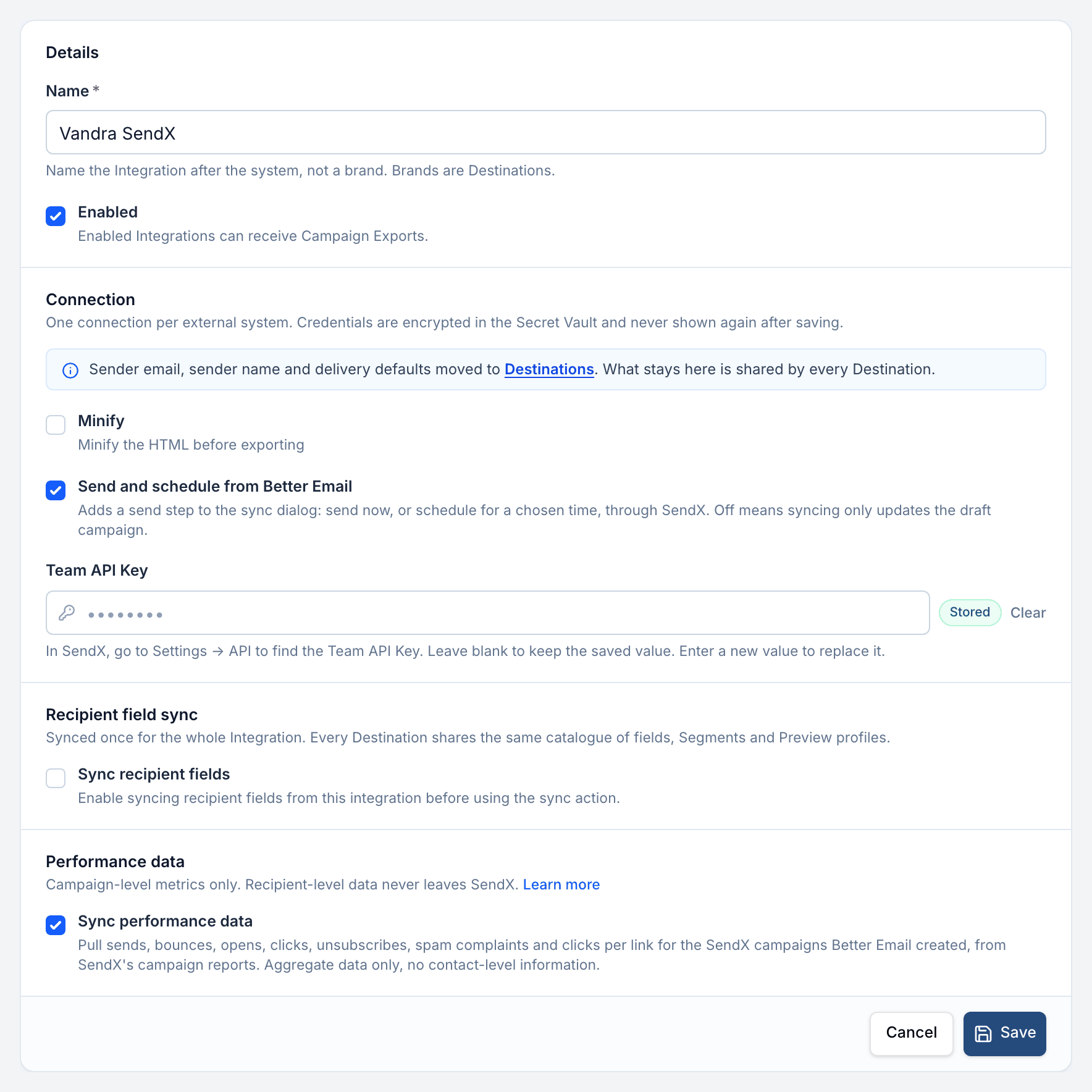
Better Email first uses the key when you sync a Campaign or its fields, so a wrong key shows up as an error then: "SendX rejected the Team API key."
One integration is one SendX team. To sync into several teams, create one integration for each.
Choose the sender
Each new campaign goes out from a verified SendX sender. Unless you name one, Better Email uses the team's first verified sender.
To pick the sender, open the integration's Destinations tab, edit the Destination, and type the sender's address in Sender email under Delivery defaults. The address has to match a sender in SendX, and that sender has to be verified. Each Destination can have its own sender, so one integration can serve several newsletters.
The sender is set only when Better Email creates the campaign. After that, change it on the campaign in SendX.
3. Sync a Campaign
On the Campaign's Review tab, click Sync to <your SendX integration>.
The first sync creates a draft campaign in SendX with:
- the Campaign's name
- the subject line
- the preheader, as SendX's preview text
- the sender
- the HTML
SendX needs a subject line, so Better Email refuses to sync a Campaign without one. Add the subject and sync again.
A sync on its own doesn't schedule or send anything. Pick the audience and schedule the campaign in SendX, or send it from Better Email.
Syncing again
What a later sync does depends on the campaign's status in SendX:
| Campaign in SendX | What the sync does |
|---|---|
| Draft | Updates the subject, preview text and HTML. A preheader you removed in Better Email is removed in SendX too. The name, sender, audience and schedule settings you set in SendX stay as they are. |
| Sent from SendX | Leaves the sent campaign alone and creates a new draft. |
| Stopped by SendX's review | Creates a new draft. SendX doesn't let anyone edit a stopped campaign. |
| Deleted or archived | Creates a new draft. |
| Scheduled from Better Email | Updates the scheduled send. See Change or cancel a scheduled send. |
| Any other status, such as scheduled in SendX, sending or in SendX's review | Refuses the sync. The campaign keeps its previous content. |
A campaign scheduled in SendX is refused because the update would go out without anyone checking it in SendX. To sync a change, move the campaign back to draft in SendX, sync, and schedule it again.
A Campaign sent from Better Email can't be synced again. See After a campaign is sent.
Variants
Each language variant and other Campaign Variant syncs to a draft campaign of its own, named after the variant. Pick the audience for each one in SendX.
4. Optional: send and schedule from Better Email
Sending from Better Email is off by default. Without it, a sync only updates the draft campaign and your team sends from SendX.
With it on, editors can send a campaign, schedule it, reschedule it or unschedule it from the Campaign's Review tab. SendX still delivers the email and fills in its merge tags for each contact, but nobody needs to log in to SendX to send it.
Turn on sending
- Open the SendX integration in Better Email.
- Turn on
Send and schedule from Better Email. - Click Save.
Pick the lists and segments for each Destination
Editors can send only to the lists and segments a Destination allows. To set them:
- Open the integration's
Destinationstab and edit the Destination. - Under SendX lists and segments, click
Fetch from SendXand pick the ones editors may send to. - Save the Destination.
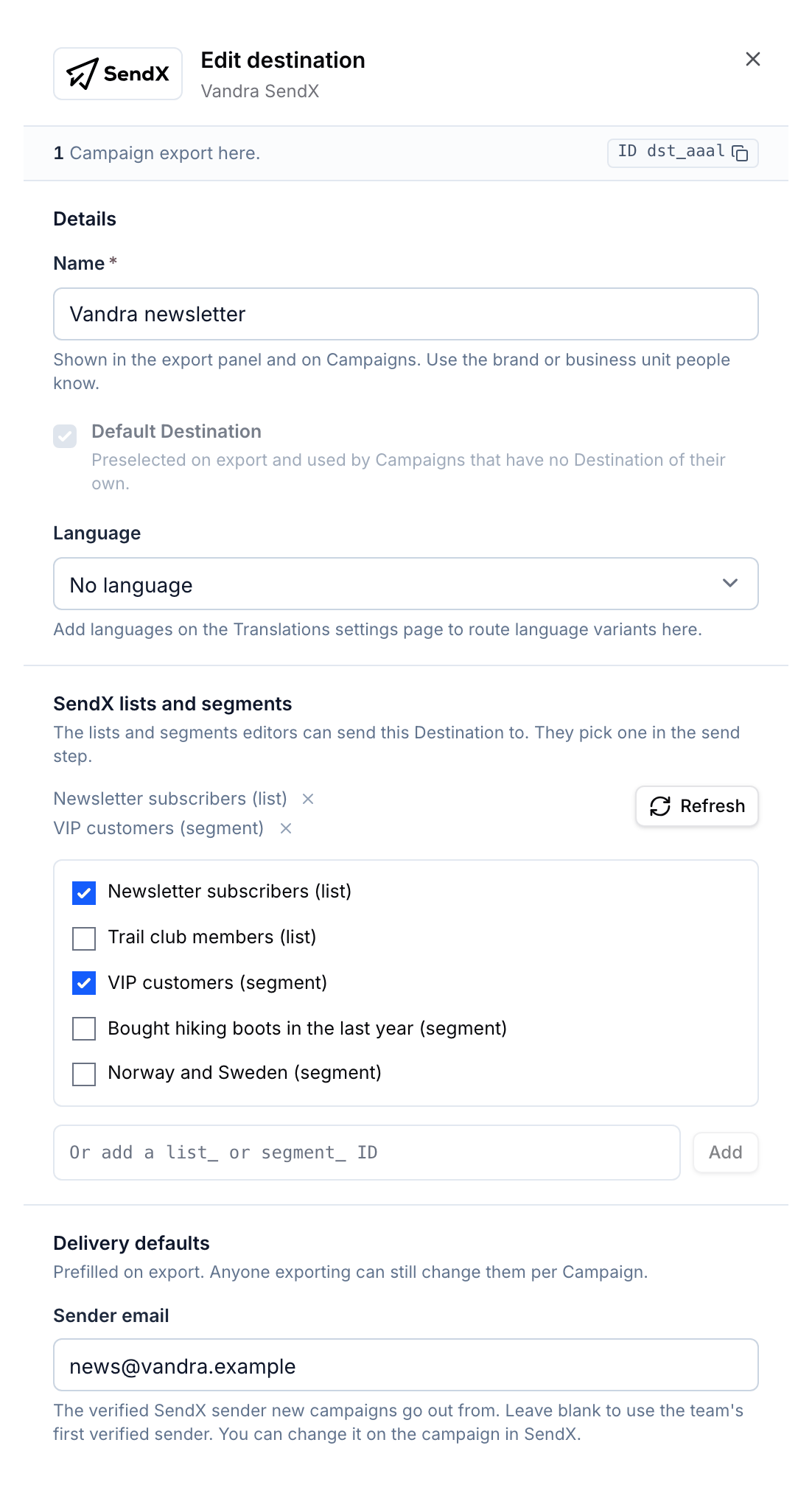
The section appears once sending is turned on and saved. If the lists don't load, add an ID by hand: list IDs start with list_ and segment IDs with segment_. Sending is blocked until the Destination has at least one.
The campaign goes out from the sender it was created with. See Choose the sender.
Send or schedule a campaign
- Open the Campaign's Review tab and click
Sync to <your SendX integration>. - Click
Next. The send step shows who it goes to, the subject, the preheader and the sender. - Choose what happens:
Sync onlyupdates the draft campaign in SendX. Nothing is sent.Send nowsends to the list or segment straight away. You confirm it once more before it goes.Schedulesends at the time you pick, in your own time zone. It must be at least five minutes ahead.
- If the Destination has more than one list or segment, pick the one to send to.
- Click
Send noworSchedule send.
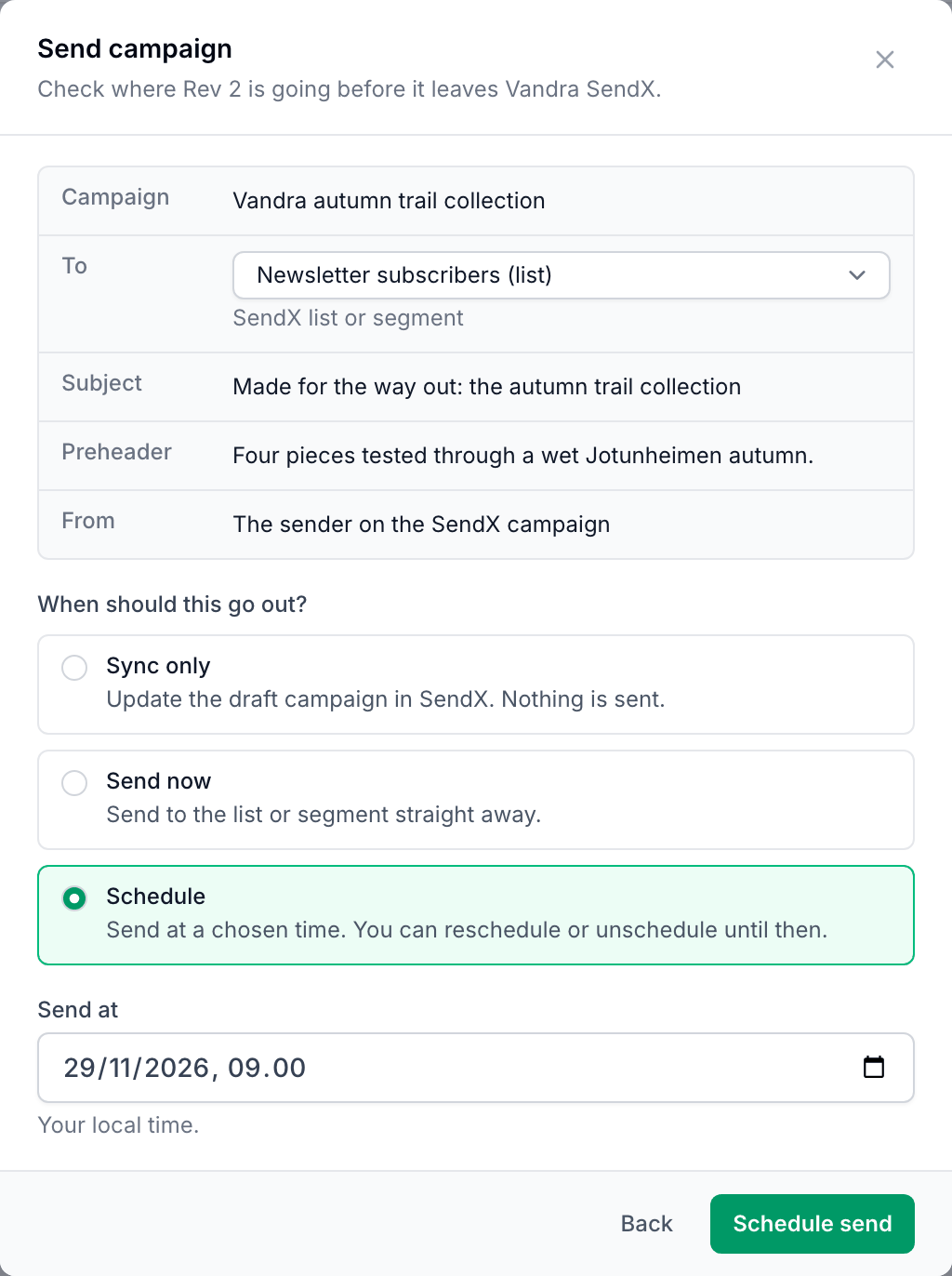
What a send changes in SendX
Better Email sends the draft campaign its last sync made, or creates a new one if there's no draft to use. If that campaign has already gone out, for example because someone sent it from SendX, the send is refused: sync the Campaign first to start a new draft, then send that. Before it sends, Better Email changes the campaign like this:
- The subject, preview text and HTML are the revision you're syncing.
- The list or segment you picked replaces the lists, segments and tags the campaign was addressed to. Exclusions set in SendX stay.
- Smart send and sending in each contact's time zone are switched off, so the campaign goes out at the time you picked.
- The name and sender stay as they are.
SendX reviews every campaign for a few seconds before it schedules it, a send now included. Better Email waits for that review, so a send takes ten seconds or so. If the review stops the campaign, nothing goes out and Better Email shows an error. SendX shows the reason on the campaign. The next sync starts a new draft.
If SendX doesn't answer a send request, Better Email reads the campaign back to see whether the send went through. If SendX still can't say, Better Email counts the Campaign as sent, so it can't go out twice, and asks you to check the campaign in SendX.
Change or cancel a scheduled send
A scheduled campaign shows its send time on the Review tab.
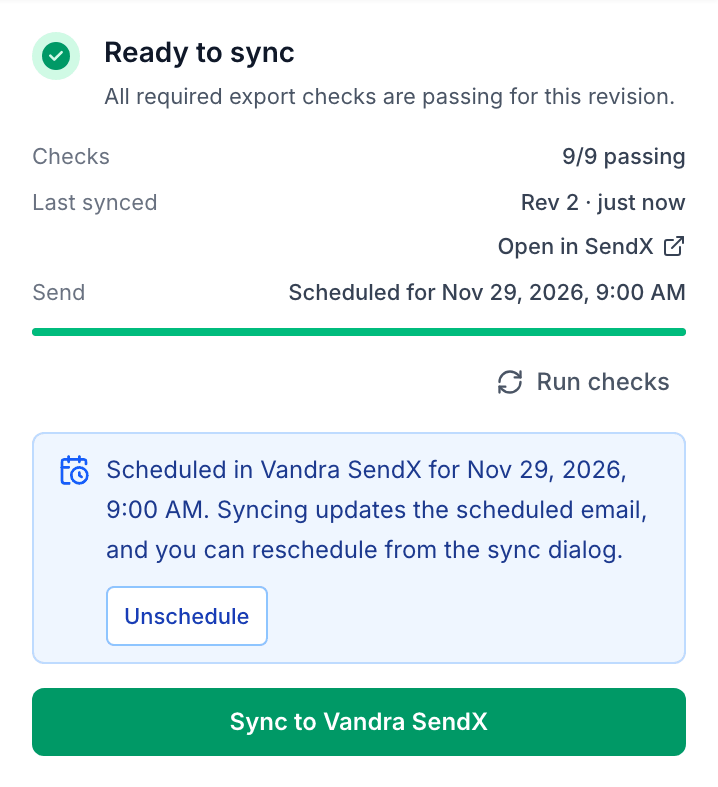
- Update the content: sync the Campaign again and choose
Keep the schedule. The campaign takes the new revision and still goes out at the same time, to the same list or segment. - Reschedule: sync again and choose
Rescheduleto pick a new time. - Unschedule: click
Unscheduleon the Review tab. The campaign goes back to draft in SendX and nothing goes out. You can send or schedule it again afterwards.
SendX reviews the campaign again after every change. A scheduled send can't be changed in its last two minutes.
If someone unschedules, deletes or archives the campaign in SendX, Better Email notices at the next sync or Unschedule. It tells you nothing goes out and drops the schedule from the Review tab. If someone changes the schedule's list, segment or time in SendX, Better Email leaves that schedule alone from then on: change it in SendX.
After a campaign is sent
A Campaign sent from Better Email can't be synced again, so the record of what went out stays accurate. To send a new version, duplicate the Campaign.
Better Email changes only the schedules it made. A schedule someone set in SendX itself stays SendX's: a sync is refused, and so is a send. Move the campaign back to draft in SendX to sync or send it from Better Email.
5. Personalization
SendX writes its personalization in Go's template language. Better Email writes the code for you. You see it if you look at the campaign's HTML in SendX.
Recipient fields
A recipient field inserted in the Campaign Editor exports as a SendX merge tag, such as {{.FirstName}}. Better Email uses the field's ESP field name, the name SendX uses in templates. SendX writes custom field names with underscores for spaces, so a field called "Order ID" is Order_ID. Synced fields get the right name automatically.
A merge tag for a field SendX doesn't have prints <no value> in the email. Give the field a Default value to avoid that.
Default values
A recipient field's Default value exports with SendX's fallback, which prints the text when the contact has no value:
{{fallback .FirstName "there"}}
Inside a link's address, Better Email writes the plain merge tag without the default. SendX drops the contact from the send when a link holds a fallback. So a field you use in a link needs a value for every contact.
Segments and block variants
Segments and block variants export as {{if}} blocks around the content they apply to:
{{if (eq .Loyalty_Tier "gold")}}
  ...
{{else}}
  ...
{{end}}
Groups with and, or and not work, nested as deep as you need. A contact without the field doesn't match an equals, greater-than or less-than condition.
A date condition can count days from today, such as Within the next 14 days. SendX works out the date when it sends. See Dates relative to today.
SendX has a few limits:
- Numbers compare as text. SendX keeps every field value as text, a Number field included, so it can't tell which of two numbers is bigger. For a SendX integration the condition builder offers only equals and not equals on a number field, and Better Email won't export an older condition that uses greater than or less than.
- No
<,>or HTML entities in a condition's value. SendX reads<as the start of an HTML tag and turns an entity such as&into the character. Better Email won't export a condition that compares against them. - Plain text between table rows. SendX builds the plain-text version of the email itself. When a Segment or block variant wraps whole table rows, the plain-text version shows every version of it. The HTML version is right. A Segment around content inside a cell is right in both.
- No Design System condition inside an HTML tag. A recipient condition in module code can't sit inside an attribute, such as a link's address, or inside
<style>,<title>or<script>. Better Email won't export it. Put the condition around the whole element instead.
6. Recipient Field sync
- On the integration, turn on
Sync recipient fieldsand save. - Click
Sync nowin the page header.
Better Email adds:
- SendX's standard fields: First name, Last name, Name, Email and Company
- every custom field in the team, with its type (text, number, date or yes/no)
Custom fields belong to the whole SendX team, so every Destination on the integration shares them. Sync again after you add a field in SendX.
To use a field without syncing, add it under Recipient Fields and set its ESP field name to the field's name in SendX templates. See Adding a field manually.
7. The unsubscribe link and footer
Point your footer's unsubscribe link at SendX's unsubscribe tag:
<a href="{{.GlobalUnsubscribeLink}}">Unsubscribe</a>
Your Design System's footer then is the only footer recipients see. Without the tag, SendX adds its own footer to the HTML version, with an unsubscribe link and your account's postal address. You can print the postal address yourself with {{.Address}}.
SendX also builds the plain-text version of the email itself, and always adds its unsubscribe link and postal address there.
8. Performance data
Better Email can show how a Campaign did once SendX sends it: sends, deliveries, bounces, opens, clicks, unsubscribes, spam complaints and clicks per link. The numbers appear on the Campaign's Performance tab and in the Campaign list. See Campaign performance for how to read them.
- Open your SendX integration in Better Email.
- Turn on
Sync performance data. - Click Save.
Better Email refreshes performance data about once an hour. The Team API Key is enough. There's nothing to set up in SendX.
If Sync performance data isn't on the integration, performance data isn't switched on for your workspace yet. Contact us to enable it.
Your contact data stays in SendX
Better Email never receives, processes, or stores contact-level data. No email addresses, no contact IDs, no per-recipient activity.
Better Email reads each campaign's report in SendX, which holds totals and a click count per link. Nothing in it names a contact. A link whose address still holds an email address is dropped.
How campaigns are matched
Better Email reads the reports of the SendX campaigns it created. Renaming a campaign in SendX doesn't break the link. A campaign built in SendX, or a copy of a synced one, isn't tracked.
Campaigns sent from Better Email are campaigns it created, so they're tracked too. A sync after a send made in SendX leaves the sent campaign alone and creates a new draft. Better Email keeps reading the sent one, and the new draft counts as another send of the same Campaign once it goes out.
The numbers start once SendX starts sending. A draft or scheduled campaign has none yet.
Good to know
- No engagement timeline. The report has totals only, so a SendX Campaign's Performance tab has no engagement chart. The top clicked links and the click map work.
- The send date comes from the campaign's schedule in SendX, including a campaign sent straight away. If SendX holds no date, Better Email uses the time of the last sync into the campaign.
- Unique clicks per link are an upper bound. SendX counts every click on a link but not how many contacts clicked it. Better Email shows a link's unique clicks as its click count, capped at the Campaign's unique clickers.
- Links show as written in the campaign, merge tags included, such as
https://example.com/?e={{.Email}}. SendX groups clicks by that address. - Delivered is sends minus bounces. SendX reports no delivered figure of its own.
- Every synced campaign keeps refreshing, not only recent sends, so opens and clicks that arrive weeks later still count.
- Each hourly refresh reads up to 50 campaigns. Campaigns synced in the last two weeks are read every time. Older ones take turns, so with many synced Campaigns they update every few hours rather than every hour.
- A campaign you delete in SendX keeps the numbers Better Email last read.
Troubleshooting
| Symptom | Fix |
|---|---|
| "Add the SendX Team API key to the Integration" | The key is empty. Paste it and save. |
| "SendX rejected the Team API key" | The key is wrong or was reset. Copy it again from Settings → API in SendX. |
| "SendX needs a subject line" | Add a subject to the Campaign and sync again. |
| "SendX has no sender with the address …" | The Destination's Sender email doesn't match a sender in SendX. Add the sender in SendX, or fix the address on the Destination. |
| "The SendX sender … isn't verified yet" | Verify the sender in SendX, then sync again. |
| "The SendX team has no verified sender" | Add and verify a sender in SendX, then sync again. |
| "The SendX campaign is scheduled, so this version was not applied" | The campaign was scheduled in SendX, not from Better Email. Move it back to draft in SendX and sync again. The message names the status, such as sending or being reviewed by SendX. |
| The sync dialog has no send step | Turn on Send and schedule from Better Email on the integration. A Campaign that was already sent from Better Email has no send step either. |
| "Add a SendX list or segment to this Destination before sending" | Pick at least one list or segment on the Campaign's Destination. See Pick the lists and segments. |
Fetch from SendX shows an error | Check that the Team API Key still works, or add the list or segment ID by hand. |
| "SendX's review stopped this campaign" | Open the campaign in SendX to see why, fix the cause, then sync again. The sync starts a new draft. |
| "The send was unscheduled in SendX" | Someone moved the campaign back to draft in SendX, so nothing goes out. Open the sync dialog again to sync, send or schedule it. |
| "This Campaign has already been sent through SendX" | Duplicate the Campaign to send a new version. |
| "The SendX campaign this Campaign synced to has already gone out" | The campaign was sent, from SendX or elsewhere. Sync the Campaign first to start a new draft, then send that. |
| "The schedule was changed in SendX" | Someone changed the audience or time in SendX, so Better Email leaves that schedule alone. Change it in SendX, or unschedule it there and sync again. |
| "SendX didn't confirm the send" | Better Email counts the Campaign as sent so it can't go out twice. Check the campaign in SendX. If it didn't go out, duplicate the Campaign and send the copy. |
| "This Campaign has a send scheduled in SendX. Sync it from its Review page" | Sync it from the Campaign's Review tab, where you choose to keep the schedule or move it. |
| "SendX keeps numbers as text" | A condition uses greater than or less than on a number field. Use equals or not equals. |
The email shows <no value> | The merge tag's field doesn't exist in SendX, or its ESP field name is misspelled. Fix the name, or give the field a Default value. |
| No performance data at all | Check that Sync performance data is on, the integration is enabled and the Team API Key still works. A rejected key shows on the Performance tab as a failed sync. |
| A sent Campaign shows no performance | SendX probably sent a campaign built in SendX or a copy of the synced one. Send the campaign Better Email created. See How campaigns are matched. |
| A contact is missing from the send | SendX skips a contact whose personalization fails, without an error. Code Better Email writes is built not to fail, so check any custom insertion code or saved Segment code, especially inside links. |