Pre-flight checks
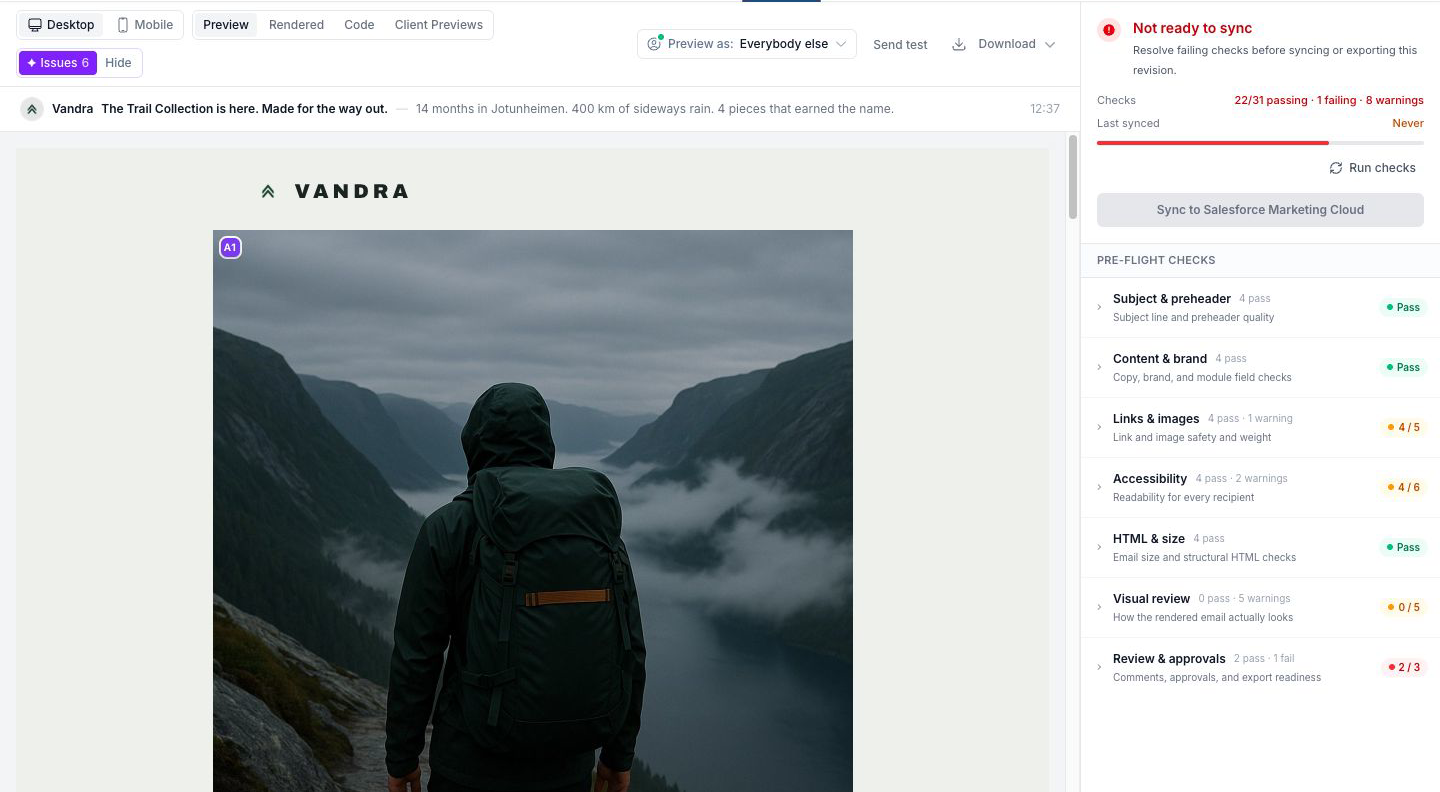
Before a campaign ships, Better Email runs it through a set of automated checks — from mechanical problems like unrendered merge tags and oversized images to AI review of spelling, tone, and how the rendered email actually looks. The results live in the Pre-flight checks panel on the Review tab of the Campaign Workspace.
Which checks run, and whether a failure warns or blocks, is decided by your organization — see Email checks for the admin side.
What gets checked
Checks are grouped the same way in the panel as in the settings:
- Subject & preheader — present and the right length, and (optionally) whether the subject matches the content.
- Content & brand — placeholder text, spelling and grammar, tone of voice, CTA clarity, plus any custom AI rules your organization has written.
- Links & images — HTTPS images, link hygiene, UTM parameters, and network checks that actually request every link and image to confirm they resolve and aren't too heavy.
- Accessibility — alt text (and whether it's actually descriptive), contrast, heading structure, minimum font size, descriptive link text, and more.
- HTML & size — email size against Gmail's clipping limit, unrendered merge tags, script tags, external CSS.
- Visual review — an AI pass over a screenshot of the rendered email: broken layout, illegible text, imagery that contradicts the copy, a buried CTA, broken images.
The panel also keeps the workflow checks under Review & approvals: module fields are valid, the latest revision is current, open review comments are resolved, and required approvers have approved.
Checks marked with ✦ are AI-powered. They score the campaign against a threshold your admin sets — findings from a passing check stay out of your way.
When checks run
Checks run automatically on every revision, and re-run when needed as you open the campaign — you don't have to remember to trigger them. To force a fresh run, click Run checks in the panel. If a run fails, the panel says so and offers a Retry.
Reading the results
Each row shows the check, its status, and a short detail — Pass · 21 KB, 2 findings · 1 dismissed, and so on. Colors follow your organization's policy:
- Amber — a warning. Worth a look, but it won't stop you.
- Red — a blocking failure. The campaign can't sync to your ESP until it's fixed, dismissed, or overridden.
A check that couldn't reach a verdict shows Couldn't verify (or Couldn't check if it hit an error). Inconclusive checks never block an export — only a definite failure does.
AI findings in the preview
AI findings don't just sit in a list — they're anchored to the exact copy they're about. In the preview, flagged text gets a dotted underline with a small numbered badge. Use the ✦ Issues toggle in the preview toolbar to show or hide them.
Click a badge to open the finding. From the popover you can:
- Add as comment — turn the finding into a real comment thread on that module, so it enters your normal feedback flow. The thread is marked as originating from an AI finding.
- Fix with Betty — hand the fix straight to AI.
- Dismiss — waive this specific finding (see below).
The popover also tells you the stakes: blocks sync or warns, doesn't block.
A finding that can't be located in the rendered preview (for example, one about the subject line) shows as a Not in preview chip instead. And in the Feedback sidebar, a filter lets you switch between comments and AI findings so you can work through either list.
Dismissing findings
AI judgment calls can be wrong, so AI and visual findings can be dismissed. A dismissed finding stays dismissed across re-runs, and can be restored from the findings panel if you change your mind. When every finding on a failing blocking check is dismissed, that check stops blocking the export.
Two things to know:
- Deterministic findings can't be waived — a campaign with script tags or unrendered merge tags needs fixing, not dismissing.
- Who may dismiss is governed by your organization's override policy. By default it's admins; organizations can extend this to editors and designers, or turn overrides off entirely.
Syncing with failing checks
When a blocking check is failing, the Review tab shows Not ready to sync with the reasons listed under Blocked. If you're authorized under the override policy, you can still export: click the sync control once to reveal sync anyway, then click again to confirm. Overrides only apply to the latest revision.
Test sends are never gated — you can always send yourself a test while iterating.
Skipping a check for one element
If a check is right in general but wrong for a specific element (a deliberately small legal footer, for example), a design system author can exempt that element with a check-ignore HTML comment. See Email checks for the syntax.
Who can do what
- Everyone on the campaign workspace sees the pre-flight panel and findings.
- Editors, designers, and admins can run checks and export; reviewers can review but not export.
- Dismissing findings and overriding the sync gate follows the organization's override policy (admins by default).
- Configuring which checks run is admin-only, in organization settings.