Recipient Fields / Merge Tags
In the Better Email UI, these are now managed as Recipient Fields. During export, those fields become the merge-tag or personalization syntax your ESP expects.
That means the same underlying field can support:
- personalization in campaign content
- dynamic links and short text values
- segmentation rules
- integration-specific export syntax
Recipient fields vs. merge tags
Inside Better Email:
- Recipient Fields are the fields your team manages in the product
- Merge tags are the final placeholders exported into the ESP
For example, a field like First name may be shown in Better Email as a reusable recipient field, but export as a different code pattern depending on the integration.
Why they matter
Recipient fields make personalization and targeting scalable. Instead of hardcoding ESP syntax in every design system, you define or sync the field once and let Better Email output the right code for each integration.
How recipient fields work in Better Email
Each recipient field has a few important properties:
- a display name for people working in Better Email
- a key used inside design systems and content
- a data type such as text, number, boolean, or date
- an optional integration scope
- an optional ESP field name override
- an optional custom insertion code (the syntax used when the field appears in content)
- an optional custom value expression (the syntax used when the field appears in a condition)
You can leave a field global/manual, or scope it to a specific integration when the ESP mapping should only apply in one send context.
In preview mode, Better Email keeps the field readable for the person editing the campaign. During export, it replaces that placeholder with the correct integration-specific syntax.
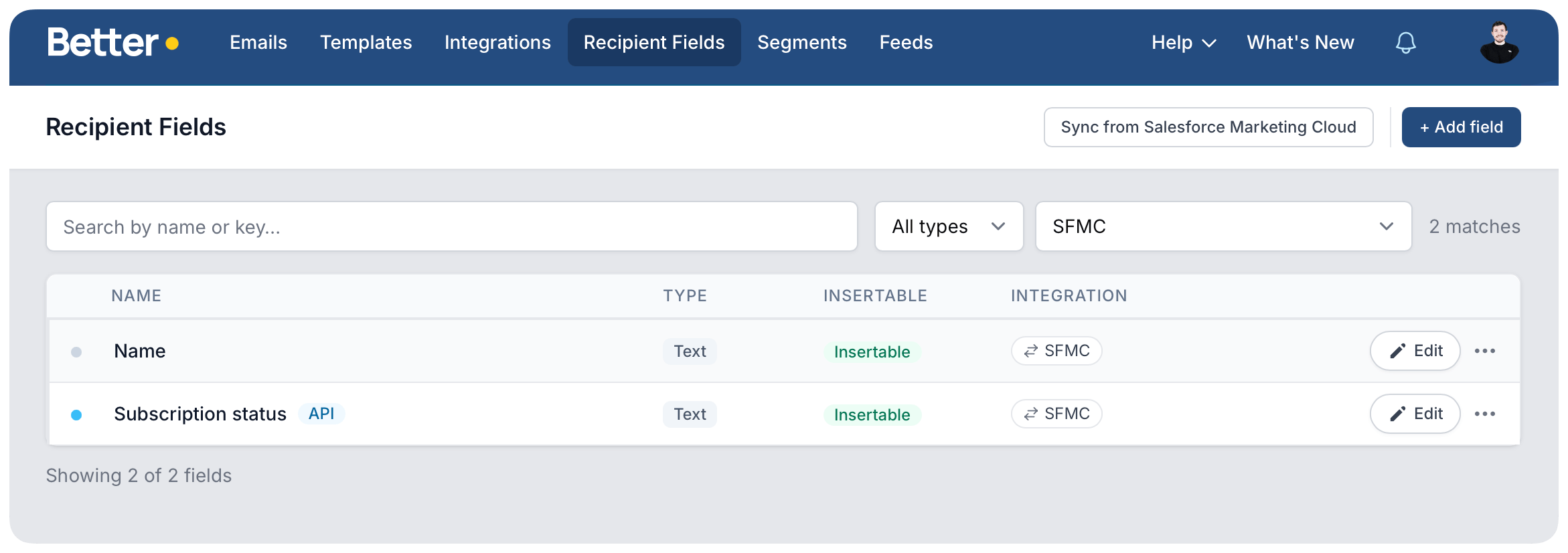
Managing recipient fields
The main management page lives under Recipient Fields.
From there, teams can:
- add fields manually
- create and maintain API-managed fields from external systems
- sync fields from supported integrations
- filter by type or integration
- edit field names, keys, and mapping details
- remove fields they no longer need
Manual fields are useful when you already know the personalization key you need. API-managed fields are useful when another system should maintain field definitions in Better Email. Synced fields are better when Better Email should mirror the field definitions coming from your ESP.
Adding a field manually
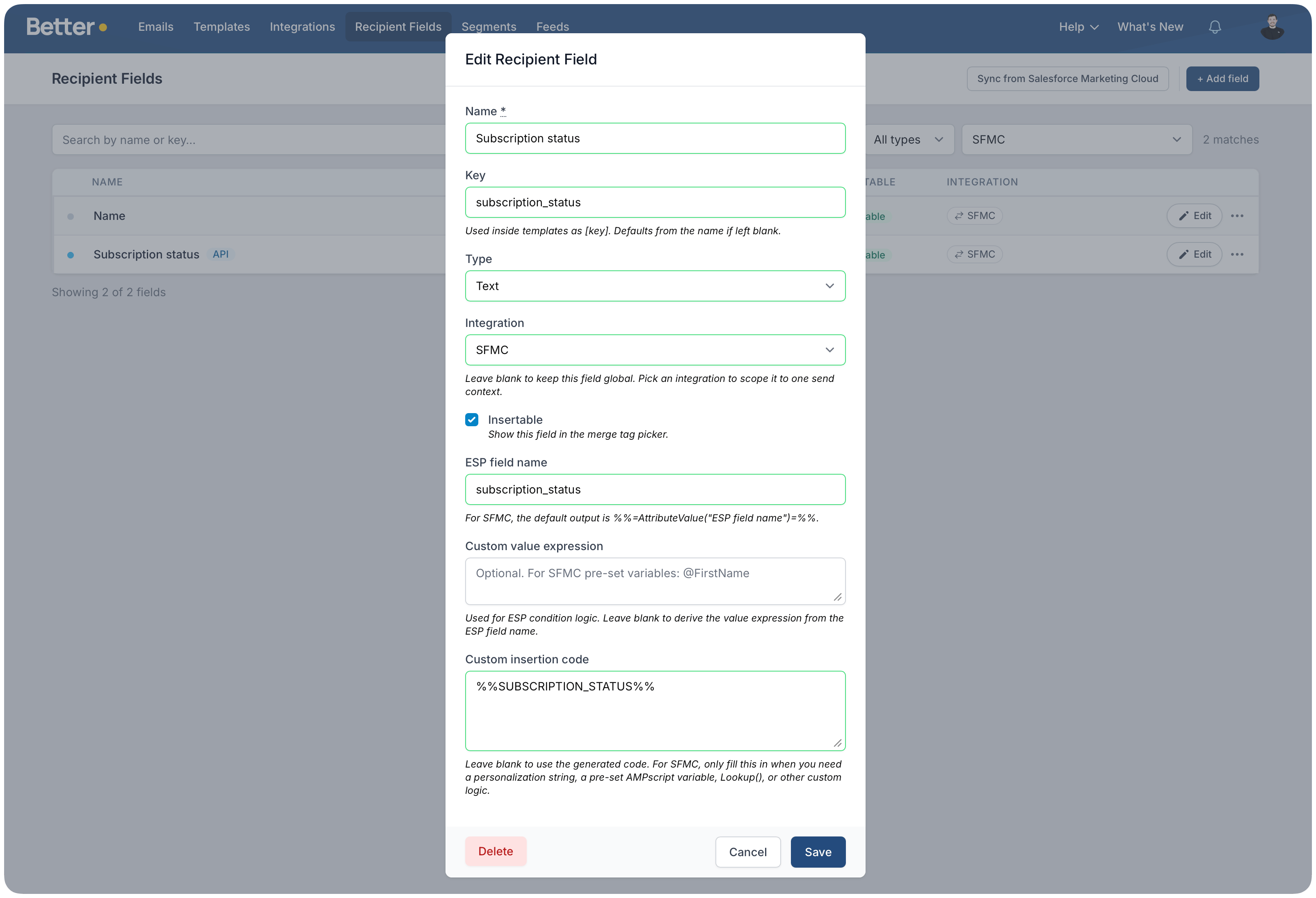
When you create a recipient field manually, Better Email lets you define:
- the display name
- the key
- the data type
- whether the field should be insertable in the editor
- whether the field should be global or tied to a specific integration
- an optional ESP field name override
- an optional custom value expression
- optional custom insertion code
If you leave the key blank, Better Email generates one from the name.
If you leave the integration blank, the field stays global. If you choose an integration, the field becomes scoped to that send context.
Allowed values
A text field can carry a list of allowed values, which turns its condition input into a picker instead of a free-text box. Strict limits rules to the list; suggested offers it while still allowing anything typed.
Each entry has a value and an optional label. The value is what gets compared and sent to the ESP; the label is only what people see. They differ when the ESP stores something unreadable — a Dynamics choice column really stores 2 for Employee, so the value is 2 and the label is Employee, and the rule builder reads Role is Employee. Leave the label blank whenever the value already reads well on its own.
Fields synced from an integration fill this in automatically where the ESP exposes a fixed set of choices.
Insertion code and value expressions
A recipient field can show up in a campaign in two distinct places, and each one needs its own ESP syntax:
- Inserted into content — when the field appears in a greeting, link, or any other editable spot. The ESP needs the full merge-tag syntax with delimiters.
- Used in a condition — when the field is part of a segmentation rule or any conditional code. The ESP needs the bare reference without delimiters.
Better Email exports the right syntax for each case automatically. For example, on Salesforce Marketing Cloud:
| Where the field appears | Exported syntax |
|---|---|
| Inserted into content | %%=AttributeValue("FirstName")=%% |
| Used in a segmentation condition | AttributeValue("FirstName") |
Each integration has its own pair. The defaults cover most ESPs out of the box:
- Salesforce Marketing Cloud — AMPscript
AttributeValue(…) - Klaviyo — Liquid
person|lookup:'…' - Braze —
{{custom_attribute.${…}}} - HubSpot —
{{ contact.field }} - Mailchimp —
*|FIELDNAME|* - Customer.io —
{{ customer.field }}
Custom insertion code
When the default merge-tag syntax isn't what you need — for example a personalization string, an AMPscript variable, or a Lookup() call into a separate data extension — set Custom insertion code on the recipient field. Anywhere the field is inserted into content, Better Email exports your custom code instead of the default.
SFMC examples that benefit from a custom insertion code:
%%FirstName%%for a pre-set personalization string%%=V(@FirstName)=%%to reference an AMPscript variable%%=Lookup("DE","Field","Id",SubscriberKey)=%%to pull a value from a different data extension
Custom value expression
When the default reference used in conditions doesn't match what your ESP expects — for example when SFMC has a pre-set variable like @FirstName instead of a Contact attribute — set Custom value expression on the recipient field. Anywhere the field appears in a segmentation rule or other conditional code, Better Email uses your expression instead of the default.
Keeping insertion code and value expression separate avoids a common class of segmentation bugs where the rule itself looks right but the ESP rejects the conditional code. The same field definition keeps working in both personalization and audience targeting.
Syncing recipient fields from an ESP
Some integrations can sync recipient fields directly into Better Email.
The general flow is:
- Open the integration.
- Turn on
Sync recipient fields. - Save the integration.
- Go to
Recipient Fields. - Click
Sync from <integration name>.
Better Email then creates or updates recipient fields for that integration.
Supported sync details vary by provider. For example:
- SFMC can sync Contact Builder attribute sets
- HubSpot can sync contact properties
- Mailchimp can sync audience merge fields
- Braze can sync custom attributes
If an integration supports choosing field sources first, do that setup in the integration before running the sync.
Using recipient fields in the editor
When a recipient field is marked as Insertable, it can appear in the editor's merge-tag picker and be inserted into supported content areas.
Common uses include:
- greetings and short text personalization
- CTA URLs
- footer or legal values
- other fields where design system authors allow dynamic values
Depending on the input type, design system authors can also allow recipient fields inside fields like text strings or links.
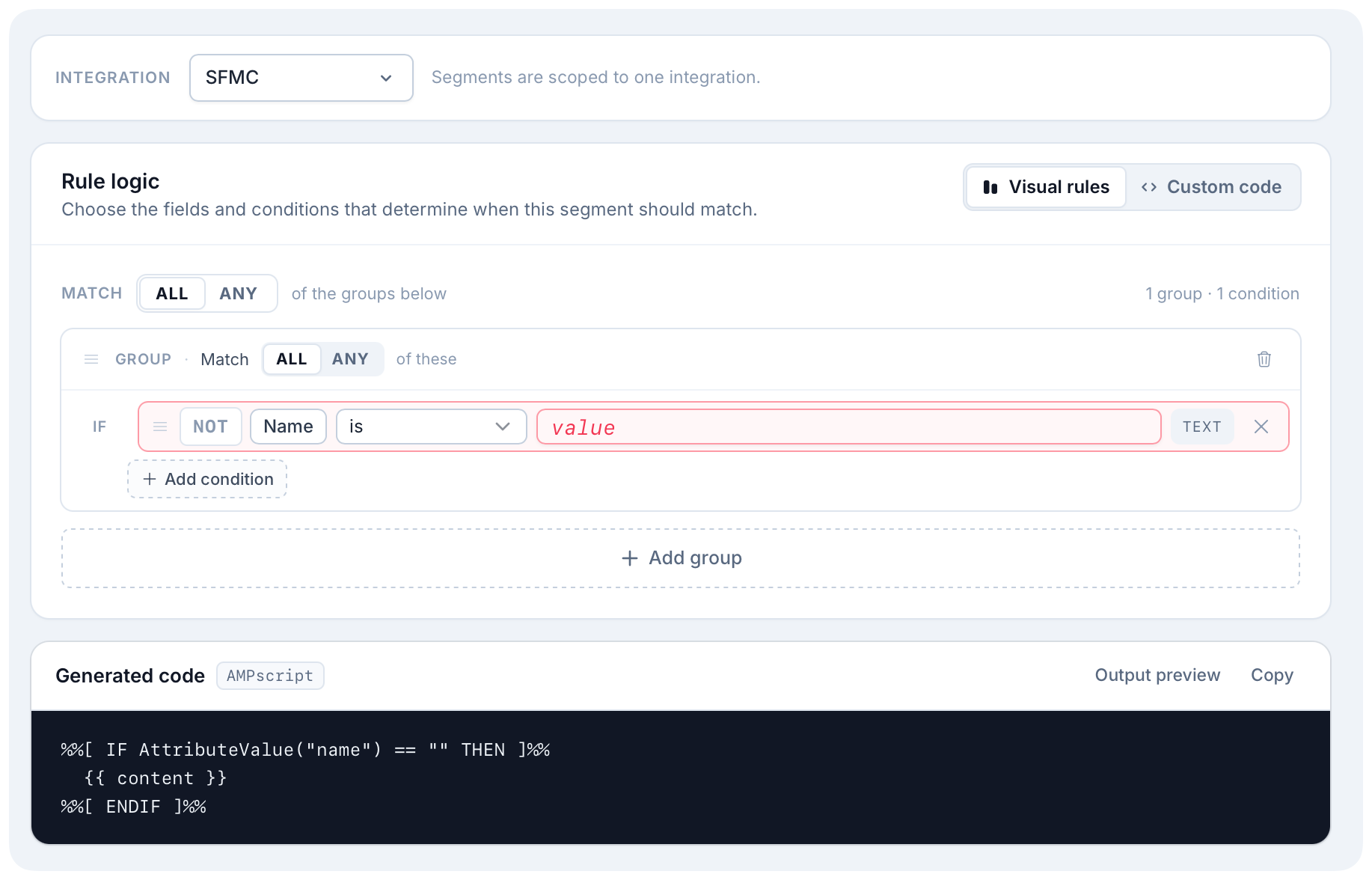
Using recipient fields for segments
Recipient fields are also used to build segmentation rules.
When you create a segment, Better Email lets you choose from the available recipient fields and build rules against them, for example:
tier equals goldcountry equals Denmarkloyalty_points greater than 1000language exists
Better Email then renders the matching segment code in the syntax required by the active integration.
This is why keeping recipient fields clean and well named matters. The same field definitions often power both personalization and audience targeting.
Best practices
- Keep names human-readable so teams can find the right field quickly.
- Use clear, stable keys.
- Prefer sync when the ESP is the source of truth for field definitions.
- Keep a field global only when it truly applies across integrations.
- Mark fields as insertable only when editors should be able to use them directly.
- Review exported output in the target ESP before relying on a new field in production.
- Use recipient fields for true recipient-specific data, not for content that should live in a design system setting.