Countdown Timers, Cloudinary, and Iterable


Ask Betty for a live countdown timer or an image edit. Pick images from Cloudinary right in the image field. Sync Campaigns to Iterable, and see opens and clicks from HubSpot and Dynamics.
Countdown timers and image edits from Betty
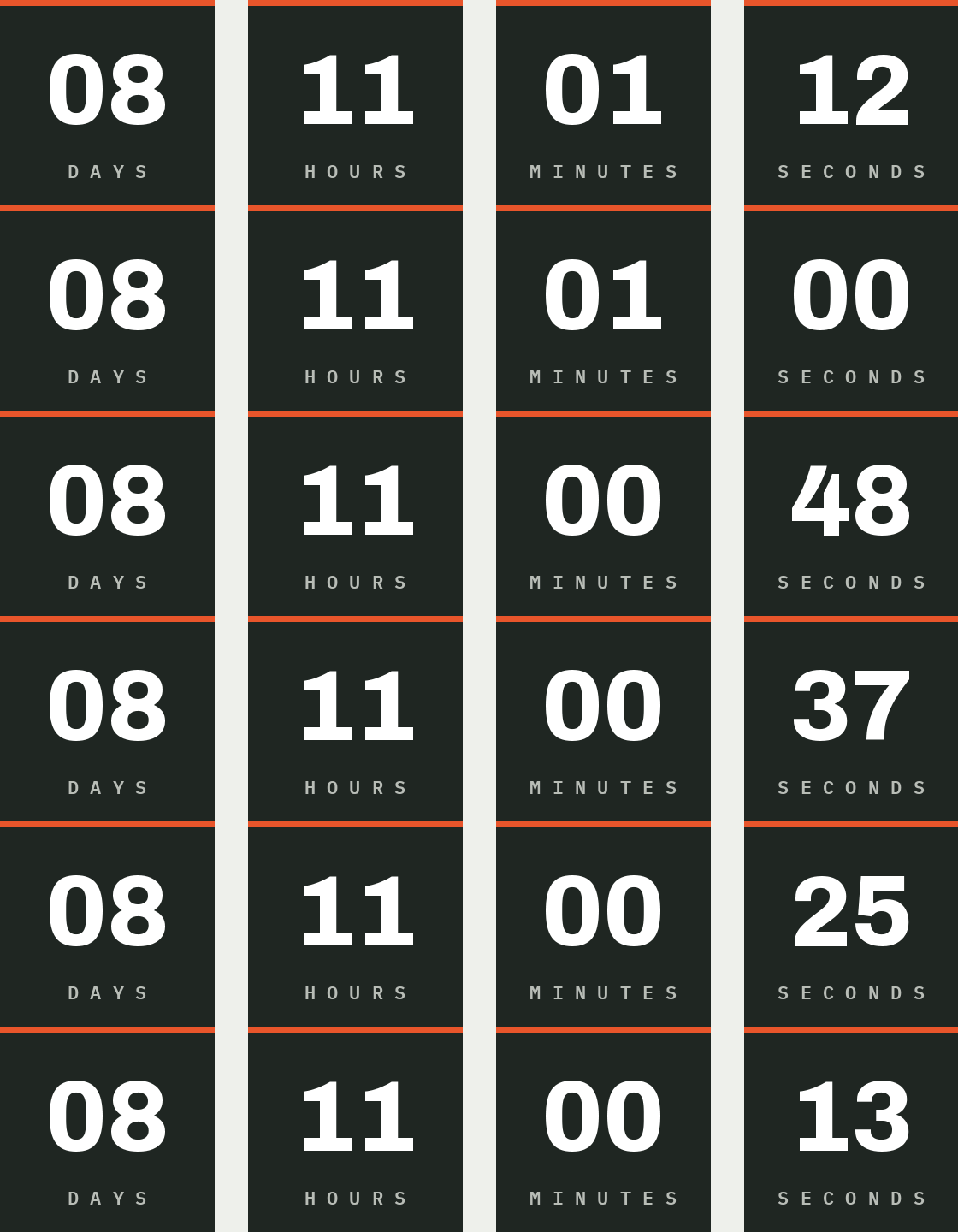
Add an AI Block and describe the countdown, for example "a countdown to our sale ending Friday at 23:59 Copenhagen time, in our brand style." Betty draws the timer in your Design System's fonts and colors and builds the Block. The timer is drawn again every time someone opens the email, so it shows the time left at that moment. Change the deadline in the Block's settings whenever you need to. A timer can also count down to a different date for each recipient, such as the end of their trial. The countdown timers guide covers time zones, date formats and how email clients show the timer.
Betty can now edit images too. Attach one and ask her to change the background, crop it or combine two shots, or name an image that's already in the Campaign, such as "the hero image". She can also make animated GIFs, put a headline on an image in your brand fonts, make an "Add to calendar" invite, and turn a font file into a web font for your Design System. Each result appears in the chat with Open and Download, and Betty can put it in the Campaign for you. See Images, GIFs and files.
Pick images from Cloudinary
An admin can connect Cloudinary in Settings → Betty AI → Connectors. Editors then click Choose from Cloudinary in an image field, search across folders and pick an image. Images outside the field's size limits are greyed out. By default, Better Email copies the image into its own storage, so the Campaign keeps working if someone moves or deletes the original. Betty can search your Cloudinary library too. If you don't see Cloudinary in Settings, contact us to turn it on. The Cloudinary guide explains which API key role to use.
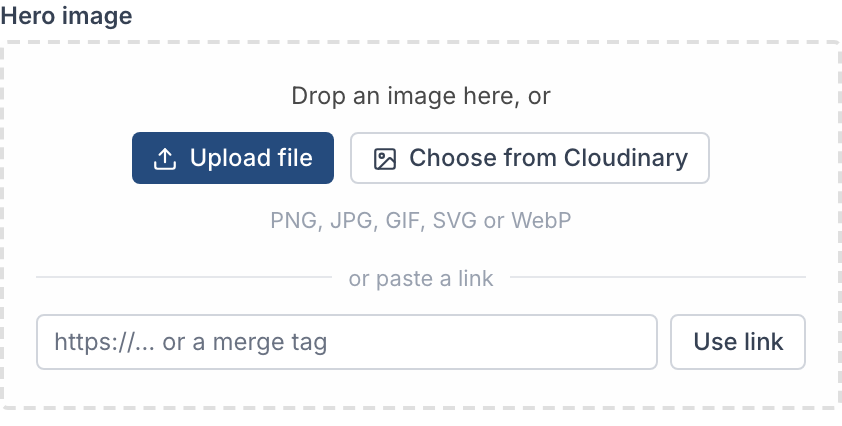
The image field is simpler as well. Drop a file, click Upload file or choose from Cloudinary, all in the same field. Design System authors can also let a field take a pasted link.
Sync to Iterable
Teams on Iterable can now sync Campaigns as Iterable email templates, using a server-side API key. Each Destination sets the sender, reply-to and message type. Turn on Create the campaign in Iterable and Better Email also creates the campaign on the list you pick, ready for you to send from Iterable. Better Email never schedules or sends it. See the Iterable guide.
Improvements
- Integrations Turn on
Sync performance dataon an Iterable, HubSpot or Dynamics 365 Customer Insights - Journeys integration to see sends, opens and clicks on the Performance tab. - Campaign Editor Campaign Overview now lists every Revision with its Design System version, review state and where it was synced. Restore a Revision to the draft, or start a new Campaign from it.
- Betty AI Review & approvals AI Blocks are now on for every Organization. Admins can turn them off in Settings → Betty AI → AI Blocks. To require approval first, turn on Emails with AI Blocks need approval in Settings → Approvals and pick the Approvers. Overriding Pre-flight checks doesn't skip it.
- Design Systems Design System authors can limit which formatting a text input allows, such as bold and links only, in the input's Formatting settings. Existing text loses the other formatting the next time someone edits it.
- Campaign Editor Links inside rich text now take per-link tagging values, as link inputs already did, and Betty can fill them in.
Fixes
- Integrations Braze emails with recipient conditions showed every recipient the same content. If you synced one, sync it again. Braze recipient field sync now also lists standard attributes such as first name and country. Turn on the ones you need.
- Review & approvals The Review tab now shows a Revision in the Design System version it was made with, not the newest one.
- Integrations Better Email now calls Salesforce Marketing Cloud from a fixed IP address, so accounts that restrict API access by IP can allowlist it. Contact us for the address.