How to add audio to an HTML email

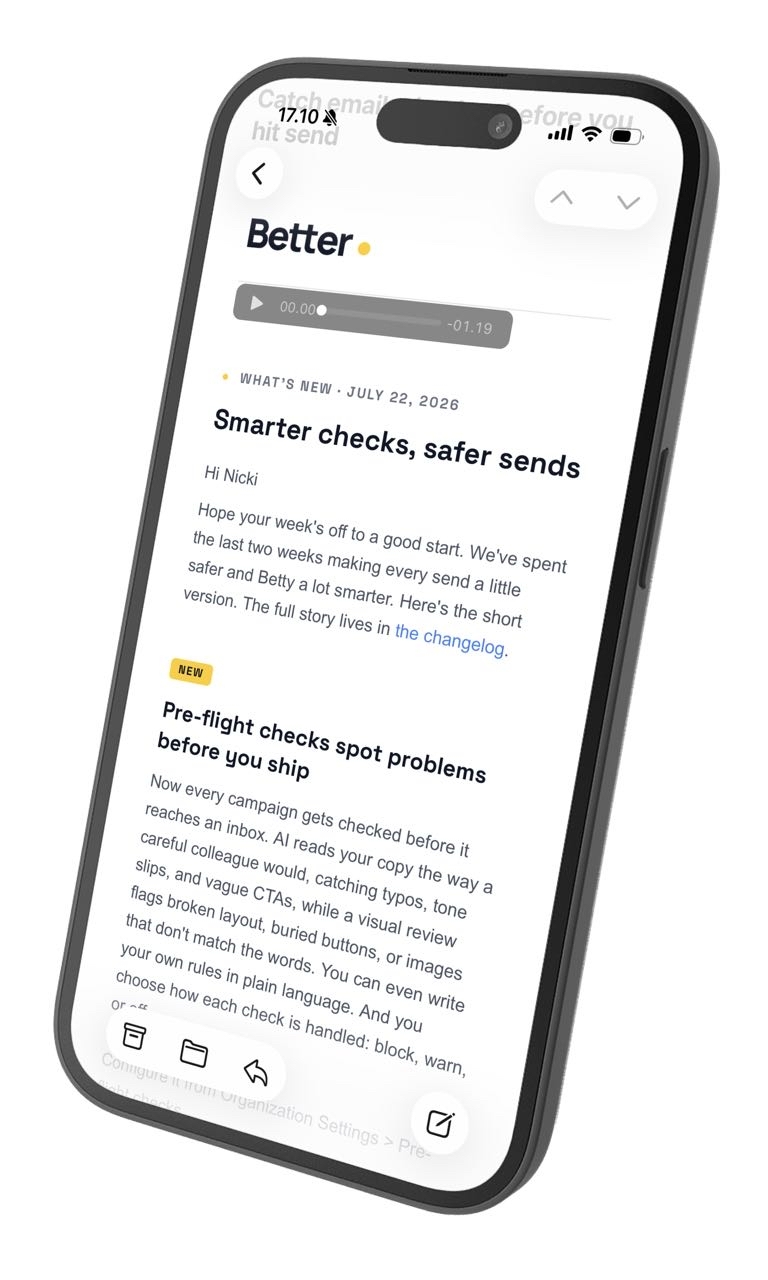
Listen to the article:
Adding a play button to an email sounds simple. Add an <audio> element, point it at an MP3, and ship it.
Then you open the campaign in Gmail or Outlook and discover the real problem: email clients do not agree on whether the player should render, whether it should play, or whether its fallback content should survive sanitization.
Audio in email can still work well. The safe approach is progressive enhancement. Recipients in supporting clients get a native player. Everyone else gets a clear link to a web version where the audio can play normally.
This guide explains the production pattern we use, why each part exists, and what to test before sending.
The short answer
Use native HTML audio as an enhancement, never as the only way to access the content.
<audio controls preload="none">
  <source
    src="https://showcase.better.email/Betty_on_Deck.mp3"
    type="audio/mpeg"
  />
  <a href="https://example.com/product-update">
    Listen in the web version
  </a>
</audio>
The text and link inside <audio> are fallback content. A client that does not support the element may show that content instead of the player.
That small example is a useful starting point, but it is not enough for a production campaign. Some clients remove the element and everything inside it. Others display a player that cannot load the audio because of security restrictions. That is why the complete pattern also includes a separate fallback link.
Where audio works
The inbox decides whether your listener gets a player or a fallback. Here is the landscape, split properly between desktop apps, webmail, and mobile apps.
Desktop apps
| Client | Platform | Native audio |
|---|---|---|
| 🍎 Apple Mail | macOS | ✅ |
| 🦊 Thunderbird | macOS | ✅ |
| 🦊 Thunderbird | Windows | ✅ |
| 📧 Outlook | macOS | ❌ |
| 📧 Outlook | Windows | ❌ |
| 🪟 Windows Mail | Windows | ❌ |
Webmail
| Client | Native audio |
|---|---|
| 🟢 SFR Mail | ✅ |
| 📬 Gmail | ❌ |
| 📧 Outlook.com | ❌ |
| 🟣 Yahoo Mail | ❌ |
| 🔵 AOL Mail | ❌ |
| 🛡️ Proton Mail | ❌ |
| ✉️ Fastmail | ❌ |
| 👋 HEY | ❌ |
| 🟠 Orange Mail | ❌ |
| 🔵 GMX | ❌ |
| 🔵 WEB.DE | ❌ |
| 🟦 Mail.ru | ❌ |
| 🟦 1&1 Mail | ❌ |
Mobile apps
| Client | Platform | Native audio |
|---|---|---|
| 🍎 Apple Mail | iOS and iPadOS | ✅ |
| 📱 Samsung Email | Android | ✅ |
| 🍎 iCloud Mail | iOS | ✅ |
| 🟢 SFR Mail | iOS | ✅ |
| 🟢 SFR Mail | Android | ✅ |
| 🟦 1&1 Mail | Android | ✅ |
| 📬 Gmail | iOS | ❌ |
| 📬 Gmail | Android | ❌ |
| 📧 Outlook | iOS | ❌ |
| 📧 Outlook | Android | ❌ |
| 🟣 Yahoo Mail | iOS | ❌ |
| 🟣 Yahoo Mail | Android | ❌ |
| 🔵 AOL Mail | iOS | ❌ |
| 🔵 AOL Mail | Android | ❌ |
| 🛡️ Proton Mail | iOS | ❌ |
| 🛡️ Proton Mail | Android | ❌ |
| 🟠 Orange Mail | iOS | ❌ |
| 🟠 Orange Mail | Android | ❌ |
| 🔵 GMX | iOS | ❌ |
| 🔵 GMX | Android | ❌ |
| 🔵 WEB.DE | iOS | ❌ |
| 🔵 WEB.DE | Android | ❌ |
The results above follow the latest tests recorded in <audio> support on Can I email. Client behavior changes, so check the source again before a major send.
Perfect fallback for every email client
When a client does not support <audio>, the best fallback is not a raw MP3 link. It is a link to the web version of the email.
The web version opens in a browser, which is a full rendering environment. The browser handles the audio player natively, no email client quirks, no sanitization, no CSP restrictions. You get full control over the player, transcript, analytics, and any next action. The recipient gets a seamless experience regardless of which client they use.
The following pattern starts with the fallback visible and the player hidden. Supporting WebKit clients switch those states. Each CSS block is written per client so you understand exactly what it targets and why.
Replace the MP3 URL and fallback link with your own before sending.
<style type="text/css">
/* Default: hide the audio player, show the fallback link.
This is the safe baseline for all clients that do not support audio. */
.audio-player {
display: none;
}
.audio-fallback {
display: inline-block;
}
/* Apple Mail (macOS and iOS) and other WebKit clients:
show the native player, hide the fallback link.
@media screen and (-webkit-min-device-pixel-ratio: 0) matches WebKit. */
@media screen and (-webkit-min-device-pixel-ratio: 0) {
.audio-player {
display: block !important;
}
.audio-fallback {
display: none !important;
}
}
/* Outlook on the web (desktop):
It can match WebKit CSS but blocks remote media via Content Security Policy.
#MessageViewBody is added by Outlook webmail around email content.
We force the fallback back on so the player does not appear broken. */
#MessageViewBody .audio-player {
display: none !important;
}
#MessageViewBody .audio-fallback {
display: inline-block !important;
}
/* Outlook on the web (desktop) - class prefix variant:
Outlook webmail prefixes all class names with x_ during pre-processing.
The attribute selector [class~="x_audio-player"] catches the renamed class
without being renamed itself, so this rule still fires in Outlook webmail. */
[class~="x_audio-player"] {
display: none !important;
}
[class~="x_audio-fallback"] {
display: inline-block !important;
}
/* Gmail (mobile and web):
Gmail rewrites the doctype to <u></u>, which becomes a sibling of the
body element. u ~ div targets the wrapper div Gmail inherits from body.
This restores the safe default inside Gmail. */
u ~ div .audio-player {
display: none !important;
}
u ~ div .audio-fallback {
display: inline-block !important;
}
/* Yahoo Mail (webmail):
Yahoo wraps email content in a div with id="mailcontent" or class="body".
The .body selector targets Yahoo and avoids other clients because
Yahoo removes the class from the actual <body> tag. */
.body .audio-player {
display: none !important;
}
.body .audio-fallback {
display: inline-block !important;
}
</style>
<!-- The native audio player. Hidden by default, shown in WebKit clients. -->
<div class="audio-player">
<audio controls preload="none">
<source
src="https://showcase.better.email/Betty_on_Deck.mp3"
type="audio/mpeg"
/>
<!-- Inner fallback for clients that parse but cannot play audio -->
<a href="https://example.com/product-update">
Listen in the web version ►
</a>
</audio>
</div>
<!-- Fallback link. Shown by default, hidden in WebKit clients.
Links to the web version of the email so the browser handles playback. -->
<a
class="audio-fallback"
href="https://example.com/product-update"
style="font-family: Arial, sans-serif;
font-size: 15px;
line-height: 24px;
font-weight: bold;
color: #3b82f6;
text-decoration: none;"
>
Listen in the web version ►
</a>
<!-- Outlook for Windows (conditional comment):
Classic Outlook uses Microsoft Word to render HTML. It ignores CSS classes
and media queries entirely. The MSO conditional comment targets it directly.
Everything between [if mso] and [endif] is only seen by Outlook for Windows. -->
<!--[if mso]>
<div style="margin-top: 8px;">
<a
href="https://example.com/product-update"
style="font-family: Arial, sans-serif;
font-size: 15px;
line-height: 24px;
font-weight: bold;
color: #3b82f6;"
>
Listen in the web version ►
</a>
</div>
<![endif]-->
This pattern is intentionally defensive. Email CSS targeting techniques depend on client-specific behavior, so treat them as tested compatibility rules rather than web standards. Reference howtotarget.email for the latest client-specific selectors.
Better Email production code
In Better Email, the audio component uses Liquid variables so the template is configurable per campaign. Here is the production-ready pattern without Liquid for reference:
<td align="left" style="vertical-align: middle;">
<audio controls>
<a href="https://example.com/product-update" style="font-family: Arial, sans-serif; font-size: 15px; line-height: 24px; font-weight: bold; color: #245157; text-decoration: none;">
Listen to the update ►
</a>
<source src="https://showcase.better.email/Betty_on_Deck.mp3" />
</audio>
<!--[if !mso]><!-->
<a href="https://example.com/product-update" class="show-outlook" style="font-family: Arial, sans-serif; font-size: 15px; line-height: 24px; font-weight: bold; color: #245157; text-decoration: none; display: none;">
Listen to the update ►
</a>
<!--<![endif]-->
</td>
The fallback_link should point to the web version of the email. If no web version link is available, fall back to the raw audio file URL. The show-outlook class is toggled by the MSO conditional comment so Outlook for Windows sees the link and not the broken player.
What each part does
The native player
<audio controls preload="none">
controls asks the client to show its native play, pause, timeline, and volume interface.
preload="none" asks the client not to fetch the file until the recipient interacts. It reduces unnecessary transfer and helps avoid counting a preload as a listen. A client or security scanner can still ignore the hint.
Avoid autoplay. It is frequently blocked and can surprise recipients in public or quiet environments.
The source element
<source src="https://showcase.better.email/Betty_on_Deck.mp3" type="audio/mpeg" />
The source must use HTTPS and be reachable without authentication. MP3 is the practical default for broad playback support. AAC in an M4A container is also a good option for Apple focused audiences.
The web version fallback
Link to the web version of the email, not only the raw audio file. When the recipient opens the web version in a browser, the browser handles playback natively - no email client restrictions apply.
If your sending platform provides a hosted web version token, use that URL. In Better Email, the exported code contains the web version token for the destination platform.
Hosting and tracking considerations
The audio file must be hosted publicly and accessible without authentication. Both browsers and email clients need to be able to load it directly from the URL - no login, no token, no redirect that strips the request.
Serve the file over HTTPS with the correct MIME type (audio/mpeg for MP3) and support byte range requests, since media players often request only part of a file at a time.